Fixed-desk screen seeker
If you mainly need room for documents and work applications at home, compare screen size, inputs and desk fit. Dell UK and Lenovo UK specifications illustrate different screen and connection options.


Choose the screen first, then match its connection to your computer’s video output and supported external-display count. A direct cable may be enough for one display; a dock can help if you regularly reconnect several devices, while a KVM is for switching one screen and peripherals between two computers. Check charging requirements and workplace restrictions before choosing a shared-peripheral setup.
If you mainly need room for documents and work applications at home, compare screen size, inputs and desk fit. Dell UK and Lenovo UK specifications illustrate different screen and connection options.
If you regularly move your laptop and reconnect a screen and other devices, check its video and charging capabilities before choosing a dock. StarTech.com explains the requirements for USB-C video, while Dell UK lists model-specific dock power delivery.
If you want a work and personal computer to take turns using a screen and input devices, check both connection paths and your workplace rules. BenQ and ATEN provide model-specific KVM information, and the UK National Cyber Security Centre discusses organisational policy for personal devices.
| Concern | What to check when buying | Who this matters to |
|---|---|---|
| Usable screen space | Compare screen size, resolution, desk fit and inputs; choose a display that suits the work you need to keep visible. | I need enough room to keep documents and work applications visible at my desk; around 36% of consumers put usable screen space first. |
| Video compatibility | Check the exact computer’s video output and external-display limit. StarTech.com notes that USB-C DisplayPort Alternate Mode support is needed across the host, cable and connected display or adapter. | If I am unsure whether my computer and screen can use the same video connection, I want to confirm the whole path before buying; roughly 29% of consumers prioritise compatibility. |
| Reconnection and charging | Count the display and USB connections you need, then compare power delivery with your computer’s charging requirement. Dell UK lists up to 100 W for the P2426HE monitor and 100 W for Dell systems and 96 W for non-Dell systems with the WD25 dock. | I regularly reconnect my laptop and desk devices, so fewer repeated plugs and suitable charging matter; about 21% of consumers prioritise reconnection and charging. |
| Sharing between computers | Check both computers’ video and USB connections and the KVM’s display limits. ATEN specifies a two-computer USB/HDMI setup for the CS22H; check workplace restrictions before sharing peripherals. | I want my work and personal computers to take turns using one screen and input devices; around 14% of consumers prioritise switching between two computers. |
USB-C video depends on support throughout the connection path, not just the connector’s shape.
Check the exact computer port, cable and display or adapter specifications before buying. StarTech.com’s guidance explains the DisplayPort Alternate Mode requirement.
The computer’s own external-display support and the dock’s capabilities are separate specifications. Extra sockets do not increase the computer’s native display limit.
Check your exact computer model’s display limit and charging requirement against the dock’s specifications.
A KVM provides a way to switch connections; it does not determine whether your organisation permits its work computer to share USB peripherals.
Check the applicable workplace restrictions before connecting shared peripherals. The UK National Cyber Security Centre recommends setting out organisational and employee responsibilities in policy.
Dell’s P-series hub monitor and WD-series dock illustrate the choice between connections built into a screen and a separate desk dock.
The ThinkVision T27QD-40 is a 27-inch QHD monitor with USB-C docking connections for a compatible desk setup.
Its UK technical guidance is relevant when assessing a direct USB-C display connection or adapter.
Monitor-based KVM setups are relevant when two computers need to take turns using one screen and USB peripherals.
The CS22H illustrates a separate HDMI-and-USB KVM route for two computers sharing a desk setup.
These listings are external monitors for a home desk. Match the monitor’s stated inputs to your computer’s output and check the computer’s supported display limit.
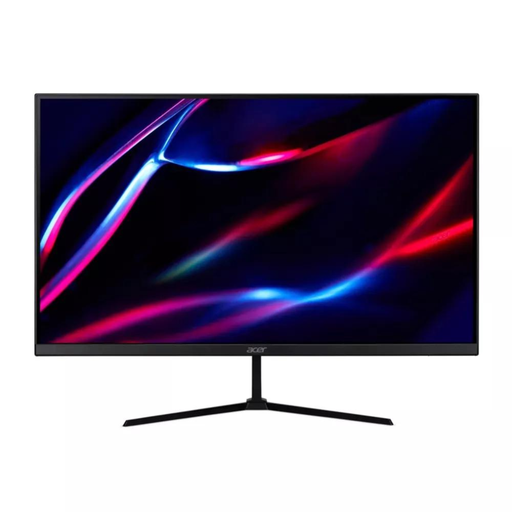 No image available
For a fixed desk where a separate screen for work applications is the priority; match its listed inputs to your computer.
The product name specifies QHD, IPS, 180Hz, 2 × HDMI and DisplayPort.
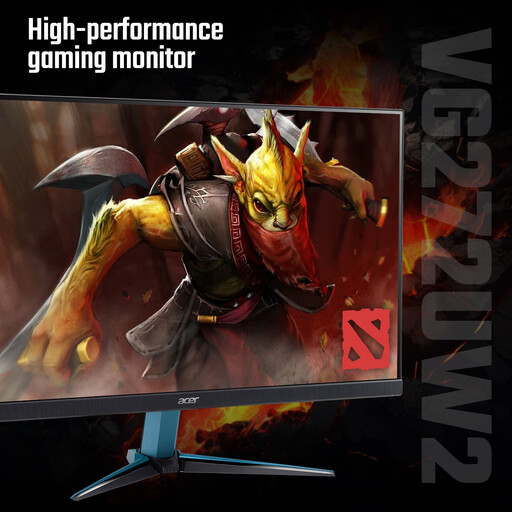 No image available
Consider it if you want a 27-inch external screen; check its connection options against your computer before buying.
The product name specifies QHD, 240Hz and 400 nits.
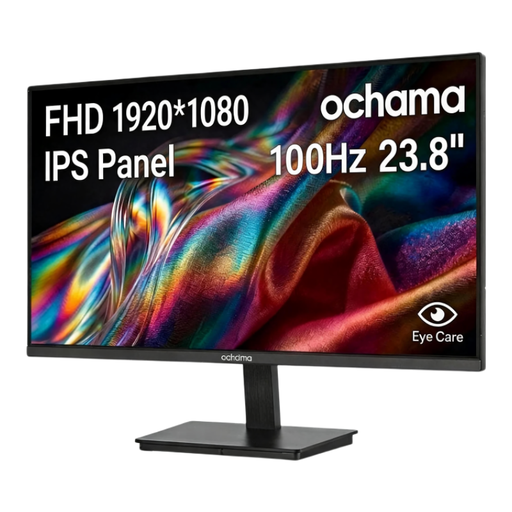 No image available
A 23.8-inch option for a fixed desk; check the monitor’s connection options against your computer’s outputs.
The product name specifies 1080P, 100Hz and a three-sided narrow-bezel design.
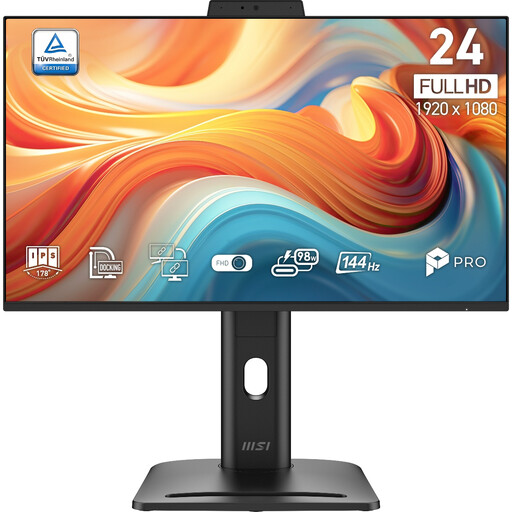 No image available
For a fixed desk where screen positioning matters, check that your computer has an output matching the monitor’s inputs.
The product name specifies 1920 × 1080, 144Hz and Adaptive-Sync. Listed inputs are HDMI, DisplayPort and VGA; the description lists tilt, swivel, pivot and height adjustment.
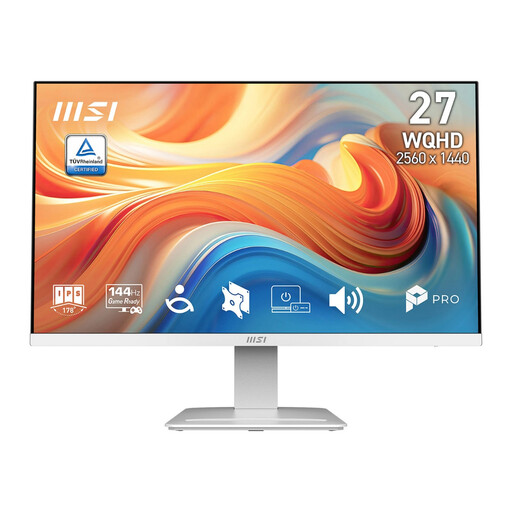 No image available
A 27-inch option for keeping more work applications visible; check that your computer supports the intended display output.
The product name specifies 2560 × 1440, 144Hz and IPS. The description lists HDMI, DisplayPort, speakers and tilt, swivel, pivot and height adjustment.
No. For USB-C video using DisplayPort Alternate Mode, check support across the computer’s port, cable and connected display or adapter. Also confirm the exact laptop’s supported external-display count.
Connect video from both computers and provide the required USB upstream connection as well as connections for your input devices. BenQ’s instructions specify a setting change when HDMI is the second source; follow the instructions for the particular monitor.
The relevant workplace restrictions depend on your organisation and setup. The UK National Cyber Security Centre’s guidance addresses organisational policies for personal devices, rather than establishing a blanket rule for every monitor or peripheral; check your employer’s policy before connecting shared devices.
Where a workstation assessment shows that extra display-screen equipment is needed, the Health and Safety Executive says an employer cannot charge for it. The HSE also says the regulations can apply to people who routinely split their time between home and the workplace; they do not apply to occasional or short periods of home display-screen use.