What matters when choosing?
Decide whether you need a screen that stays on the desk or moves with you. Then check how your laptop will connect and whether the complete setup fits your working position.
Conventional desktop monitor
Choose when: You have a mainly fixed desk and can match the laptop’s video output to the monitor’s input.
Allow for: You may still need a separate laptop charger or an adapter.
USB-C or docking monitor
Choose when: Your laptop supports video through the intended port and you want a display connection that may also handle charging or peripherals.
Allow for: Video, charging and hub functions depend on the laptop, monitor and cable.
Portable monitor
Choose when: You need to move the second screen or pack it away after use.
Allow for: Check its power connection and whether its stand reaches a workable viewing position.
Monitor with a separate dock or adapter
Choose when: Your preferred monitor and laptop need a connection between them, or you need additional compatible peripheral connections.
Allow for: The dock or adapter adds another item to accommodate and check for compatibility.
| Concern | What to check | Who this matters to |
|---|
| Room for simultaneous tasks |
Check the laptop’s supported external-display setup and whether you want an extended rather than duplicated desktop. |
If I need coursework or reference material visible while I work, avoiding repeated window switching is my priority. Around 31% of consumers considering a laptop second screen put additional workspace first. |
| Connection and cable simplicity |
Match the laptop’s video output to the monitor input; for USB-C charging, check the port, cable and power requirements. |
When I connect my laptop at a home desk, I want the intended video connection to work without an awkward arrangement of cables. Around 31% of consumers put connection simplicity first. |
| Desk fit and screen position |
Measure usable desk width and depth, then check the stand footprint and adjustment or mounting requirements. |
On a shallow or shared desk, I need space for my laptop and keyboard as well as a screen I can position comfortably. For around 23% of consumers, desk fit and placement are the primary concern. |
| Moving or storing the screen |
Check packed size, the supplied stand arrangement and how the display receives video and power. |
If I cannot leave a second display set up, being able to move or store it matters most. Around 15% of consumers prioritise that flexibility. |
Brands to consider
These ranges offer different fixed-desk, USB-C and movable-screen options. Connection and adjustment features vary by model.
Dell
Dell’s monitor range includes conventional displays and USB-C or hub-oriented models for fixed desks.
- Dell’s product listings describe USB-C power delivery and adjustable stands on selected models.
- Confirm the exact monitor’s output and your laptop’s video and charging support before planning a single-cable setup.
LG
LG’s UltraFine and Ergo lines include options for USB-C charging or an adjustable clamp-based stand.
- LG specifies USB-C power delivery and multi-axis stand adjustment on particular models.
- Check the chosen variant’s wattage, the desk edge needed for a clamp and your laptop’s requirements.
Lenovo
Lenovo ThinkVision includes USB-C and docking monitors for compatible laptop connections.
- Lenovo describes selected models with charging, USB hubs and Ethernet connectivity.
- An older device may need an adapter, and the available functions depend on the connection used.
ASUS
ASUS offers ZenScreen options for movable setups as well as business monitors for fixed desks.
- ASUS describes USB-C, HDMI and stand options across selected models.
- Check the particular model’s inputs and power arrangement against the laptop rather than assuming one-cable operation.
Joybuy monitor options
These options include fixed-desk monitors and a ZenScreen model to consider for a workspace that needs to change or pack away. Match any screen to your laptop’s output and your available desk space before choosing.
 No image available
ASUS ZenScreen MB249C IPS USB-C
Consider this ZenScreen for a desk where moving or storing the second display matters. Its name identifies an IPS screen and USB-C connection; check your laptop’s video output and charging needs before planning a single-cable arrangement.
View on Joybuy
 No image available
Dell P2425H 24-inch Full HD monitor
Consider this fixed-desk display if its inputs match your laptop’s video output. The product name specifies a 24-inch 1920 × 1080 IPS screen, 100 Hz refresh rate, and HDMI, DisplayPort, VGA and USB-C connections. Check the USB-C functions before relying on that port for video or charging.
View on Joybuy
 No image available
Lenovo L32p-30 31.5-inch 4K UHD monitor
Consider this fixed-desk model if you want a 31.5-inch second screen and have measured room for it. The product name specifies 4K UHD, IPS and USB-C; check the exact USB-C video and charging arrangement against your laptop before relying on one cable.
View on Joybuy
 No image available
AOC Q32V4 31.5-inch IPS monitor
Consider this 31.5-inch fixed-desk screen if its size suits your measured workspace. The product name identifies an IPS panel and built-in speakers; check the inputs, stand footprint and available adjustments against the setup you intend to use.
View on Joybuy
 No image available
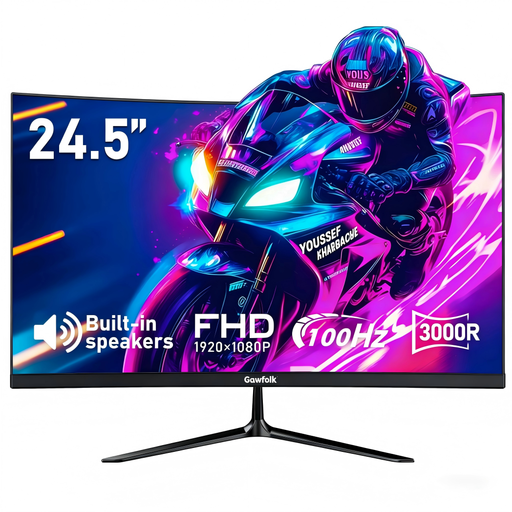
Gawfolk 24.5-inch Full HD curved monitor
Consider this fixed-desk option if a 24.5-inch curved screen fits your space and intended connection. The product name specifies HDMI, built-in speakers and a 75 × 75 mm VESA mounting pattern; check the stand footprint or a proposed mount before purchase.
View on Joybuy
Common questions
How can I tell whether my laptop will work with a USB-C monitor?
Check the exact laptop model’s documentation for video output through the port you intend to use, then match it to the monitor input and cable. VESA describes DisplayPort Alt Mode as a way to carry video over USB-C; the connector’s shape alone does not establish that your laptop supports it.
When would I need a separate dock or adapter?
You may need one when the laptop’s available video output does not connect directly to your chosen monitor input, or when you want additional compatible peripheral connections. Check the laptop, dock or adapter, cable and monitor as a complete connection path; Apple advises using the appropriate cables and adapters for an external display.
Can a USB-C monitor replace my laptop charger?
It can do so only if your laptop accepts charging through that port and the monitor and cable provide suitable power. Compare the monitor’s power-delivery rating with the charging requirement specified by your laptop maker before setting aside its charger.
What should I check before buying a monitor arm?
Check the monitor’s mounting pattern against the arm, the arm’s supported screen size and weight, and whether your desk suits its clamp or other fitting. VESA identifies its Flat Display Mounting Interface as a mounting standard, but that alone does not establish compatibility between a particular monitor, arm and desk.


