What to check before buying
Decide whether you need to switch the picture alone or the picture and controls together, then check each laptop’s connections and any work-device restrictions.
MoneySavingExpert Forum discussions from 2021 and 2022 describe cable-swapping and port-mismatch concerns for multi-laptop desks; they illustrate these needs rather than establish how common they are.
| Concern |
What to check when buying |
Who this matters to |
| Getting a picture from both laptops |
Check each laptop’s documented video outputs, the monitor inputs and the number of screens you intend to use. For USB-C video, check support across the connection path. |
I need both laptops to drive the screens I plan to use before I choose a switching setup. About 31% of consumers put getting the required picture from both laptops first. |
| Switching screens and controls together |
Check whether the exact monitor or switch has KVM functionality and the required video and USB connections for both computers. |
I want the shared screen, keyboard and mouse to follow the selected laptop rather than changing each one separately. About 25% of consumers put whole-desk switching first. |
| Connecting a laptop with older or different ports |
Check the laptop’s actual ports, supported operating system and whether the proposed USB graphics device requires software or separate laptop power. |
I need to connect a laptop whose ports differ from the other computer’s, without assuming that a plug adapter provides video. About 19% of consumers put older-laptop support first. |
| Keeping controls simple |
Check how the monitor selects its inputs and whether the exact keyboard or mouse supports switching between the computers. |
I can select the screen separately and would rather avoid a more integrated setup if I do not need one-action switching. About 13% of consumers put simple, separate controls first. |
| Permission to use work-device hardware or software |
Check the applicable employer rules for docks, USB peripherals and any display drivers before connecting a managed laptop. |
I need to know whether my work laptop can use the proposed hardware or software before choosing a setup. About 12% of consumers put work-device permission first. |
Joybuy monitor options
These Joybuy choices are monitors associated with shared-desk display needs. Check each model’s documented inputs and whether it provides KVM switching; having multiple devices or a second screen does not by itself establish shared keyboard-and-mouse control.
 No image available
BenQ MA270UP Nano Glossy IPS 4K UHD USB-C Monitor
Consider it if you are looking for a 27-inch Mac monitor with USB-C; the product name also specifies HDR and P3. Check its documented connections and whether it includes the KVM function you need.
Joybuy
 No image available
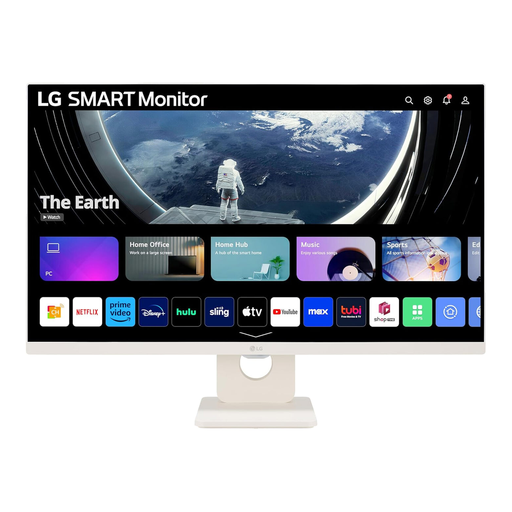
LG Smart Monitor 27U511SA-W Full HD IPS
This 27-inch monitor is listed with Full HD 1080p resolution, a 100Hz refresh rate, built-in speakers, Wi-Fi, Bluetooth and webOS smart TV apps. Check the exact model’s input and peripheral-switching functions before using it to share a desk between laptops.
Joybuy
 No image available
MSI MD272UPSW 27-inch 4K UHD Smart Monitor
The product name lists an IPS panel, Google TV, Dolby Audio, USB-C 65W and Multi-Control. Check what Multi-Control does on this exact model and whether its connections suit both laptops; the feature name alone does not establish a particular KVM setup.
Joybuy
 No image available
ASUS ZenScreen MB249C IPS USB-C
Consider this monitor if you are comparing USB-C display options for a shared desk. USB-C video depends on the laptop and connection path supporting the required features, so check the exact device compatibility before buying.
Joybuy
 No image available
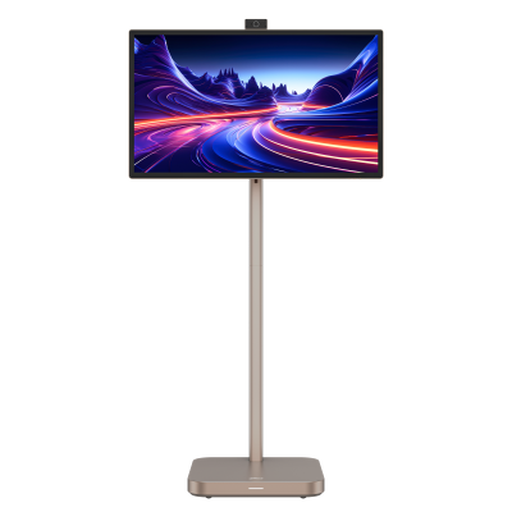
Dahua 31.5-inch 4K Explorer Portable Smart Monitor
The product name specifies a 4K UHD IPS panel, Android 11, 8GB+128GB storage and a built-in battery with up to 4-hour battery life. Check the exact connections and intended display arrangement for both laptops before choosing it for a shared desk.
Joybuy
Frequently asked questions
Will any USB-C dock display video from both laptops?
No. For native USB-C DisplayPort Alt Mode video, check support across the laptop, cable and connected device, as well as each laptop’s supported display arrangement. A conventional single-host dock is not automatically a switch for two laptops.
Can a USB-A-to-USB-C adapter make an older laptop work with a USB-C video dock?
Do not assume the adapter provides video support. If the laptop lacks a suitable native video path, check whether a specifically supported USB graphics dock works with its operating system and whether separate laptop power is needed.
How do I set up a monitor’s built-in KVM?
Follow the instructions for the exact monitor: connect video from each computer, provide the required upstream USB connections and attach the shared controls to the monitor’s downstream ports. Dell notes that KVM is available only on select monitors, so check the model’s documentation before planning the setup.
Do I need software, and may I use a switch with my work laptop?
Software requirements vary by device, and your employer’s rules determine whether you may use the proposed hardware or software on a managed laptop. StarTech.com specifies Windows and macOS driver installation for its 129UE-USBC-KVM-DOCK; check both the exact product requirements and the applicable work-device rules.
Who pays for display equipment needed for home working?
The Health and Safety Executive says that where an employer’s display-screen-equipment assessment indicates equipment must be provided, workers cannot be charged for it. This is conditional on the assessment and does not mean that every optional KVM purchase is reimbursed.


