People sharing a desk between laptops with different ports
A newer work laptop and an older personal laptop may need different routes to the same screen and accessories. Check how each laptop sends video before choosing a common dock or switch.


Choose the setup around what both laptops can actually connect to, then decide how often you need to switch the screen and peripherals. A native USB-C dock needs a compatible video path; a USB-A graphics dock needs supported software. If either requirement is a problem, separate monitor inputs and peripheral connections may be a more practical arrangement, though switching takes more steps.
A newer work laptop and an older personal laptop may need different routes to the same screen and accessories. Check how each laptop sends video before choosing a common dock or switch.
If the monitor, keyboard and mouse need to follow each change of computer, a compatible KVM arrangement may save repeated cable moves. Dell and StarTech.com describe model-specific switching setups that require the right connections to both computers.
Work-device controls may affect driver installation, USB accessories or access involving a personal device. Check the intended arrangement with work IT before relying on a software-dependent dock.
Start with the exact video outputs and display limits of both laptops. Then decide whether you need the peripherals to switch with the picture, and check any software or work-device restrictions before selecting the hardware.
| Concern | What to check | Who this matters to |
|---|---|---|
| Display compatibility | Check each laptop’s supported external-display arrangement and its intended video port. For native USB-C video using DisplayPort Alternate Mode, StarTech.com says the host port, cable and connected device must all support it. | If I need both laptops to drive my chosen screens, I want to establish that before buying a dock with several outputs. Around 36% of consumers put display compatibility first. |
| Switching the whole desk | Check whether the proposed KVM or monitor switches the required video and USB peripherals, and what connections each laptop needs. Dell notes that built-in KVM is available only on select monitors. | When I change computers repeatedly, I want the keyboard and mouse to follow the screen without reconnecting them each time. Switching convenience is the main concern for around 29% of consumers. |
| Older-laptop connection | Check the older laptop’s direct video output or the operating-system and software requirements of a purpose-built USB graphics dock. Plugable says its DisplayLink-based devices can connect through USB 2.0 or USB 3.0. | My personal laptop has older ports, so I need a workable display connection rather than an adapter that merely changes plug shape. Around 21% of consumers chiefly need an older-laptop route. |
| Work-device controls | Ask work IT whether the intended drivers, permissions and accessories are allowed. The UK National Cyber Security Centre advises organisations to define permitted uses and technical controls for personal-device access. | If my work laptop is managed, I need to know that I can use the required software and connections before committing to a setup. For around 14% of consumers, those restrictions come first. |
The connector alone does not establish video capability. StarTech.com says DisplayPort Alternate Mode requires support across the laptop port, cable and connected device.
Check the exact laptop and dock specifications against the screens you intend to connect, including each laptop’s supported external-display arrangement.
Changing the plug shape does not create the native USB-C video path required by a dock that relies on DisplayPort Alternate Mode. A USB graphics dock is a different, software-dependent route.
For an older USB-A laptop, check a purpose-built graphics dock’s operating-system requirements, or use the laptop’s direct video output and switch the monitor input.
Changing the displayed video source does not, by itself, move the keyboard and mouse to the other computer. Dell says its built-in KVM feature is limited to select monitor models.
Look for explicit KVM support and the required USB upstream connections, or plan a separate peripheral switch.
Plugable says DisplayLink video on a Mac requires an active DisplayLink Manager app and relevant permissions. A managed work laptop may restrict the software or accessories your arrangement needs.
Confirm the intended drivers, permissions and connections with work IT before choosing a software-dependent display route.
Relevant when considering a monitor that can handle computer switching as well as displaying video.
Relevant when comparing external KVM switches and dual-host docking arrangements.
Relevant when an older laptop calls for a USB graphics route rather than native USB-C video.
These products cover a USB-C dock or hub for reconnecting a compatible laptop, and a monitor with separate video inputs. Decide how the keyboard, mouse and webcam will switch as well as how each laptop will connect to the screen.
 No image available
Consider this dock if you can move its host connection between laptops and both support the video arrangement you need.
The product name specifies dual HDMI, 4K and 100W Power Delivery pass-through. Check each laptop’s video and charging requirements, and whether your intended peripheral-switching routine needs separate hardware.
 No image available
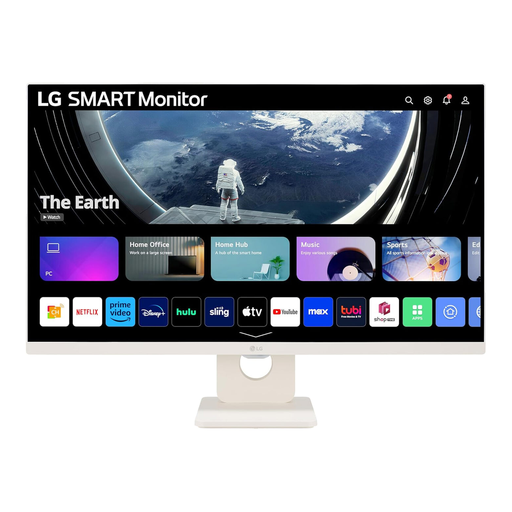
Consider a multiple-input monitor if you are happy to select the video source and arrange keyboard, mouse and webcam connections separately.
Check that both laptops have suitable outputs and cables for the monitor’s inputs. If you want the peripherals to switch with the picture, confirm explicit KVM and USB upstream support rather than assuming it from the video inputs.
 No image available
Consider this hub for a desk where you can reconnect the host cable when changing between compatible laptops.
The product name lists 2 HDMI outputs, DisplayPort, 2 USB 3.0 ports and 2 USB 2.0 ports. Check the required USB-C video capability and output limits for your exact laptop and monitor arrangement; plan switching between hosts separately.
Check each exact model’s video outputs and supported external-display arrangement, then match those to the dock or KVM’s host inputs and monitor outputs. Also check charging and operating-system requirements; for native USB-C video using DisplayPort Alternate Mode, the port, cable and connected device must support the required path.
Do not rely on a connector adapter to provide native USB-C video when the older laptop lacks the required capability. If you need displays through USB-A, check a purpose-built USB graphics dock and its software requirements, or connect the laptop through its own video output.
Not unless the setup also provides peripheral switching. A built-in KVM needs explicit support on the monitor and the specified USB connections to both computers; otherwise, consider a separate USB switch or separate peripheral connections.
Yes: check work IT rules before relying on display drivers, accessory permissions or a connection involving a personal device. The UK National Cyber Security Centre advises organisations to define permitted personal-device uses and technical controls, so the answer depends on your employer’s arrangements.