Committee recorders running hybrid meetings
You need a camera, microphones and playback audio that work with the approved meeting system. The monitor is one part of that setup; the recording platform handles capture and storage.


Choose a conferencing monitor if the shared desk regularly hosts hybrid committee meetings and needs a camera, microphones and speakers ready for use. If approved meeting equipment is already in place, a USB-C hub monitor may make laptop handover simpler; if reviewing agendas and minutes is the main difficulty, prioritise document display space and arrange recording separately. In every case, check laptop compatibility, workstation adjustment and the organisation’s recording process before buying.
You need a camera, microphones and playback audio that work with the approved meeting system. The monitor is one part of that setup; the recording platform handles capture and storage.
You need a repeatable way to connect each user’s laptop without rearranging the desk between meetings. USB-C hub features are worth checking against the laptops and network connection actually in use.
You need room to read agendas, minutes and reference material alongside the meeting view. Higher resolution may matter more to you than built-in conferencing hardware when recording equipment is already arranged.
Settle how the committee meeting will be captured first. Then compare laptop connections, document viewing and the adjustments needed by people who take turns at the desk.
| Concern | What to check | Who this matters to |
|---|---|---|
| Meeting audio and video | Check the camera, microphones and playback audio against the approved conferencing setup. Confirm how the meeting system starts and stores recordings. | If I run hybrid meetings, I need participants to be seen and heard without assembling several devices at every session; around 33% of consumers put integrated meeting hardware first. |
| Laptop handover | Check each laptop’s USB-C video, data and charging compatibility, plus the required network connection. | When colleagues take turns at the desk, I want to connect my laptop without changing a cluster of cables; for around 25% of consumers, straightforward handover is the primary need. |
| Document viewing | Compare native resolution and screen size for the intended mix of meeting video, agendas and minutes. Check the available desk space. | If I draft minutes while checking an agenda and decision record, I need the material to remain readable together; document viewing comes first for around 25% of consumers. |
| Shared use and recording controls | Check stand adjustment and the whole workstation. Agree who can start recordings, access them and manage their retention. | With different people using the desk, I need to adjust my position and know when recording is active; around 17% of consumers prioritise shared-use comfort and recording controls. |
A hub monitor can provide laptop connections without the camera, microphones and speakers needed for a hybrid meeting.
List the required capture and playback devices, then check whether the chosen monitor or approved separate equipment supplies each one.
A USB-C socket alone does not establish that the laptop, monitor and cable provide the required video, data and charging arrangement.
Test a representative organisation-issued laptop with the intended monitor, cable, network connection and meeting peripherals before equipping the shared desk.
People taking turns at a desk may need different screen positions. The Health and Safety Executive says workstation assessment for applicable display screen equipment users covers the whole setup, not just the monitor.
Check stand adjustment alongside the chair, desk, lighting and each user’s needs. Reassess the setup when regular users change desks.
A built-in camera does not decide when a meeting is recorded or how a recording is protected. The National Cyber Security Centre advises organisations to protect video calls and recordings.
Agree the recording purpose, participant information, approved platform, access permissions and retention approach before routine use.
Dell’s Pro Plus models provide display-led options for a desk that already has approved meeting equipment.
The ThinkVision T24mv-30 is a conferencing-monitor option for a desk that needs meeting hardware built into the display.
HP’s Series 5 Pro 527pm combines a QHD document display with built-in conferencing hardware.
These displays are choices for viewing committee documents and connecting a shared-desk laptop. Plan the approved camera, microphone and recording system separately, and check each model’s connections against the laptops used at the desk.
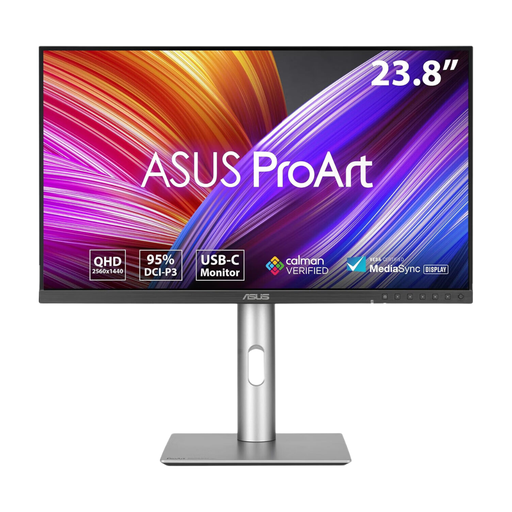 No image available
Consider this QHD display when reading committee documents is a priority. Check the intended laptop connection and arrange approved meeting audio and video for the desk.
 No image available
Consider its WQHD display for a document-led committee desk. Before relying on laptop charging or recording at that desk, confirm the connection and approved audio-video arrangements.
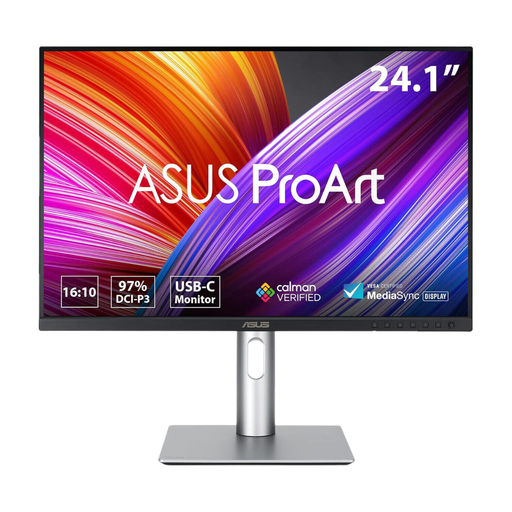 No image available
Consider the WUXGA display for agendas and minutes at a shared desk. Check its connections with each laptop and provide approved equipment for meeting capture.
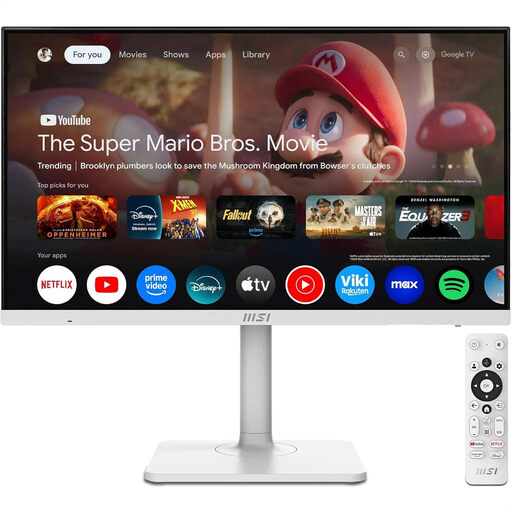 No image available
Consider its 27-inch 4K UHD display for viewing detailed committee material. Check whether USB-C 65W suits the desk’s laptops and whether its smart features fit the organisation’s setup; arrange meeting capture separately.
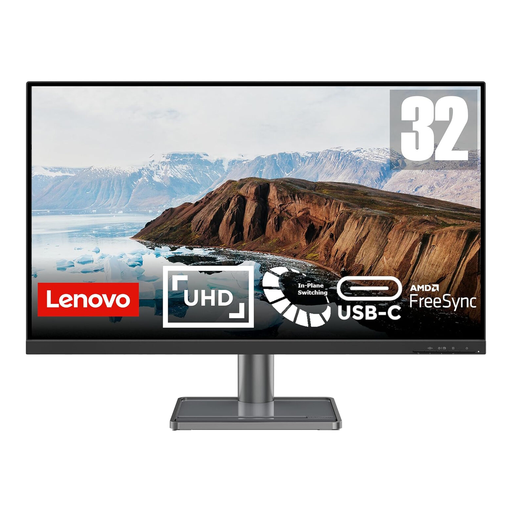 No image available
Consider the 31.5-inch 4K UHD display if the desk has room for a larger view of committee material. Check USB-C charging against each laptop and plan the meeting camera, microphones and recording process separately.
No: a built-in webcam provides capture hardware, not the organisation’s recording and storage process. Use the approved conferencing or recording system and agree who starts, accesses and retains recordings.
Choose a conferencing monitor when the desk regularly needs a camera, microphones and speakers and approved equivalents are not already in place. If those devices are provided separately, assess a USB-C hub monitor for laptop connections and check its features against the laptops in use.
For workers who use display screen equipment daily as part of normal work for continuous periods of an hour or more, the Health and Safety Executive says employers must assess the workstation. Its guidance also says workers who change desks regularly should carry out a basic assessment of the new setup.
Agree the recording purpose, approved platform, participant information, access controls and retention approach before use. Where recordings contain personal data, involve the organisation’s data-protection lead in setting the appropriate process; the National Cyber Security Centre also advises protecting calls and recordings.