What to prioritise when sharing a desk
Decide whether the keyboard and mouse must switch with the picture before comparing ports: changing a monitor input and switching USB controls are separate functions.
| Concern |
What to check when buying |
Who this matters to |
| Switching screen and controls together |
Check that both computers have the KVM’s required video and USB connections, and that its supported display arrangement matches your monitor. |
If I want the keyboard and mouse to follow the picture as I switch computers, I will look for an explicit KVM function; around 33% of consumers put switching the screen and controls together first. |
| Compatibility across both computers and the display |
Match the host-video method, monitor inputs and USB connections to both computers; check whether the exact dock requires software. |
If I need the same setup to work with two different computers, I will check each connection and any software requirement; around 27% of consumers prioritise avoiding compatibility mismatches. |
| Charging and reconnecting the work laptop |
Compare the dock or monitor’s specified power delivery with the laptop’s charging requirement, and check which ports and cables are provided. |
If I want to connect the work laptop with fewer steps and keep it charged, I will check its power and connection needs; around 20% of consumers put laptop reconnection first. |
| Keeping useful existing equipment |
Check the monitor’s available inputs and whether a separate USB switch is suitable for your computers and peripherals. |
If my current monitor still works for both computers, I would rather keep it where practical; around 20% of consumers prioritise using existing equipment. |
Joybuy product options for a shared desk
These options cover USB-C laptop hubs and monitors for connecting a laptop or selecting between display inputs. The MSI monitor listing also specifies Multi Control for two devices; check each model’s functions and connections rather than assuming all monitors switch both picture and controls.
 No image available
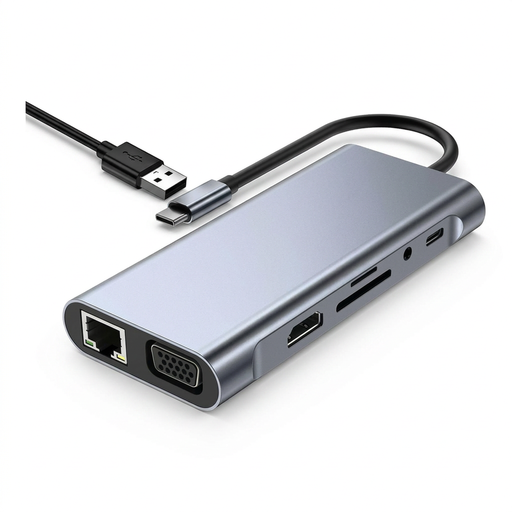
USB C Hub Docking Station TW11A 11 in 1
For adding display and peripheral connections to a compatible USB-C laptop; it is not specified here as a two-computer KVM.
Listed connections include 4K HDMI, VGA, USB 3.0, USB 2.0, Type-C PD, RJ45 Ethernet, SD and TF card readers, and 3.5 mm AUX.
View on Joybuy
 No image available
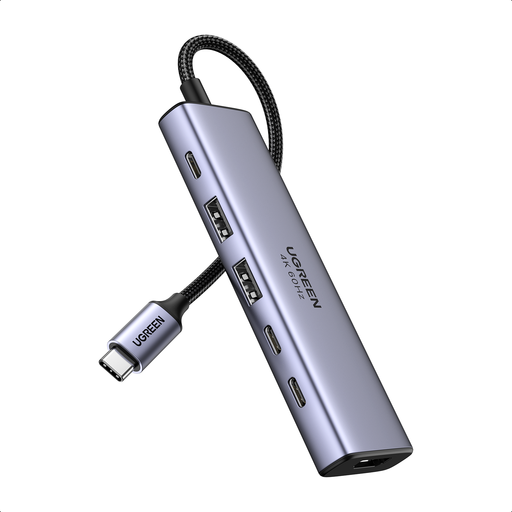
UGREEN 6-in-1 USB-C Multifunctional Adapter
For adding a display and peripheral connections to a compatible device; check that the USB-C connection suits the computer you plan to use.
Listed connections include HDMI 2.0, 2 × USB-A 3.2, 2 × USB-C 3.2 and a PD power input specified at 20 V/5 A. The listed compatibility includes Windows, macOS and Android devices.
View on Joybuy
 No image available
MSI 27" 4K UHD MD272UPSW Smart Monitor with Google TV
For a desk where you want a monitor connection for a laptop and a specified way to control two devices with one keyboard and mouse.
The listing specifies USB-C with 65 W power delivery and a Multi Control function for two devices. It also lists an IPS panel and Dolby Audio.
View on Joybuy
 No image available
ASUS ProArt PA24ACRV IPS QHD
For a setup where compatible computers can use the monitor’s different display connections; picture input selection alone does not establish shared keyboard and mouse control.
The listing specifies USB-C, HDMI and DisplayPort connections, QHD resolution and USB-C power delivery up to 96 W. USB hub support is described as varying by region.
View on Joybuy
Frequently asked questions
Will a docking station let both computers use the same keyboard, mouse and monitor?
Not simply because it is a dock. Lenovo describes the ThinkPad Universal USB-C Dock as a laptop docking solution, while ATEN specifies the CS22H for switching between two computers. Check for an explicit two-host switching function or plan separate connections for the monitor and controls.
Why did the picture switch but the keyboard and mouse did not?
Changing a monitor’s input does not necessarily switch its USB controls. Check whether that exact monitor supports KVM and whether both computers have the required USB connections, then follow the monitor’s setup instructions.
What should I check if a docked display flickers or loses its picture?
For a DisplayLink-connected display, Synaptics recommends checking the video cable and connection path; its initial troubleshooting guidance also covers the host USB port and cable. Check the connections before concluding that the dock itself is faulty.
Can I return equipment bought online if it does not suit my setup?
For covered UK distance sales, GOV.UK says customers can notify the seller that they wish to cancel within 14 days of receiving an item, without giving a reason, and then have another 14 days to return it. Faulty or misdescribed goods have separate remedies. Check the seller’s terms and the circumstances of the purchase; incompatibility alone does not establish that an item is faulty.
Does UK display-screen-equipment guidance affect a hybrid worker’s home desk?
It can. The Health and Safety Executive says the guidance can apply to people who routinely split work between home and the workplace and use display screen equipment daily for continuous periods of an hour or more. Where it applies, the employer should assess the individual workstation, including home use; equipment needed as a result of that assessment must not be charged to the worker. This guidance does not require every buyer to choose a particular dock or monitor.


