What matters when choosing?
Decide how much screen space the subscription records need, then check laptop connections and how each person will position the display. Built-in call equipment matters most if calls are part of the desk’s regular work.
| Concern |
What to check |
Who this matters to |
| Spreadsheet space |
Compare native resolution and screen size; check that text remains comfortable at the scaling each user needs. Dell lists 2560 × 1440 for the P2725DE and 4K for the P2725QE. |
If I keep membership records beside payment information, I need enough room to see the relevant columns without making text uncomfortable to read. Around 37% of consumers put record-viewing space first. |
| Laptop handover |
Match USB-C display support and power delivery to every laptop; check Ethernet, peripheral ports and cable requirements if the desk uses them. |
When several people bring laptops to one desk, I want to reconnect the equipment without rebuilding the setup each time. For around 36% of consumers, connection simplicity is the primary concern. |
| Screen adjustment |
Check stand height and other adjustments against the chair and desk. The Health and Safety Executive advises considering the whole workstation and the individual user. |
If people of different heights share the workstation, I need to reposition the screen rather than leave it set for one person. This is the leading concern for around 18% of consumers. |
| Club calls |
Confirm the webcam, microphone, speakers and physical camera cover you need; check whether headsets are preferable for the room. |
When online meetings are a routine part of club administration, I would rather check whether built-in call equipment suits the desk before adding separate devices. Around 9% of consumers put call hardware first. |
Joybuy monitors for this setup
These QHD and 4K monitors are options to consider for viewing club-subscription records at a shared desk. Check the stand and each laptop’s connections before choosing; a monitor’s display resolution or USB-C socket alone does not establish a one-cable handover.
 No image available
BenQ MA320UP Nano Glossy 32-inch 4K USB-C monitor
Consider this larger display if subscription records and adjacent documents need room on screen. The product name specifies a height-adjustable stand and positions the monitor for Mac use; check desk fit and each shared laptop’s USB-C display and charging requirements.
View on Joybuy
 No image available
ASUS ProArt PA278CFRV QHD 100Hz monitor
This QHD model is an option when subscription spreadsheets are the main task. Its name specifies a 100 Hz refresh rate; confirm the stand adjustment and the exact unit’s USB-C display, data and charging functions before planning laptop handovers around it.
View on Joybuy
 No image available
MSI MD272UPSW 27-inch 4K Smart Monitor with Google TV
The 27-inch 4K display is worth considering for dense membership records. Its product name also specifies USB-C 65 W and Google TV; check each laptop’s power requirement and USB-C display compatibility, plus any Ethernet or peripheral connections the desk needs.
View on Joybuy
 No image available
MAG 274QP QD-OLED X24 27-inch QHD gaming monitor
The named 27-inch 2560 × 1440 display provides a QHD option for viewing club records. This is a gaming-focused model with a stated 240 Hz refresh rate; check stand adjustment and the desk’s required laptop, network and peripheral connections separately.
View on Joybuy
 No image available
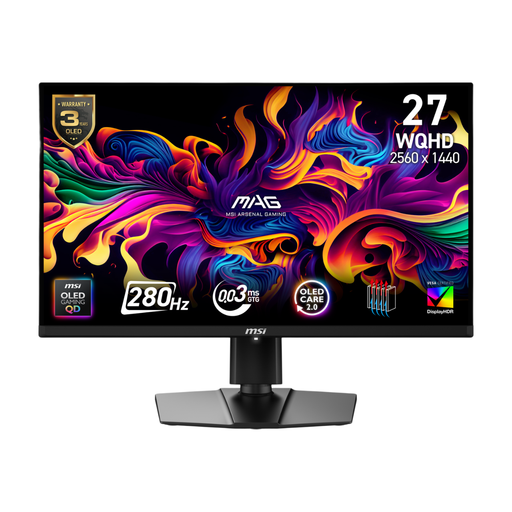
MSI MAG 271QP QD-OLED X28 27-inch QHD gaming monitor
Its named 27-inch QHD display is another option for viewing subscription records. The gaming-focused product name specifies QD-OLED and 280 Hz; verify stand adjustment and USB-C display, charging and hub functions if laptop handover is central to the setup.
View on Joybuy
Frequently asked questions
Does UK DSE guidance specify a monitor model for a shared desk?
No particular monitor model is specified in the Health and Safety Executive’s guidance; the focus is on assessing the whole workstation and reducing risks. Where workers normally use display screen equipment daily for continuous periods of an hour or more, the employer must carry out a workstation assessment. People changing desks regularly should also check that the setup suits them.
How should people position a shared-desk monitor?
The Health and Safety Executive advises putting the screen directly in front of the user, with its top at about eye level and the display roughly an arm’s length away. Check the chair, desk, keyboard and mouse alongside the stand whenever a different person takes over the workstation.
Can a USB-C monitor take the place of a laptop charger and dock?
It can for a compatible laptop when the monitor provides the required display, data, network and charging functions. Dell lists video, data, Ethernet and up to 90 W power delivery through USB-C for the P2725QE; compare those functions, the cable and the laptop’s power requirement before relying on a single connection.
What should the club check before choosing a monitor with a webcam?
Check that its camera, microphone and speakers suit the club’s calls, and whether a physical camera cover or headsets are needed at the shared desk. ASUS lists integrated conferencing hardware and a sliding lens cover for the BE27ACSBK, but users should also confirm compatibility with their calling setup.


