What matters when choosing
Decide how each person will reset the workstation, then check the laptop connections and the amount of rota information that needs to remain visible at once.
| Concern |
What to check |
Who it matters to |
| Laptop handover |
Check USB-C video and data support, charging wattage and cable compatibility. If wired networking matters, check for RJ45 Ethernet. |
When I arrive with a laptop, I want to connect it without swapping several cables or losing the desk’s wired connection. Around 42% of consumers would put a quick laptop handover first. |
| Screen adjustment |
Check height and tilt adjustment, then whether the stand and any planned monitor arm fit the desk. |
If I share the workstation, I need to move the screen to a position that suits me rather than keep the previous user’s setting. Roughly 33% of consumers would prioritise resetting the screen position. |
| Rota workspace |
Check native resolution and the computer’s supported output. For two computers, check the KVM inputs and peripheral connections. |
I need to keep a detailed rota beside other work, or switch a keyboard and mouse between two connected computers. About 25% of consumers would make that workspace or two-source need their main concern. |
Joybuy monitor options for the shared desk
These monitors offer different starting points for rota work, from a Full HD screen to higher-resolution and wider displays. Compare each exact model’s adjustment and laptop connections with the way staff use the desk.
 No image available
MSI MD272UPSW 27-inch 4K UHD Smart Monitor
Consider the 27-inch 4K IPS display if detailed rotas and parallel windows are part of the work.
The product title specifies USB-C 65W and Multi-Control. Check the laptops’ video, data and charging requirements, and how wired networking would be connected if the desk needs it.
View on Joybuy
 No image available
Dell P2425H Full HD monitor
This model suits a shared desk prioritising screen repositioning and wired display inputs rather than laptop charging through the monitor.
Dell specifies a 23.8-inch IPS 1920 × 1080 display, height, tilt, swivel and pivot adjustment, and HDMI, DisplayPort and VGA. Its downstream USB-C port is described as data-only with up to 15W power delivery, not as a one-cable laptop-charging dock.
View on Joybuy
 No image available
ASUS ProArt PA24ACRV IPS QHD monitor
Consider its QHD IPS display if the rota needs more on-screen detail than a Full HD layout provides.
Check the exact stand adjustments, laptop connection functions and wired-network arrangement against the shared desk’s requirements.
View on Joybuy
 No image available
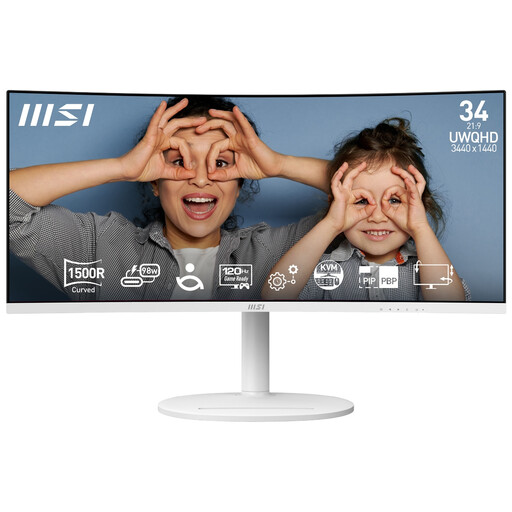
Modern MD342CQPW 34-inch curved UWQHD monitor, white
The wide display is worth considering when rota planners need several windows open together and the desk can accommodate it.
The product title specifies 3440 × 1440 resolution, a 120Hz refresh rate and 1500R curvature. Check the desk dimensions, intended viewing position and any required connections before choosing this format.
View on Joybuy
 No image available
Dell P2425 24-inch monitor
Consider this 24-inch model for a rota desk after checking that its stand can be reset by each user.
Confirm the P2425’s exact display and USB-C specifications for the computers at the desk. Do not apply the separate P2425H model’s specifications to this monitor.
View on Joybuy
Common questions
What should I prioritise when several people use the rota desk?
Prioritise a screen position each user can reset, particularly through height adjustment. Tilt, swivel and pivot may help with different desk positions, but the monitor still needs to be considered as part of the complete workstation.
Will any USB-C monitor handle the screen, charging and peripherals through one cable?
No: the monitor, laptop and cable must support the functions you intend to use. LG specifies display, data and charging up to 90W for the 24BA850-B, whereas BenQ specifies USB-C DisplayPort Alt Mode and 20W power delivery for the GW2490TC; check each laptop’s charging requirement before choosing.
Does a shared rota desk need a particular monitor size or resolution under UK guidance?
The HSE guidance cited here does not set a universal monitor size or resolution. For workers who use display screen equipment daily as part of normal work, continuously for an hour or more, HSE says employers must carry out a workstation assessment; it also advises workers who change desks regularly to carry out a basic risk assessment.
What should an employer check before ordering monitors for a team?
Check the exact model, laptop and cable compatibility, supplied accessories, warranty terms and the seller’s business support process. For eventual disposal, arrange an appropriate collection or recycling route for electrical equipment and confirm the process with the supplier or waste contractor.


