Shared-desk order-processing teams
Several people send black-and-white A4 forms to one nearby printer. Reliable shared access and a tray that fits the team’s printing pattern matter more than features intended for occasional personal use.


For mainly black-and-white A4 order forms, start with a networked mono printer and check its paper capacity, automatic two-sided printing and suitability for several users. Choose a multifunction model if the same desk also scans or copies paperwork, and choose colour when it serves a real purpose in the forms. If order details are sensitive, the printer’s access controls and the way staff collect output matter as much as its printing features.
Several people send black-and-white A4 forms to one nearby printer. Reliable shared access and a tray that fits the team’s printing pattern matter more than features intended for occasional personal use.
Forms containing customer details call for attention to network access and unattended printouts. The right controls depend on who can reach the printer and who is authorised to see the documents.
If signed orders must also be copied or filed digitally, a multifunction printer may suit the desk better than a print-only device. An automatic document feeder is particularly relevant when staff routinely scan multi-page paperwork.
Decide whether the desk needs print-only, scanning or colour output, then check shared access, paper handling and document security on the exact model. A feature that helps one workflow can add little value to another.
| Concern | Buying checks | Who this matters to |
|---|---|---|
| Shared access and refills | Check the standard tray capacity, Ethernet or secured Wi-Fi options, and automatic two-sided printing if forms use both sides. | When colleagues send forms throughout the day, I need a shared printer that does not repeatedly interrupt the queue for paper or manual page turning. Roughly 37% of consumers put continuity of shared printing first. |
| Order confidentiality | Check whether the exact model offers protected job release or user authentication where needed, and plan who can access the printer. | If forms carry customer details, I do not want them left visible to everyone near the desk. For around 27% of consumers, protecting order information is the primary concern. |
| Scanning and copying | Decide whether the desk needs print-only or multifunction use; for regular double-sided batches, check the feeder’s duplex-scanning capability. | Returned or signed forms need to be copied or filed without moving between devices. Roughly 18% of consumers place that paperwork workflow first. |
| Colour and supplies | Decide whether colour is necessary, then compare compatible supplies and relevant maintenance items on a like-for-like basis. | When forms are mostly black text, I want to know whether occasional colour output justifies managing additional supplies. Around 18% of consumers make that choice their first priority. |
A printer that suits one user can require frequent refilling or manual intervention when several people submit forms. The connection, tray and two-sided printing options need to suit the busiest part of the day, not just an occasional job.
Estimate the number of users and busiest-day pages. Compare the exact model’s standard tray, optional paper handling, network options and automatic duplex capability.
A stated yield describes output under particular test conditions; it does not by itself establish what each finished order form will cost or how often other items need replacing.
Compare compatible supplies on the same basis and account for other replacement items, paper use and the team’s actual print pattern.
Order information can be exposed through an open network or by forms sitting in a shared output tray. HP Support advises using password-protected Wi-Fi to help prevent unwanted printer access.
Restrict access where the setup permits, collect sensitive forms promptly and check the exact model for secure print or authenticated release if documents should wait until a user reaches the device.
These brands have relevant office-printer lines, but the features below belong to particular models rather than every printer carrying the brand name.
Brother’s office range includes mono and colour laser multifunction models relevant to shared printing.
Epson’s business inkjet range includes mono print-only and multifunction options for office paperwork.
Canon has colour A4 multifunction models for desks that need more than straightforward mono form printing.
HP’s business LaserJet range includes models intended for small teams, with separate guidance on protecting printer access.
These choices include multifunction printers for desks that also handle paperwork and a mono printer for mainly black-text forms. Check each model against the desk’s connection, refill and confidentiality needs before choosing.
 No image available
Consider this for a shared desk where colour forms and handling paperwork at the printer are useful. Check the exact connection, paper-handling and document-release features against the team’s workflow.
 No image available
For a desk that prints order forms and also scans or copies paperwork. The product name identifies A4 ink printing, scanning, copying and Wi-Fi; confirm its shared-network setup and the supplies needed for your print pattern.
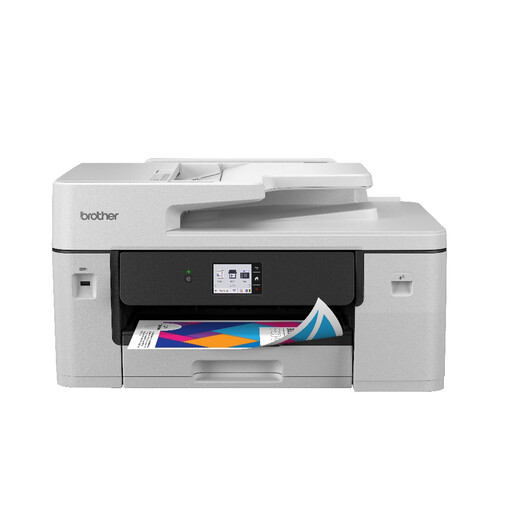 No image available
An all-in-one inkjet is worth considering if the desk handles paperwork as well as printing forms. Confirm which scan functions the MFC-J6760DW supports and whether its size fits the available desk space.
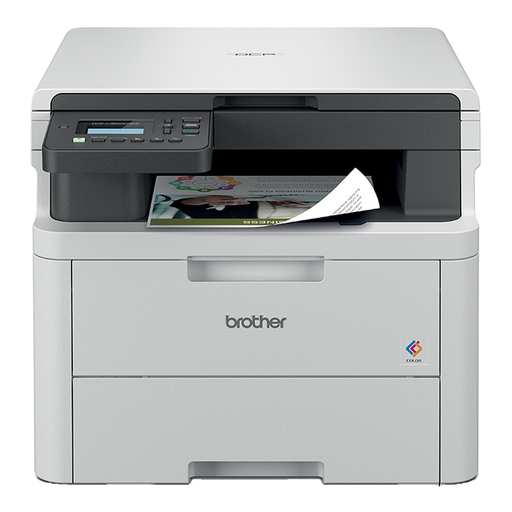 No image available
Consider this colour laser model if colour output has a purpose in the order-form workflow. If staff regularly scan multi-page documents, check how the DCP-L3520CDWE handles them before relying on it for that task.
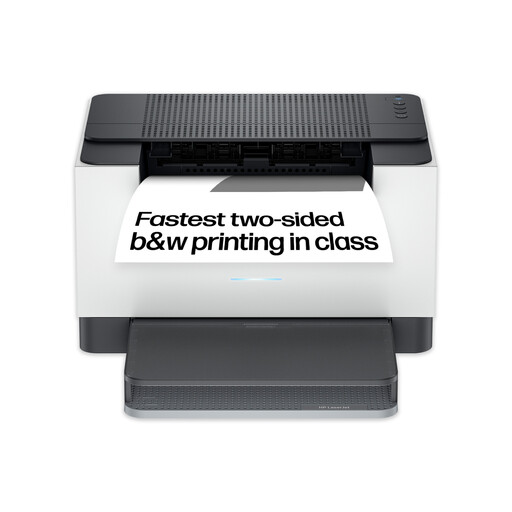 No image available
For mainly black-text forms when printing is the desk’s priority. The product name specifies wireless operation, two-sided printing and a 150-sheet input tray; compare that tray with the team’s daily volume. Confirm the available functions separately if copying or scanning is required.
A mono printer is enough when the forms are predominantly black text and colour has no operational purpose. Choose colour if staff need coloured status cues, branding or customer-facing copies, and account for the additional supplies that choice involves.
A multifunction printer makes sense when staff also copy, scan or file returned paperwork at that desk. If double-sided, multi-page scanning is routine, check for a duplex automatic document feeder on the exact model; a print-only workflow does not require those functions.
Use a password-protected network, limit printer access where possible and collect forms promptly. If documents should remain private until someone reaches the device, check whether the particular printer supports secure print or authenticated release.
Use an appropriate electrical-equipment collection or recycling route rather than general waste. GOV.UK describes the UK waste electrical and electronic equipment framework; check the applicable retailer take-back terms or local or business-waste arrangements for your printer.