Families sharing a portable learning device
A tablet or laptop may rotate between schoolwork, video, browsing and communication. Check how children will use separate accounts and whether one device can accommodate the tasks they need to do.


Choose a tablet for portable viewing and lighter school tasks, or a laptop when regular typing and document work matter most. A games console suits a household centred on shared gaming, while a smart display serves communal media and routines rather than replacing a schoolwork device. Whichever route you choose, check how each child gets age-appropriate access without using an unrestricted adult account.
A tablet or laptop may rotate between schoolwork, video, browsing and communication. Check how children will use separate accounts and whether one device can accommodate the tasks they need to do.
If gaming is the main communal activity, look at each console’s child-account settings for content, communication, purchases and play time. Keep regular schoolwork requirements separate from the console decision.
A home with Windows, Xbox, Android, Apple or smart-display devices may need different controls for different accounts and activities. Check coverage on every device rather than assuming one setting applies throughout the household.
Start with the school task that places the greatest demand on the device, then check account access and controls for every child who will use it.
| Priority | What to check | Your needs |
|---|---|---|
| Schoolwork fit | Check required school platforms, keyboard use and document handling. A laptop suits regular writing; a tablet may suit lighter touch-screen tasks. A console or smart display should not be treated as the main device for keyboard-based coursework. | I need children to finish their usual assignments, not just watch lessons or open learning apps. If they need the device at the same time, one shared screen may not meet that need. |
| Separate accounts | Check whether each child can sign in with an appropriate account and how switching users works on the exact device. Apple Support advises separate Apple Accounts for family members; Google and Microsoft document controls tied to supervised or family-member accounts. | Children should not have to use an unrestricted adult login to reach their own apps, files or settings. |
| Activity controls | Check controls for the activities children will actually use: apps, viewing, gaming, communication and purchases. Confirm device, account and browser coverage; Microsoft Support names Edge specifically for Family Safety website and search filtering. | I want settings that address what happens on this device, rather than relying on a screen-time limit alone. |
| Sharing and storage | Check storage against each user’s files and downloads, plus the supplied charger and any accessories needed for handover. For a portable device, choose a case made for the exact model and check access to ports, buttons and ventilation. | Moving the device between family members should not mean repeatedly clearing someone else’s work or discovering that a needed accessory does not fit. |
Children may gain access to adult account information and settings, while different age-appropriate limits become harder to manage. Apple Support specifically advises that a child use their own Apple Account.
Set up each supported child or family-member account before installing apps or applying controls, then check the settings while signed in as that child.
Console family controls address gaming activities, but they do not make a console a substitute for regular typing, document work or school platforms.
Choose the console for shared gaming; retain or choose a tablet or laptop if the household also needs a general-purpose learning device.
Features depend on the ecosystem and account setup. Microsoft Support specifies Edge for Family Safety web filtering, so that setting should not be assumed to work the same way in every browser.
List the devices, accounts and browsers children will use, then check each required control against the relevant platform’s instructions.
Google Nest Help says its content filters are not 100% effective. A communal display also does not provide the same private workspace as a child’s learning device.
Use available media filters and downtime settings for shared use, while choosing a separate device if a child needs schoolwork access or individual communication.
These platform examples help you check account and control requirements; they do not establish that every feature works on every product.
Relevant to households considering an iPad or Mac alongside Family Sharing and Screen Time.
Relevant to households considering Android tablets or supported Google smart displays.
Relevant to households using supported Windows, Xbox or Android devices with Microsoft Family Safety.
Relevant when the household’s shared-device decision is chiefly about Nintendo Switch gaming.
These portable tablets are options for children’s viewing, learning apps and lighter tasks. If regular keyboard-based schoolwork is the deciding need, check that separately before choosing either tablet.
 No image available
The 8-inch Android 15 tablet is an option for portable apps and video. Its listed configuration includes 3GB RAM, 32GB storage, a 5000mAh battery and a protective case; an adapter is not included. Confirm the required charger, separate child-account setup, exact Child Lock functions and keyboard compatibility if it will also serve as the main schoolwork device.
 No image available
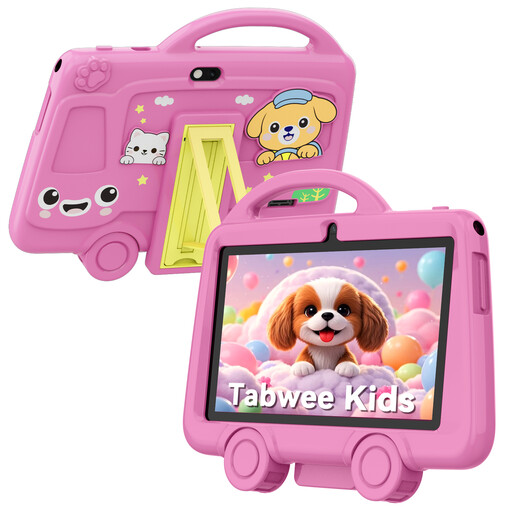
This smaller tablet is an option for portable video and learning apps. The listing states a 3000mAh battery, 285g weight and protective case. Confirm separate child accounts, parental-control functions and school-platform or keyboard compatibility before using it as a shared learning device. The listing says it is unsuitable for children under 3 and calls for adult supervision.
Use a separate child or family-member account where the device supports one. Apple Support specifically advises that a child should not share another family member’s Apple Account; Google and Microsoft also tie documented family controls to supervised or family-member accounts. Check how accounts work on the exact device before setting up apps and limits.
No. Controls can help manage particular activities, but settings still need reviewing as children’s use changes. Google Nest Help explicitly says its smart-speaker and display content filters are not 100% effective.
Do not assume it will. Apple’s documented controls use Apple Accounts and Family Sharing, Microsoft documents Family Safety features on supported Windows, Xbox and Android devices, and Google’s controls depend on the relevant accounts and devices. Check the specific feature, account and browser on each device children will use.