What to prioritise when choosing desk equipment
For a shared home desk used for regular laptop work, decide whether screen and input positioning, storage, extra display space or reconnection matters most to your setup.
| Concern |
What to check when buying |
Who this matters to |
| Screen and input positioning |
Check whether a stand supports your laptop and whether you can position a separate keyboard and mouse with the raised screen. |
If I work at my laptop for long periods, I want to position the screen separately from my typing position. Around 36% of consumers put screen and input positioning first. |
| A setup that packs away |
Check the stand’s folded form and laptop-size limit, and allow for the space needed by the screen, inputs and cables while in use. |
When I share a table, I need equipment I can put away after work, not just one compact item. Around 29% of consumers prioritise clearing the desk. |
| Usable screen space |
Compare the display size and adjustment with the space available; for a portable display, check its support, video input and power arrangement. |
If my work needs a second display, I want to know where it will sit and whether my laptop can connect to it. Around 21% of consumers put extra screen space first. |
| Reconnection, video and charging |
Check your laptop’s supported displays and video output, the hub’s connections, and whether its power delivery suits your charging needs. |
If I repeatedly reconnect a display and peripherals, I want to confirm the laptop supports the connections and power arrangement I need. Around 14% of consumers prioritise reconnection and ports. |
Joybuy product options for a shared home desk
These options cover raising a laptop screen, adding a display, reconnecting peripherals and using separate input devices. Check each product’s stated connections and dimensions against your own laptop and workspace.
 No image available
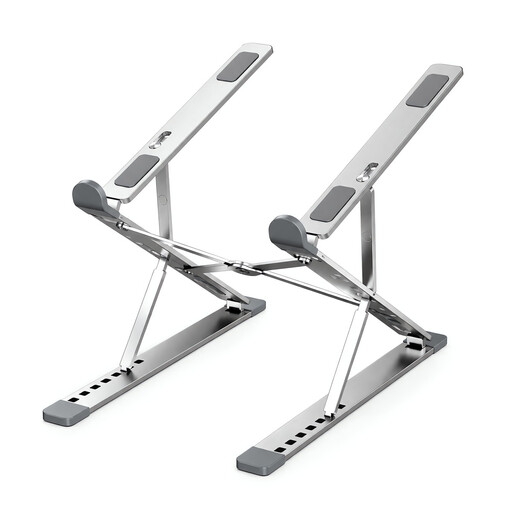
Foldable Aluminium Laptop Stand, Silver
For raising a compatible laptop screen in a setup that can be put away after use.
Specified for 10–17.3-inch laptops and tablets; folds flat and includes a carry bag.
Raising the screen does not provide separate keyboard and mouse; the Health and Safety Executive’s guidance describes separate inputs for prolonged laptop use.
Joybuy
 No image available
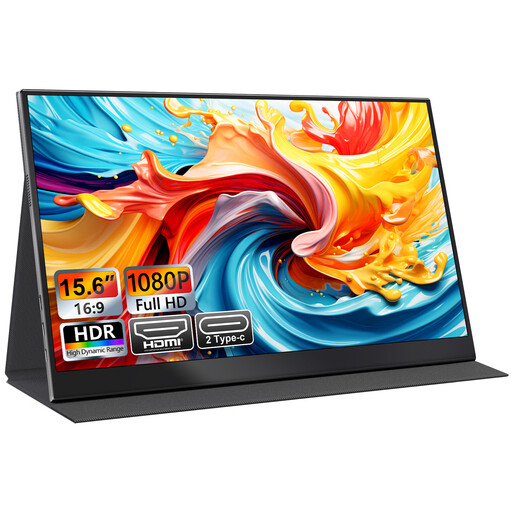
UFYQL M156F04 Portable Monitor, 15.6-inch FHD
For adding a second screen that can be put away rather than leaving a desktop monitor set up.
15.6-inch FHD 1080P IPS display; USB-C and HDMI connections; smart-cover stand.
Check that your laptop and intended cable support the connection you plan to use.
Joybuy
 No image available
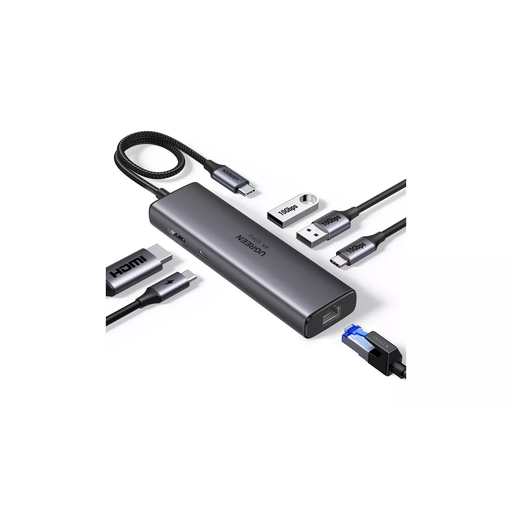
UGREEN USB-C Multi-Function Docking Station
For reconnecting supported displays and peripherals when repeated cable changes are a concern.
Listed connections include HDMI, 2 × USB-A 3.2, USB-C 3.2, RJ45 and PD.
Display and charging capabilities depend on the connected device supporting the intended video and power arrangement.
Joybuy
 No image available
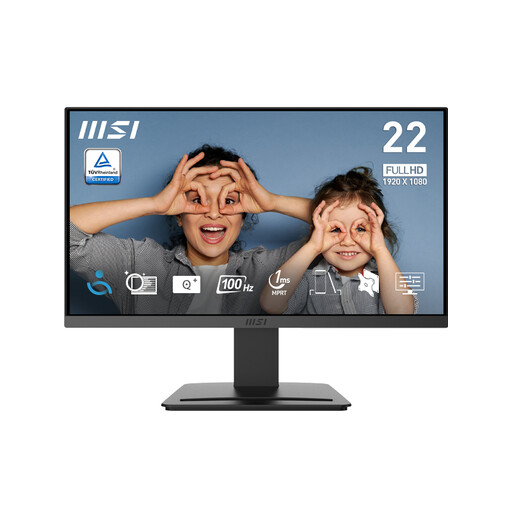
MSI PRO MP223 E2 21.45-inch Full HD Monitor
For a workspace where an external display can remain set up.
21.45-inch Full HD, 1920 × 1080 resolution; HDMI 1.4b and DisplayPort 1.2a; tilt-adjustable stand.
Check your laptop’s supported display output and the available desk space before choosing a connection and position.
Joybuy
 No image available
HP 680 CFT Dual-Mode Keyboard and Mouse Combo
For positioning laptop input devices separately from the screen.
Bluetooth or wireless USB receiver connectivity; the keyboard is listed as 442.3 × 214.4 × 35.2 mm and 845 g.
Allow for the full-size keyboard’s storage footprint, and remember that separate inputs do not raise the laptop screen.
Joybuy
Questions and answers
Should I buy a stand or a monitor first for prolonged laptop work?
Start by working out how to position the screen and separate keyboard and mouse comfortably. The Health and Safety Executive describes arrangements using a raised laptop screen with separate inputs as well as a separate display; choose a screen option that suits your workspace and tasks.
Will a USB-C port run and charge a second screen through one cable?
Not necessarily. Check your laptop model’s video-output capability, the display’s specified input, the cable and the available power. Lenovo specifies DisplayPort Alt Mode and up to 65 W power pass-through for the ThinkVision M14d, but those specifications do not establish compatibility with an unspecified laptop.
What should I check if a dock uses DisplayLink with a managed Mac?
DisplayLink states that its macOS manager requires Screen Recording permission to render displays through a DisplayLink device. Before choosing a dock that depends on it, check whether your organisation permits the software and permission; this does not automatically apply to every USB-C monitor or hub.
Does UK DSE guidance mean every home worker must buy a monitor?
No. The Health and Safety Executive’s guidance describes how display screen equipment arrangements may apply in relevant work situations and says suitable posture at home does not necessarily require office-type equipment. It informs workstation setup; it is not a universal instruction to buy a particular device.
What should I check after setting up a display?
Recheck the screen and input positions when you change desks, and check the display input and cable if a screen does not appear. Microsoft Support notes that external-display capability depends on the device model and the cables or video adapters used.


