Before buying Wi-Fi equipment, compare a wired speed test at the router with Wi-Fi tests near the router and in the rooms where problems occur: extending Wi-Fi cannot increase the capacity of the broadband service. If the service is adequate, choose mesh for weak coverage across several rooms, an extender or wired access point for a targeted area, Ethernet for a reachable fixed device, or a replacement router only when the existing router is the limitation and your provider supports the setup. Ofcom’s guidance explains that broadband performance limits Wi-Fi, so the result of those checks matters to the choice.
Who is choosing home Wi-Fi equipment?
Households with weak rooms
If calls or streams become less reliable away from the router, compare a targeted extender, a wired access point and mesh coverage. Ofcom’s guidance on improving Wi-Fi discusses the effect of the home environment and router position.
Fixed-desk callers and gamers
If your important device stays in one place, check whether an Ethernet cable can reach it before paying to extend Wi-Fi throughout the home. Ofcom recommends considering a wired connection where appropriate.
Busy shared households
When several people make calls, stream or game at once, identify whether the constraint is the broadband service, the router or Wi-Fi coverage in particular rooms. Ofcom notes that data-heavy activities can compete for a household connection.
What should you prioritise when buying?
Mesh Wi-Fi
Consider it: When broadband reaches the router adequately but several rooms or floors have weak Wi-Fi.
Trade-off: Extra units need sensible placement; check their ports and whether they support a suitable wired backhaul or operating mode.
Extender or access point
Consider it: An extender may suit one weak area if it can connect to a usable existing Wi-Fi signal; an access point is an option when Ethernet reaches the area.
Trade-off: Ofcom cautions that repeaters and extenders can affect speed and responsiveness; a wired access point needs a suitable cable run.
Ethernet connection
Consider it: When a computer or console stays in one place and a practical cable path is available.
Trade-off: Check the router ports, device connection and any adapter needed; a cable does not increase broadband capacity or improve other devices’ Wi-Fi.
Router replacement
Consider it: When the broadband service is adequate but the existing router remains the limitation, and your provider confirms a workable configuration.
Trade-off: A third-party router can take more effort to set up and may receive less troubleshooting support from your provider.
Ofcom’s guidance, published on 6 March 2024, notes that simultaneous data-heavy activities such as streaming, gaming and video calls can compete for a household connection. Check the service and the rooms affected before choosing equipment.
| Concern |
What to check when buying |
Who this matters to |
| Broadband capacity |
Compare Ethernet results at the router with Wi-Fi results nearby and in problem rooms; repeat at different times. |
If calls, streams and games struggle even on a wired connection at the router, I want to check the service before buying Wi-Fi equipment; around 31% of consumers in this shared-home buying scenario put that first. |
| Room coverage |
Check which rooms need coverage and whether an extender can receive a usable signal or Ethernet can reach an access point. |
When I need calls or streams to work in rooms beyond the router, I focus on coverage and placement; around 25% of consumers prioritise weak rooms or floors. |
| Wired device connection |
Check cable length and route, available router ports, the device’s Ethernet socket and any adapter needed. |
If a desk computer or console can stay connected by cable, I would rather address that device than extend Wi-Fi everywhere; around 25% of consumers put a dependable fixed connection first. |
| Router and provider setup |
Confirm provider compatibility, available ports and the features retained in the chosen operating mode. |
When I am deciding whether to keep or replace the provider’s router, I need a workable setup as well as suitable equipment; around 19% of consumers prioritise router capability and compatibility. |
Buying pitfalls to avoid
-
Choosing faster-rated Wi-Fi equipment to fix a broadband-service limit
Wi-Fi equipment cannot provide more capacity than the incoming broadband service, so a coverage upgrade may not address the cause of poor performance.
Compare a wired test at the router with Wi-Fi tests in the affected rooms before deciding which equipment route to take.
-
Placing an extender where the existing signal is already unusable
A wireless extender needs a usable connection back to the existing network, and its position can affect speed and responsiveness.
Try an intermediate position, or check whether Ethernet reaches the area and whether the exact model supports access-point mode.
-
Assuming every mesh unit has Ethernet ports or the same features
Ports and operating modes can differ between units in a product line. TP-Link also notes that some Deco app features are unavailable in access-point mode.
Check the exact units in the pack, their ports and the features available in the mode you plan to use.
If a wired-backhaul plan depends on a port-equipped node, choosing a unit without the required port may mean changing the network plan or equipment.
-
Replacing a provider router without checking the connection arrangement
A replacement can involve additional setup, and your broadband provider may offer less troubleshooting support for third-party equipment.
Confirm the provider’s supported configuration before replacing the router; if you keep it, check whether an access-point setup suits your needs.
Relevant brands to consider
TP-Link
Relevant to mesh and extender or access-point setups, including the named UK Deco X50 V2 and RE705X V1 versions.
- TP-Link documents optional Ethernet backhaul for the Deco X50 and a Gigabit Ethernet access-point mode for the RE705X V1.
- These are model-specific features; check the exact version and existing-router compatibility rather than assuming every model works the same way.
eero
The eero 6+ is a mesh-router option for comparing wireless coverage with wired connections for particular nodes or devices.
- eero specifies two 1 GbE ports on the eero 6+ router.
- The eero 6+ Extender has no Ethernet ports and requires an existing eero network, so check the exact unit in a pack before planning a wired connection.
ASUS
The RT-AX86U Pro is a router-replacement example to consider after checking the service and provider configuration.
- ASUS lists Wi-Fi 6 and device-prioritisation controls for this model.
- Those features do not establish that replacing the router will fix an inadequate broadband service or weak signal in every room.
NETGEAR
The EAX15 illustrates a wall-plug extender route for an existing Wi-Fi network.
- NETGEAR describes an Ethernet port and use with an existing router for the EAX15.
- Check the exact revision and plug variant before choosing a unit; the EAX15v3 details do not establish specifications for every revision.
Joybuy products for home connectivity
These choices cover multi-room mesh Wi-Fi, a targeted extender or access point, a router-side option and a wired connection for a reachable device.
 No image available
NETGEAR Orbi 370 RBE373 WiFi 7 Mesh System, 3-Pack
A three-unit mesh system for households looking to extend coverage beyond one router location.
The router and satellites have Ethernet LAN ports. A high-speed internet connection and an existing modem or gateway are required.
View on Joybuy
 No image available
TP-Link RE220BE BE3600 Wi-Fi 7 Range Extender
For a targeted weak area, provided an extender can be placed within range of the existing router signal.
It has a Gigabit Ethernet port and extender and access-point modes; access-point mode is a separate wired setup.
View on Joybuy
 No image available
TP-Link Deco BE22 BE3600 Whole Home Mesh Wi-Fi 7 System, 3-Pack
A three-unit mesh system for a household looking to extend coverage across multiple rooms.
Each unit has two 1 Gbps Ethernet ports. The system supports combined wired and wireless backhaul.
View on Joybuy
 No image available
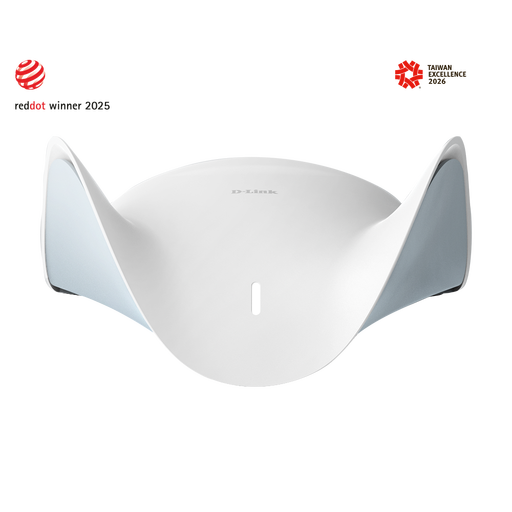
D-Link BE9500 Wi-Fi 7 Smart Mesh Router M95
A router-side option to consider when the existing router is the limitation and the provider supports the replacement configuration.
It has a 2.5-Gigabit WAN port and three 2.5-Gigabit LAN ports. The described mesh expansion uses compatible AQUILA PRO AI routers or extenders.
View on Joybuy
 No image available
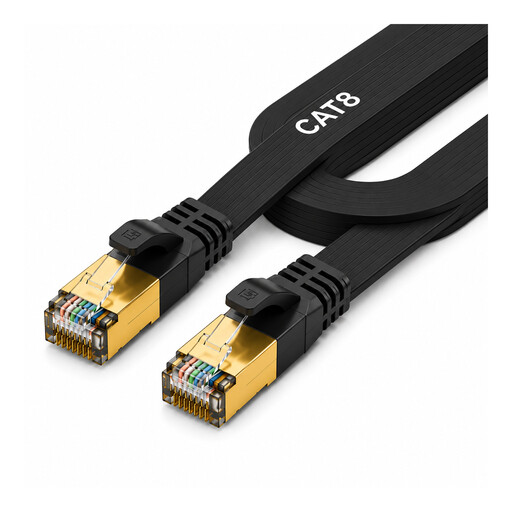
2-metre Cat 8 Ethernet cable with RJ45 connectors
For a fixed computer, console or other compatible device when a wired path to the network is practical.
The cable is 2 metres long, so check that it can reach along the intended route.
View on Joybuy
Home Wi-Fi questions answered
How can I tell whether the broadband line or a particular room’s Wi-Fi is the problem?
When possible, test with a computer connected by Ethernet to the router, then compare Wi-Fi near the router and in the affected room. Repeat at different times and note other household activity. Poor wired results point away from a coverage-only purchase, while a marked drop in a particular room makes placement or coverage equipment more relevant; the comparison does not guarantee a single cause. Ofcom recommends speed tests at different times.
Can I keep my provider router when installing mesh?
Potentially, if the particular system and provider configuration support it. TP-Link documents Deco access-point mode for use with an existing wired network, but notes that some app features are unavailable in that mode. Check the system instructions and provider setup before buying or changing settings.
Will an extender work if I plug it into a room where the signal has disappeared?
A wireless extender needs a usable connection back to the existing Wi-Fi network, so test a possible intermediate position first. If Ethernet reaches the room, an exact model that supports wired access-point mode offers a different setup.
What should I check on a mesh system if I want a wired connection?
Check the ports on the exact router and nodes in the pack, and confirm whether the system supports the wired connection you plan to use. Ports can differ between units: eero specifies two 1 GbE ports on its eero 6+ router, while its eero 6+ Extender has none. Also check cable routing, device connections and the operating mode’s feature limits.


