Choose a laptop dock when one assigned laptop needs to connect to a USB scanner and other desk peripherals. If colleagues need to scan independently from their own computers, choose a network-capable scanner instead; a two-host KVM dock suits two laptop users who take turns. Check the scanner connection and software, laptop compatibility, available data ports and power arrangements before buying.
Who needs which setup?
Fixed-desk scanner user
You use one assigned laptop and want to connect its USB scanner alongside displays, a wired network and charging. Microsoft Support describes a USB scanner as connected to the computer using it; a dock can bring those desk connections together, subject to compatibility.
Hot-desk or mixed-laptop team
Your desk is used with both USB-C and older USB-A laptops, or two people alternate between laptops. Check host support and power requirements for a mixed-laptop dock, or consider a two-host KVM dock if the same peripherals need to switch between users.
Team needing independent scanner access
Several colleagues need to scan without keeping one laptop docked. A scanner with documented network connectivity is the relevant category: Epson describes network-connected models that can be shared by multiple users.
What matters when choosing?
Decide who must be able to use the scanner before comparing dock ports: a connection for one laptop, a hand-off between two laptops and independent network access solve different problems.
Standard laptop dock
Choose when: One assigned laptop uses the USB scanner and other desk peripherals.
Trade-off: The dock organises that laptop’s connections but does not independently connect colleagues to a locally attached scanner.
Two-host KVM dock
Choose when: Two laptop users take turns with one scanner and the same desk peripherals.
Trade-off: Switching hands the peripherals from one host to the other; it does not establish concurrent scanner access.
Network-capable scanner
Choose when: Colleagues need to scan from their own computers without relying on one docked laptop.
Trade-off: The scanner and each intended computer need the appropriate network connection and software setup.
| Concern |
What to check |
Who this matters to |
| Independent scanning |
Check whether the scanner itself supports the required Ethernet, Wi-Fi or documented network workflow. |
If colleagues need to scan from their own computers, I do not want their access to depend on my laptop staying docked. Around 31% of consumers put independent scanning first. |
| Assigned-desk USB connection |
Match the scanner cable to a downstream data port, and check the scanner software on the assigned laptop. |
When one workstation handles the scanning, I need its scanner to connect alongside the everyday desk peripherals. For around 31% of consumers, that one-laptop connection is the primary concern. |
| Mixed-laptop compatibility |
Check each host laptop and operating system against the dock’s supported connections, including any USB-A power requirement. |
If different laptops use the desk, I need a connection that works with the machines involved rather than just one connector shape. Roughly 25% of consumers prioritise mixed-laptop compatibility. |
| Displays and charging |
Compare the dock’s stated display support and power delivery with the exact laptop and monitor setup. |
Where the scanner shares a desk with monitors and charging, I want those connections to work without separate laptop cables. Around 13% of consumers put this wider desk setup first. |
Mistakes to avoid
-
Assuming a dock makes a USB-only scanner available office-wide
Microsoft Support describes a USB scanner as connected to the Windows device using it. Connecting that scanner through a dock does not, by itself, give other computers independent access.
Decide whether scanning belongs to one workstation or must work from colleagues’ own computers. For the latter, check a scanner’s documented network capabilities or a separately supported sharing workflow.
-
Choosing by the USB-C connector alone
Host support, downstream data ports, displays and charging have separate requirements. For example, Kensington says USB-A devices using its SD4781P EQ require an alternative power source sold separately.
List the intended laptops, scanner connector and monitor setup, then check each against the dock’s specifications and power arrangements.
-
Using a KVM dock for a need to scan independently
StarTech.com describes its two-host KVM dock as switching shared USB peripherals between laptops with a front toggle. That is a hand-off between hosts, not independent access for several colleagues.
Use this arrangement only if taking turns suits the workflow, and check how the scanner software behaves after a switch. For access from separate computers, consider a network-capable scanner.
Relevant brands to consider
Dell
Dell offers USB-C docks for managed workstations, including the Pro Dock WD25.
- Dell lists four USB-A 3.2 Gen 2 ports, one USB-C 3.2 Gen 2 port and power delivery of 100W for Dell systems or 96W for non-Dell systems on the WD25.
- Check the exact laptop’s dock and charging compatibility, as well as the scanner connection and software, before specifying it for a desk.
Kensington
The SD4781P EQ addresses desks used by both USB-C and legacy USB-A laptops.
- Kensington lists six USB ports and up to 100W Power Delivery for this model.
- Kensington says USB-A devices require an alternative power source sold separately; check how that arrangement would work at each desk.
Targus
Targus offers USB-C docking options for desks that also need peripheral ports and displays.
- The DOCK310EUZ specification lists three downstream USB-A ports, one downstream USB-C port, Gigabit Ethernet and up to 65W Power Delivery.
- Check whether the laptop’s charging needs and any DisplayLink software requirements suit the intended setup.
StarTech.com
The 129N-USBC-KVM-DOCK is a specialist option for two laptops sharing desk peripherals in turn.
- StarTech.com describes a front toggle that switches shared USB peripherals between the two hosts.
- Check scanner behaviour after switching; this arrangement is not a replacement for independent network-scanner access.
Joybuy options for a laptop desk
These USB-C hubs and docks are options to assess when one laptop will operate the scanner at a desk. Check the scanner’s connector and software and the laptop’s host connection; a dock alone does not provide independent scanning for colleagues.
 No image available
Baseus Metal Gleam Series II 10-in-1 USB hub, Cosmic Black
For a one-laptop scanner desk, check whether its USB data ports match the scanner cable. The product title lists one 10Gbps USB-A port, two 480Mbps USB-A ports, a 10Gbps USB-C port, two HDMI connections, RJ45 and a USB-C PD input. Confirm the laptop’s display support and the power it would receive through the hub.
View on Joybuy
 No image available
Baseus Wisdom Series 11-in-1 (WIN) Workstation, Space Gray
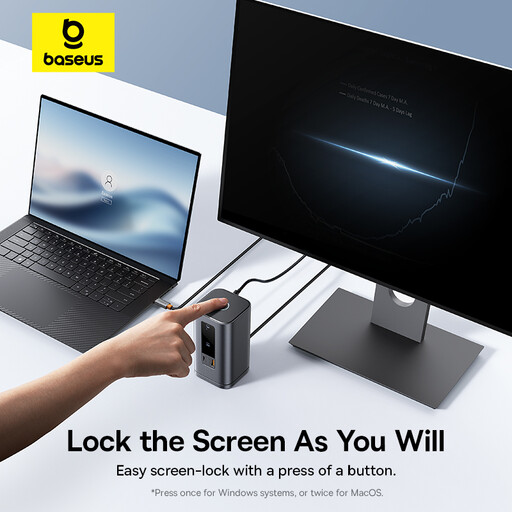
Consider this for a workstation where one laptop operates the scanner. Before choosing it, confirm the host connection, a data port matching the scanner cable, scanner software compatibility and the power equipment needed for the desk.
View on Joybuy
 No image available
MOVESPEED DK5A1 10-in-1 USB-C docking station
For a laptop desk that may also use an external display, the title lists 4K 60Hz HDMI, USB-C 10Gbps and USB-A 10Gbps/5Gbps connections. Check which port matches the scanner, whether the laptop supports the intended display setup and how laptop charging would be handled.
View on Joybuy
 No image available
Targus USB-C Universal Dual HDMI 4K dock with 100W PD pass-through
Consider this for an assigned laptop desk that also needs two HDMI connections. Check that its downstream data ports suit the scanner, that the laptop supports the intended displays and that the required external power adapter is available and suitable; confirm whether an adapter is included.
View on Joybuy
 No image available
USB-C multiport adapter with 2 HDMI, DP and PD
For a one-laptop scanner desk that also needs display connections, check the exact host and downstream port configuration before choosing this adapter. Its title lists two HDMI connections, DP, USB ports, RJ45 and PD; confirm which ports carry scanner data and what power equipment the setup requires.
View on Joybuy
Common questions
Can a normal laptop dock make one USB scanner available to everyone?
Not by itself: a dock connects the USB scanner to its host laptop, rather than giving colleagues independent scanner access. Microsoft Support describes local USB connection for Windows scanners; if several computers must use the scanner independently, check a model’s documented network capability or a separately supported sharing workflow.
When does a two-host KVM dock make sense for scanning?
It makes sense when two laptop users take turns with the same scanner and desk peripherals. StarTech.com describes switching its two-host dock with a front toggle; check that the scanner and its software reconnect as needed after each switch.
How do I connect a network scanner without relying on a docked laptop?
Follow the scanner maker’s network and software setup instructions for each computer that needs access. Epson’s network setup guidance describes selecting a network connection and entering the scanner’s IP address if it does not appear during discovery.
What should I check about a dock’s power supply?
Match the dock’s stated laptop power delivery and required power source to the exact host setup. Kensington, for instance, says USB-A devices using its SD4781P EQ need an alternative power source sold separately; a stated PD input or pass-through figure should not be treated as the power your laptop will necessarily receive.


