Shared-desk stock checkers
If several people use the same workstation to look up movements or update records, quiet clicks and a connection method permitted on that computer matter more than extra controls.


For stock checks at one shared desk, start with a quiet mouse that can connect by a method the assigned computer and office policy allow. Choose multi-device switching or configurable scrolling when staff regularly change computers or work through long stock lists; check hand fit and the wider workstation setup before standardising any model.
The useful features depend on whether a mouse stays at one workstation, moves between systems or handles long lists throughout the day.
If several people use the same workstation to look up movements or update records, quiet clicks and a connection method permitted on that computer matter more than extra controls.
Staff who move between an inventory PC and another approved device during a shift may need a deliberate way to switch hosts. The permitted connection method should be checked on each device.
People who spend long periods navigating stock lists or dashboards may value configurable controls and different scroll modes, provided the mouse fits their hand and workstation.
Choose the connection and workflow first, then check whether the shape suits the people using the desk. Extra controls are useful only when the stock-checking task calls for them.
Choose it when: Stock checks happen on one computer at a time and nearby colleagues make click noise a consideration.
Trade-off: A simple three-button model such as the Dell Pro Compact Silent Mouse MS355 offers fewer direct controls than a configurable mouse.
Choose it when: A shift regularly involves changing between approved computers or other host devices.
Trade-off: Device switching adds little to a one-computer task, and each host still needs a permitted connection method.
Choose it when: Long stock tables and repeated application actions make scroll modes or configurable controls useful.
Trade-off: Logitech describes the MX Anywhere 3S for Business as compact and right-handed, so its controls do not settle the question of fit.
| Concern | What to check | Who this matters to |
|---|---|---|
| Quiet use and connection | Check click-noise claims and whether the assigned computer permits Bluetooth or has a compatible port for a receiver. | If I check stock beside colleagues, I want clicks that cause less disruption and a mouse that connects at my desk. Around 42% of consumers put quiet, workable shared-desk use first. |
| Lists and multiple systems | Check the number of supported host devices, the switching procedure and whether configurable controls can be used on managed computers. | When I move between stock systems or scan long tables, I want navigation that suits those repeated tasks. For around 33% of consumers, workflow speed is the primary concern. |
| Fit and shared use | Check hand size, handedness and space beside the keyboard; review the workstation and follow approved cleaning instructions. | If different people use the desk, I need a shape and setup that work for the intended users, along with a practical cleaning routine. Fit and shared-equipment care come first for around 25% of consumers. |
Easy storage does not establish comfort for everyone using a desk. Logitech offers the Signature M650 for Business in different sizes, including a large left-handed version.
Check hand size and handedness with the intended users, particularly for longer sessions, and use the employer’s display screen equipment assessment process where applicable.
Switching between hosts helps only when the work actually involves more than one approved device; otherwise it adds another setup step.
Map a typical stock-checking shift before deciding whether a quiet one-host mouse or a multi-device model suits the task.
The Health and Safety Executive’s display screen equipment guidance considers the workstation and work being done, not just the input device.
Review mouse placement alongside the desk, chair, screen and work routine. Raise discomfort or setup difficulties through the employer’s assessment process.
Guidance from Derbyshire Healthcare NHS Foundation Trust and the University of Nottingham both cautions against spraying liquid directly onto IT equipment, although their advice on cleaning agents differs.
Follow the workplace’s approved process and the mouse maker’s instructions; do not spray liquid directly onto the device.
These examples show how particular office-mouse lines address the choice; their features should not be assumed to apply to every mouse from the same brand.
Consider the Signature M650 for Business when size and quiet-click options matter, or the MX Anywhere 3S for Business when configurable navigation is part of the job.
The 430 and 710 are relevant when staff regularly change between approved devices.
The Pro Compact Silent Mouse MS355 is a straightforward option to examine for quiet stock checks at a shared desk.
These mice cover quiet shared-desk use and, for the HOFOTEK model, a choice of wireless connection methods. Match each mouse to the computer’s permitted connection, then check fit for the people who will use it.
 No image available
Consider this model where quiet stock checks call for a choice between its stated 2.4G and Bluetooth connections.
The product name specifies adjustable DPI levels and one AA battery. Confirm the connection method permitted on each assigned computer and check hand fit before choosing it for shared use.
 No image available
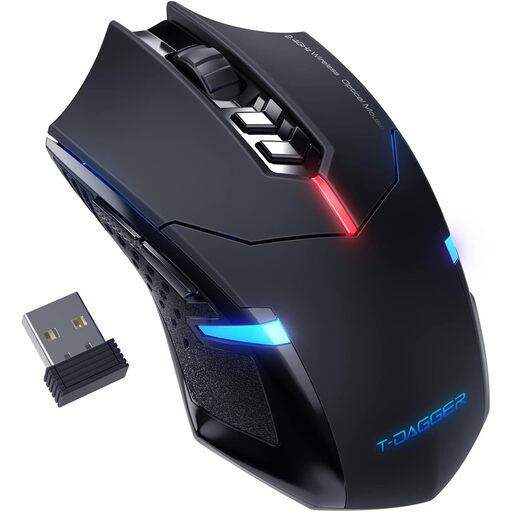
This receiver-based wireless mouse is worth considering when the shared computer has an available compatible USB port.
Its product name specifies five adjustable DPI levels. If staff use a Mac, check whether the controls they need are available; the product information states that its side buttons are unavailable on Mac OS.
 No image available
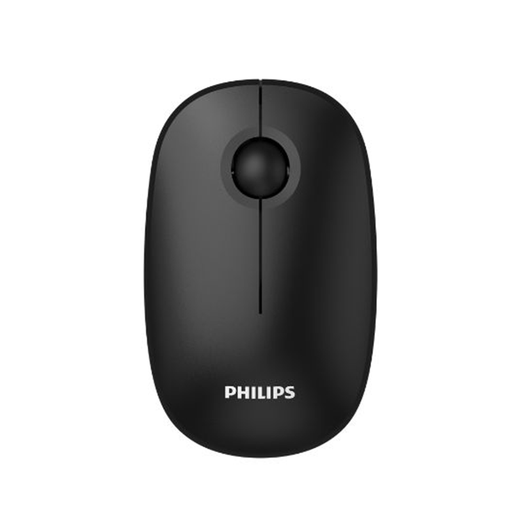
Consider this quiet-click model for a stock-checking computer with a compatible port for its USB receiver.
The product name specifies a 2.4GHz wireless connection and a 1600 DPI optical sensor. Check hand fit with the intended users before selecting it for a shared desk.
No particular mouse model is specified in the Health and Safety Executive guidance cited here. For workers using display screen equipment daily as part of normal work, continuously for an hour or more, the employer must assess the workstation; consider the mouse alongside the setup, work and individual user’s needs.
Choose whichever connection the assigned computer supports and office policy permits. Bluetooth avoids occupying a USB port, while a receiver needs an available compatible port; Dell’s MS355 offers both Bluetooth and RF-dongle connection, whereas Logitech’s M240 uses Bluetooth without a dongle.
Follow the mouse maker’s instructions and the workplace’s approved cleaning process, rather than assuming one cleaning agent suits every device. Derbyshire Healthcare NHS Foundation Trust and the University of Nottingham give differing advice on agents, but both caution against spraying liquid directly onto IT equipment.
Check the battery or charging routine, connection accessories and model-specific warranty terms. Dell states up to three years of battery runtime for the MS355, while Logitech states up to 24 months for the Signature M650 for Business; these are manufacturer specifications for those models, not a runtime to expect from every office mouse.