What matters when choosing?
Decide whether the screen is mainly for one person arranging several windows or for colleagues reviewing information together. Then check the desk space, laptop connections and workstation adjustments the chosen setup requires.
27-inch flat monitor
Consider it when: One seated user can manage the timetable and message windows on a more compact screen; Dell’s U2724D is a QHD example with an adjustable stand.
Trade-off: There is less horizontal room for several windows than on a 34-inch ultrawide, so check the layout you need at your usual text size.
31.5- or 32-inch flat 4K monitor
Consider it when: Colleagues occasionally read dense timetable information together; Dell lists a 31.5-inch 4K panel and adjustable stand for its P3225QE.
Trade-off: A USB-C hub does not by itself establish that two computers can share one keyboard and mouse; check for KVM if the desk needs it.
34-inch ultrawide
Consider it when: One coordinator regularly arranges timetable, map and communication windows across the screen; LG describes this use for its 21:9 34U640B-B.
Trade-off: Check desk width and how well a curved screen works when other people need to read it from beside the primary user.
| Concern |
What to check |
Who this matters to |
| Visible workspace |
Compare resolution and aspect ratio, then measure the screen and stand against the available desk space. |
If I need timetables, maps and messages open together, I want to see them without repeatedly replacing one window with another. Around 45% of consumers put this workspace need first. |
| Device changeover |
Confirm laptop video output, required USB-C charging, available inputs and whether two computers need a KVM. |
At a desk used by different laptops, reconnecting equipment should not interrupt each changeover. Roughly 33% of consumers make straightforward device switching their primary concern. |
| Shared viewing and adjustment |
Check screen format and viewing positions alongside stand adjustment, desk depth and lighting reflections. |
When colleagues review a timetable together, I need them to read the screen while its regular user can still position it comfortably. For about 22% of consumers, that shared-viewing and workstation need comes first. |
The Health and Safety Executive says that, where workers use display screen equipment daily as part of normal work for continuous periods of an hour or more, the employer must assess the workstation. That assessment considers the equipment, furniture, working conditions, task and individual requirements; a monitor feature does not replace it.
Joybuy monitors for this task
These monitors cover ultrawide viewing, larger 4K screens and a more compact 27-inch option for timetable work. Compare their stated formats with the way people use the desk, then check laptop and peripheral compatibility for the exact model.
 No image available
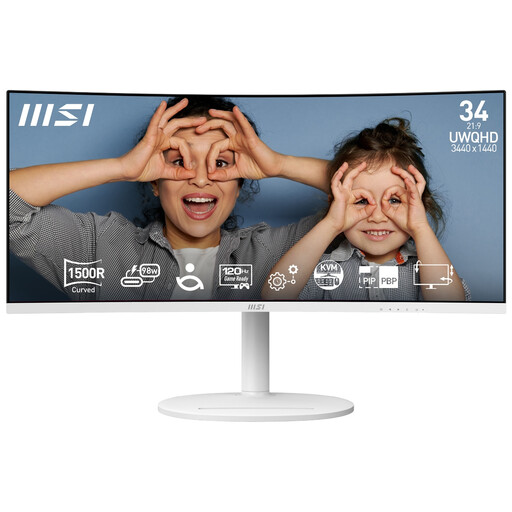
Modern MD342CQPW 34-inch curved monitor, white
Consider its ultrawide format if one seated coordinator needs several timetable-related windows in view.
The product name specifies 3440 × 1440 resolution, 120 Hz and a 1500R curve. Check the desk width and the connections required by the office laptops before choosing it for a shared desk.
View on Joybuy
 No image available
BenQ MA320UP 32-inch 4K Mac monitor
Its larger 4K format is relevant if detailed timetable information needs to be viewed at a shared desk.
The product name specifies a Nano Glossy IPS panel, USB-C and a height-adjustable stand. Check how its Mac-focused features and connections fit the office laptops, and confirm any required two-computer switching function.
View on Joybuy
 No image available
ASUS ProArt Display PA32UCG-K 32-inch 4K monitor
The 32-inch 4K format is worth assessing where colleagues occasionally need to inspect detailed timetable tables.
The product name identifies an IPS Mini LED display and Thunderbolt 3. Check the required laptop connection and whether the desk needs charging or KVM before relying on either function.
View on Joybuy
 No image available
MSI MD272UPSW 27-inch 4K Smart Monitor with Google TV
Consider the 27-inch format where desk width is limited and the timetable layout does not demand an ultrawide screen.
The product name specifies an IPS panel, USB-C 65 W and Multi-Control. Confirm what Multi-Control does with the office’s intended devices rather than treating it as an established KVM arrangement.
View on Joybuy
 No image available
Dahua 32-inch 4K curved OLED monitor
Its larger 4K format is relevant to detailed timetable viewing, but assess the curve if several colleagues need to read the screen together.
The product name specifies 165 Hz, Type-C 65 W and a USB hub. Confirm laptop video and charging compatibility for the intended desk setup.
View on Joybuy
Frequently asked questions
Is a 34-inch ultrawide always the better choice for comparing timetables?
No: a 34-inch ultrawide is worth considering when one person needs several applications side by side, while a flat 31.5- or 32-inch 4K screen is a route to assess for occasional group reading. Check the actual window layout, desk dimensions and viewing positions before deciding.
Will any USB-C laptop display video and charge through a USB-C monitor?
Not necessarily. Check whether the laptop’s port supports video output and whether the monitor’s stated power delivery meets that laptop’s requirements; the cable and any connected peripherals must also suit the intended setup.
When would a monitor KVM help at a shared office desk?
A KVM helps when two source computers need to use one keyboard and mouse. Samsung describes that arrangement for its S65UC; check the exact monitor’s supported inputs and peripheral connections if the desk changes between computers.
Does a new shared-office monitor require a DSE workstation assessment?
For workers who use display screen equipment daily as part of normal work for continuous periods of an hour or more, the UK Health and Safety Executive says the employer must assess the workstation. Its guidance covers the whole setup, the task and individual requirements, and calls for reassessment when a workstation or its use changes.
Do eye-comfort features remove the need to check glare and screen position?
No. The Health and Safety Executive’s workstation guidance calls for the equipment and working conditions to be considered together, so check lighting, reflections and screen position even when a monitor has an eye-comfort feature.


