For knitting charts already stored as PDFs, images or app files, start by connecting the source device to the shared display rather than buying a document visualiser. Choose a visualiser when sessions also need an overhead view of printed charts, annotations, swatches or hands; then check how its image reaches the display, what it can capture and how it is powered.
Who needs which setup?
Digital-chart studio hosts
If sessions run from PDFs, image files or a chart app, connect the source device to the shared display so you can navigate and zoom within the file. A visualiser becomes useful if you also show physical work. BenQ describes its WDC15 as a way to present a device screen; WolfVision describes visualisers as tools for showing physical materials.
Printed-pattern demonstrators
For paper charts, books, handwritten changes, swatches or live needlework, an overhead visualiser can put the material on the room display. Check the capture area, focus, lighting and zoom against what you actually place beneath it. IPEVO, Epson and WolfVision describe these physical-material uses and model-specific features.
Flexible shared-space organisers
When hosts or tables change, work out the connection from each source to the room display before choosing equipment. An HDMI visualiser may show physical work without a computer in the video path, while wireless presentation can share an existing device screen; neither route removes the need to check inputs and power.
What matters when choosing?
Decide whether the session starts with a digital file or physical material, then check the complete path to the audience-facing display. If both are used, the studio may need both a device-to-display connection and a visualiser.
| Concern | What to check | Who this matters to |
|---|
| Sharing digital chart files |
Check the source device, the display input and any adaptor or wireless connection needed. |
If my charts are already in files or an app, I want to zoom and change pages from that device rather than point a camera at them. Around 36% of consumers put direct sharing of digital charts first. |
| Showing physical detail |
Match the capture area, focus, lighting and zoom to your printed pages and live work. |
When I explain a small symbol, annotation or stitch in person, everyone needs to see the material on the room display. Roughly 29% of consumers prioritise that overhead view. |
| Changing hosts and layouts |
Check display inputs, presenter connections, wireless compatibility and the required power supply. |
With different presenters or tables, I need a connection that works in the room without rebuilding the setup each time. Around 21% of consumers place flexible connectivity first. |
| Computer-led capture |
Check whether the computer and presentation software recognise the visualiser as a camera. |
If I already present from one computer, I want to add a view of paper or live work within that workflow. Roughly 14% of consumers make a compact, computer-led setup their main priority. |
Buying pitfalls
-
Buying a camera for charts that are only digital
A document visualiser captures physical material; it is not needed merely to send an existing chart file from its device to the room display.
List what you show in a typical session. If everything is a file, check the display connection first; add a visualiser when paper, swatches or live work must also be shown.
-
Assuming a direct HDMI connection needs no power
IPEVO says its VZ-R can send video directly to a display without a computer, but its HDMI mode still needs power.
Check the position of the camera, HDMI cable and display input, and provide the 5V/1A adapter or powered USB connection specified by IPEVO for that mode.
-
Choosing by the headline image specification alone
Image and frame-rate specifications can depend on the connection used. Epson states a 30fps condition for the ELPDC30 through Miracast, rather than its stated 60fps maximum without Miracast.
Try the intended camera, connection, software and display with a real chart before relying on the setup for a group session.
-
Treating the visualiser as the whole display system
The camera still needs a route to an audience-facing screen. Its connection requirements differ from those of a device presenting an existing digital file.
Check the complete setup, including the display, its inputs and the cables or adaptors required for the chosen route.
Brands to consider
IPEVO
IPEVO offers different connection routes for showing physical charts.
- IPEVO states that the VZ-R sends a live image directly to a display over HDMI, while the V4K works as a USB camera with software that recognises its video source.
- The VZ-R still needs power in HDMI mode; the V4K requires a compatible computer-led workflow.
Epson
Epson visualisers are relevant when printed material and the display connection need closer model-by-model consideration.
- Epson specifies an A3 capture area and 12x optical zoom for the ELPDC21, and wireless or Miracast connection options for the ELPDC30.
- For the ELPDC30, Epson states 30fps through Miracast; check the exact model and connection mode needed in the studio.
WolfVision
WolfVision describes visualisers for presenting documents, objects, handwriting and live demonstrations through a display or meeting setup.
- Its visualiser range provides a starting point for checking image capture, zoom, lighting and AV connections for physical materials.
- Confirm the connections, supply and service terms for the particular model and location before purchase.
BenQ
BenQ provides a screen-sharing alternative for knitting charts that are already digital.
- BenQ describes the WDC15 as a driver-free wireless presentation system with HDMI output.
- The WDC15 shares a source-device screen; it does not provide an overhead view of printed charts or live needlework.
Joybuy products for digital chart sharing
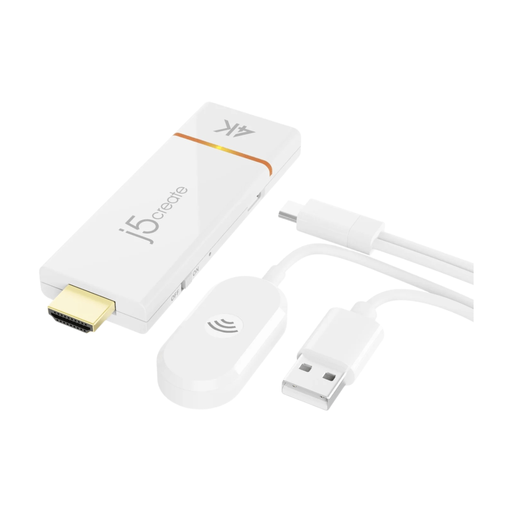
For charts already on a compatible device, this wireless display adapter is a way to share that device’s screen with an HDMI display. It is not a document visualiser for printed charts or live demonstrations.
 No image available
j5create JVAW56 ScreenCast HDMI Wireless Display, White
For sharing a digital chart from a compatible source device to an HDMI display without an overhead camera.
Check the supported source devices, wireless connection method and video modes against the studio setup before buying. This adapter cannot capture printed charts, hands or yarn samples.
View on Joybuy
Frequently asked questions
Do I need a visualiser for a knitting-chart PDF on my laptop?
No: to show an existing PDF, connect the laptop to the shared display by a suitable direct or wireless-presentation route. Add a document visualiser if you also need to show paper, annotations, swatches or live needlework from above.
Can an HDMI visualiser show paper charts without a computer?
Some can: IPEVO says its VZ-R connects directly to a TV, monitor or projector over HDMI. Its HDMI mode still needs power from a 5V/1A adapter, powered USB port or power bank, so check the entire setup rather than the video cable alone.
How do I check whether a visualiser will fit my printed chart?
Compare the chart or open book with the exact model’s capture area, then consider whether symbols will be legible on the room display. Epson specifies an A3 capture area for the ELPDC21, but page coverage alone does not establish legibility at every viewing distance.
Will a wireless setup connect to any studio display?
Not necessarily: the source device, connection method and display must work together. Epson specifies a Miracast option for the ELPDC30, while BenQ’s WDC15 shares a device screen rather than capturing paper; check the intended equipment and connection path before purchase.


