Check whether the trouble lies with the broadband service, router placement or the Wi‑Fi inside your home before buying equipment. An extender can address one weak area; mesh is a route for several weak rooms or floors; and Ethernet can give a fixed device a more dependable connection. A provider-supported replacement or retail router may suit a problem centred on the existing router, but check connection requirements and provider support before changing it.
Who this choice affects
Households with weak Wi‑Fi in several rooms
If the signal repeatedly weakens across floors or beyond thick walls, compare where mesh units could sit and whether they could be connected by cable. Ofcom identifies building materials and distance as factors affecting home Wi‑Fi.
Homes with several simultaneous heavy users
When people stream, game, study or make video calls at the same time, check whether the broadband service or the local Wi‑Fi is limiting them before judging a router by its headline wireless specification. Ofcom notes that a slow Wi‑Fi result does not necessarily indicate a broadband-line fault.
Fixed-device users needing stability
If the main problem affects a desk-based computer, console or television that can be cabled, consider Ethernet alongside—or instead of—more wireless equipment. Ofcom recommends a direct Ethernet connection for a computer where practical.
What to check before choosing
Choose a route by locating the problem first: a provider fault, one weak spot, several weak rooms and a single fixed device call for different responses.
Provider-supported router
Consider it when: the supplied hub is causing recurring problems and you want the provider involved in setup and fault support.
Limitation: replacing the hub may leave distant rooms weak if walls or placement are the cause.
Retail router
Consider it when: the home has a straightforward layout centred on one router location and you want to choose its local-network features.
Limitation: setup and provider support depend on the connection and how the supplied hub is used.
Mesh Wi‑Fi
Consider it when: several rooms or floors need a usable wireless signal.
Limitation: units need suitable locations, and the links between them depend on placement or a practical cable run.
Wi‑Fi extender
Consider it when: one particular room needs better reach from an otherwise usable network.
Limitation: the extender must itself receive a usable signal; it does not address weak coverage throughout the home.
Ethernet
Consider it when: the affected computer, console or television stays in one place and can be cabled.
Limitation: a wired connection helps that device, not phones or weak Wi‑Fi in other rooms.
| Concern |
What to check |
Who this matters to |
| Coverage across rooms |
Map the weak rooms and possible node or extender positions. Treat stated coverage as a starting point, not a promise for your walls and floors. |
If Wi‑Fi fades in several rooms, I need a signal where people actually use their devices. Around 31% of consumers would put multi-room coverage first. |
| Simultaneous use |
Compare results near the router with the broadband connection where possible, then check the exact equipment against the number of routinely active devices. |
When streaming, gaming and calls overlap, I want to know which part of the connection is struggling. For roughly 25% of consumers, handling simultaneous use would be the primary concern. |
| Compatibility and support |
Confirm the provider hub and connection type, required router or access-point mode, and any provider functions the change could affect. |
I need new equipment to work with the broadband setup without losing a service I rely on. Compatibility and support would come first for around 25% of consumers. |
| One fixed device |
Check the device and router ports and whether a cable can run between them before changing the wireless network. |
If my main difficulty is at a stationary desk or console, I would rather solve that connection directly. Roughly 19% of consumers would prioritise a fixed device's stability. |
Buying mistakes to avoid
-
Buying mesh to fix a broadband fault
Mesh can extend local Wi‑Fi coverage, but it cannot improve the incoming broadband service. Ofcom also cautions that a slow Wi‑Fi test alone does not identify a line fault.
Check for an outage, try the provider's basic fault steps and report an unresolved service problem before choosing Wi‑Fi hardware.
-
Assuming a retail router can simply replace the provider hub
The connection may still require provider equipment or a particular operating mode. Virgin Media says its supported Hubs can use modem mode with other Wi‑Fi equipment, but its Hub 5x does not offer that mode.
Check your hub model, connection arrangement and any telephone or provider features you need to retain before ordering.
Allow for configuration time and the possibility of more limited provider help with third-party equipment.
-
Treating a mesh coverage figure as a guarantee
Walls, floors and unit placement affect the signal in an individual home. A pack that suits one layout may not reach the same rooms in another.
Plan likely unit positions, check whether the system can be expanded and review the seller's return terms before installation.
Further units or cabling may be needed if the planned positions do not provide usable coverage.
-
Changing the whole Wi‑Fi network for one stationary device
When only a fixed computer or console has trouble, a cable may address that connection without altering wireless coverage elsewhere. Ofcom recommends Ethernet for a directly connected computer where practical.
Check whether a sensible cable route and suitable ports are available; assess mesh or an extender separately if mobile devices also have weak coverage.
Brands to consider for these equipment routes
TP-Link
Its Archer router and Deco mesh ranges illustrate different routes for a centrally located network and multi-room coverage.
- TP-Link describes the Deco X50 as a multi-unit mesh system with optional Ethernet backhaul and the Archer AX55 as EasyMesh-compatible.
- Check the exact model and hardware version; a feature listed for one product does not apply to the whole range.
eero
Its eero 6+ range offers a packaged, app-managed mesh route with different pack sizes.
- The brand lists pack-dependent coverage and device claims that buyers can compare against their planned layout.
- Confirm the exact pack, required wired ports, broadband arrangement and whether the features you want require a subscription.
NETGEAR
Its Nighthawk routers and Nighthawk or Orbi mesh ranges allow a comparison between one central router and multiple wireless units.
- NETGEAR presents mesh as an option for larger or multi-level layouts and a single router for simpler spaces.
- Check coverage claims against your layout and review the terms of any included security subscription for the exact model.
ASUS
Its AiMesh and ZenWiFi documentation is relevant if you plan compatible router-and-node equipment, particularly with a wired link between units.
- ASUS documents Ethernet backhaul arrangements for supported AiMesh and ZenWiFi setups.
- Confirm node compatibility, router mode and switch wiring for the exact devices rather than assuming all ASUS routers work alike.
Joybuy products for these routes
These products offer three mesh-system choices for homes with weak Wi‑Fi across rooms and one retail router for a network centred on a single location. Match any choice to your broadband equipment and the rooms or fixed devices you need to connect.
 No image available
TP-Link Deco BE22 BE3600 Wi‑Fi 7, 3-pack
Consider this three-unit mesh pack when the weak signal extends across several rooms.
Check where each unit could sit and whether your broadband equipment allows the required setup; the pack's coverage in your home will depend on its layout.
View on Joybuy
 No image available
NETGEAR Orbi 370 RBE373 BE3600 Wi‑Fi 7, 3-pack
This three-pack is a mesh option when several rooms need coverage.
Its product name specifies dual-band Wi‑Fi 7 and 2.5 Gbps Ethernet. Check the modem or gateway arrangement, likely unit positions and any terms attached to optional security features.
View on Joybuy
 No image available
TP-Link Deco BE25 Wi‑Fi 7, 3-pack
This three-unit mesh pack is relevant when Wi‑Fi weakens in more than one area of the home.
Confirm the pack contents and port configuration if you intend to wire a fixed device, and check how it should connect to your provider equipment.
View on Joybuy
 No image available
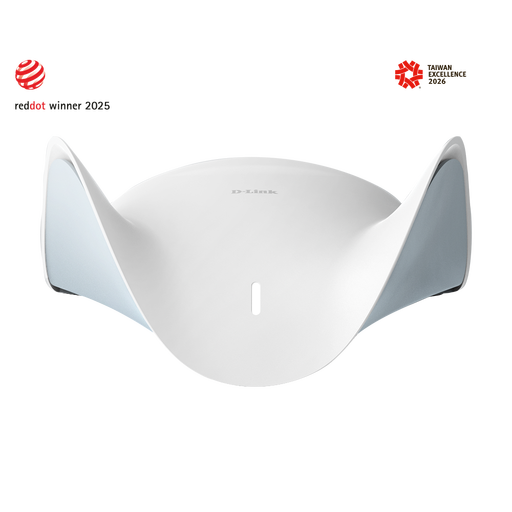
D-Link M95 BE9500 Wi‑Fi 7 Smart Mesh Router
Consider this retail router when the network is centred on one location rather than assuming that a single unit will cover several weak rooms.
Its described mesh expansion requires compatible additional equipment. Confirm what is included and how the router would connect to your broadband service.
View on Joybuy
Common questions
Should I buy Wi‑Fi equipment before reporting a possible broadband fault?
Check the service problem first rather than assuming new Wi‑Fi hardware will fix it. Ofcom advises checking for an outage and contacting your provider about an unresolved fault; distance, walls or the device itself can also make a Wi‑Fi test slow when the broadband line is working.
Can a mesh system work with my existing provider router?
It can, provided the mesh product and provider equipment support the intended connection and operating mode. TP-Link says Deco can connect to an existing router by Ethernet and operate in access-point mode; check the exact model, available hub ports and any services that require the provider hub to stay in place.
What should Virgin Media customers check before adding their own Wi‑Fi equipment?
Check the Hub model and the functions you need to keep. Virgin Media says supported Hubs can use modem mode to connect other Wi‑Fi equipment, while Hub 5x does not support that mode; modem mode on supported models also temporarily disables certain Hub features.


