Who each setup suits

Students viewing in their own rooms

If live TV or BBC iPlayer is part of your bedroom viewing, establish your licence position before choosing a screen. GOV.UK says students with separate tenancy agreements who watch TV in their own rooms need their own TV Licence.

Housemates arranging a communal screen

A shared-room setup calls for agreement on the screen, app sign-ins and who can use the remote. If adding a player to an existing display, check its HDMI input and the player’s power requirements; assess licence cover against the tenancy and where viewing takes place.

Students using personal devices

A laptop or tablet may suit occasional viewing on a larger display, provided the device and display can connect. Microsoft and Apple advise checking the particular computer, ports and cables. TV Licensing’s viewing rules still apply when live TV or BBC iPlayer is watched on a personal device.

What to decide before buying

Shared smart TV

Choose when: Housemates want a permanent screen in a shared room with streaming apps on the television.

Trade-off: It means accommodating a full television and agreeing how shared accounts will be managed; it does not change TV Licence duties.

Player on an existing display

Choose when: An existing TV or monitor has a suitable HDMI input and the household wants to add streaming without replacing the display.

Trade-off: The player still needs a compatible power arrangement and may require a separate cable or adaptor.

Laptop or tablet with a display

Choose when: Viewing schedules differ and a capable personal device will connect to a larger screen only occasionally.

Trade-off: Each device-to-display connection needs checking, and personal-room viewing needs its own licence assessment.

Concern What to check Who this matters to
Viewing and tenancy Identify any live TV or BBC iPlayer viewing; check whether the tenancy is joint or rooms are contracted separately. If I watch in my own room, I need to know whether that viewing requires my own licence before buying a screen. Around 33% of consumers put licence and tenancy fit first.
Shared-screen practicality Decide between built-in apps and an external player; check the screen’s inputs and agree how app sign-ins will be managed. For regular viewing together, I want a screen the household can share without disputes over access. Communal-screen practicality comes first for around 27% of consumers.
Using an existing display Check its HDMI input and the chosen player’s power and cable requirements. If we already have a suitable display, I would rather add only the hardware needed to use it. Around 20% of consumers prioritise that approach.
Personal-device flexibility Match the laptop or tablet’s video-output capability to the display input and any cable or adaptor. When our schedules differ, I want to connect my own device to a larger screen when needed. That flexibility is the primary concern for around 20% of consumers.

Common setup mistakes

  • Assuming a streaming stick removes the need for a TV Licence

    TV Licensing says the requirement to watch or record live TV or use BBC iPlayer applies across devices, including streaming players, laptops and tablets.

    Settle what the household intends to watch, then check the tenancy and viewing location before choosing hardware.

  • Assuming a shared licence covers every bedroom

    GOV.UK distinguishes viewing in a shared area or under a joint tenancy from viewing in a room with a separate tenancy agreement. Shared-area arrangements should not be assumed to cover private rooms.

    Read the tenancy documents and check the position for each viewing location. In halls, ask about communal-area cover and assess bedroom viewing separately.

  • Ordering a player before checking the display

    An existing screen needs a suitable input, and a streaming player needs an appropriate power source. Roku says some TV USB ports cannot provide sufficient power for its Streaming Stick range.

    Check the display’s HDMI port and the exact player’s connection and power requirements.

    A wall power adaptor or cable may be needed; Google lists a certified HDMI 2.1 cable as required and sold separately for the Google TV Streamer (4K).

  • Assuming any personal device will connect to the screen

    External-display support depends on the device model, its output capability and the display input, as Microsoft and Apple’s connection guidance makes clear.

    Identify both devices before selecting a compatible cable or adaptor.

Relevant brands to consider

Roku

Roku’s UK Streaming Stick range is relevant when a household wants to add streaming to an HDMI-equipped TV rather than replace the screen.

  • Roku describes its Streaming Stick as plugging directly into a TV, with HD and 4K options depending on the model.
  • Roku warns that some TV USB ports cannot supply enough power; check the exact stick and whether a 5V 1A wall adaptor is needed.

Google

The Google TV Streamer (4K) is a fixed-screen player to consider where its listed HDMI and network connections fit the shared room.

  • Google lists HDMI 2.1, Wi-Fi and Ethernet for this model, as well as casting from compatible apps on personal devices.
  • Google lists a certified HDMI 2.1 cable as required and sold separately; check the complete connection before choosing this model.

Samsung

Samsung smart TVs are relevant when housemates are choosing a new shared television rather than adding a player to an existing screen.

  • Samsung describes streaming apps including Netflix and YouTube on its UK smart-TV platform.
  • Check app availability, inputs and room suitability on the exact television; the platform description does not establish support on every model.

Joybuy products for shared screens

These choices cover two communal-screen routes: adding a Roku streaming stick to a compatible existing display, or choosing a Samsung smart TV for a shared room. Neither device changes the TV Licence rules for the viewing planned.
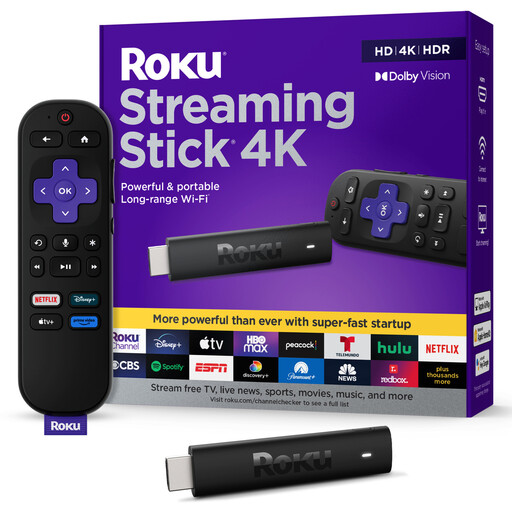
Roku Streaming Stick 4K

Roku Streaming Stick 4K

Consider this add-on player if the household already has a display with an available HDMI input. Check the power arrangement for the exact stick and display before ordering; using BBC iPlayer or watching live TV still requires TV Licence cover.

View on Joybuy
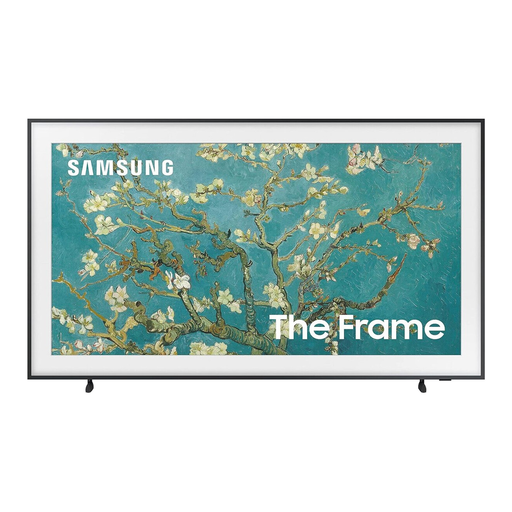
Samsung QE65LS03FAU 65-inch 4K smart TV

Samsung QE65LS03FAU 65-inch 4K Smart TV

Consider this television for a permanent communal screen if the room can accommodate its 65-inch size. The listed model has 4K resolution and Wi-Fi; check that the exact apps the household wants are available before buying. Live TV and BBC iPlayer viewing still require TV Licence cover.

View on Joybuy

Frequently asked questions

Do we need a TV Licence simply because we own a smart TV or streaming device?

No: owning the device is not the trigger. TV Licensing says you need cover to watch or record live TV on any service or to use BBC iPlayer, including when viewing on a laptop, tablet or streaming player.

Can housemates use one TV Licence?

A shared household may use one licence where viewing is in a single shared area or the occupiers have a joint tenancy agreement. GOV.UK says students with separate tenancy agreements who watch TV in their own rooms need their own licence.

Does a communal screen in halls cover viewing in my room?

Do not assume it does. GOV.UK says a student in university accommodation needs a TV Licence for qualifying viewing in their own room, while a shared area may already be covered; check the accommodation’s arrangement for that area separately.

Can we watch on-demand programmes without a TV Licence?

GOV.UK says a TV Licence is not needed for non-live on-demand services such as Netflix and Disney+. Watching live TV or using BBC iPlayer is different and requires cover.

What should we check before connecting a player or laptop to a display?

Check the exact devices and their connections before buying accessories. A streaming player needs a suitable display input and power source; a laptop or tablet needs compatible video output and, depending on the connection, an appropriate cable or adaptor.