Frequent laptop switchers
If you regularly move between work or client laptops, a shared screen, keyboard and mouse can reduce repeated cable changes. Decide whether the display and peripherals need to switch together.


Choose hardware around the video connections, display limits and operating-system permissions of every laptop, then decide whether you need to switch only the screen or the screen and peripherals together. A USB-C socket or several monitor outputs alone does not establish compatibility; check the exact connection and display requirements. For employer-managed laptops, get approval for any required display software before choosing a driver-dependent dock.
If you regularly move between work or client laptops, a shared screen, keyboard and mouse can reduce repeated cable changes. Decide whether the display and peripherals need to switch together.
If your laptops have different connections, including older USB-A ports, check that each can support the external display arrangement you want before choosing a dock.
If work devices are managed by an employer, check whether required software and connections for displays or peripherals are permitted, as well as how the equipment will fit your workstation.
For a shared workspace, identify what must work across every laptop first; then decide which equipment needs to switch together.
| Concern | What to check when buying | Who this matters to |
|---|---|---|
| Display compatibility | Check each laptop’s video output, operating system and supported display configuration. For USB-C video, confirm the host supports the technology the monitor or dock requires. | If I need every work laptop to drive the intended screens, compatibility comes first; around 29% of consumers would prioritise that check. |
| Switching equipment | List what needs to switch, such as the display, keyboard and mouse, then confirm the exact device shares those items between the required number of computers. | If I want the keyboard and mouse to follow the laptop using the screen, I need those connections to switch too; around 29% of consumers would put coordinated switching first. |
| Employer permissions | Ask whether required drivers or display software may be installed. On macOS, check any permissions required by the chosen display technology. | If I use a managed work laptop, an unapproved driver could rule out a connection method; around 24% of consumers would make permission the primary concern. |
| Desk space and power | Plan where the laptops, monitor, dock and cables will sit. Compare each laptop’s charging needs with the dock’s host-power arrangements. | If I want fewer cables and devices without losing suitable charging, I would weigh those needs together; around 18% of consumers would put consolidation first. |
Not every USB-C port supports video, and docks can require particular host capabilities. A matching connector does not prove that the laptop and dock will work together.
Check the laptop manufacturer’s port specifications against the exact dock’s required video technology before buying.
The number of physical connectors does not establish how many screens a dock can run at the same time. Kensington’s SD4780P documentation, for example, specifies two screen outputs despite the product having four video connectors.
Confirm the simultaneous display configuration and operating-system support for the exact dock and laptops.
Adding USB ports and switching USB devices between host computers are different functions. An ordinary expansion hub does not, by itself, establish multi-computer switching or display sharing.
Look for explicit host-switching support and check which devices the exact product shares.
The Office for Product Safety and Standards explains that a conformity mark is a manufacturer’s statement about meeting applicable requirements. It does not, by itself, identify the supplied power equipment or establish that a particular listing matches the product you intend to buy.
Check the exact product identity, instructions and supplied power equipment alongside applicable conformity information.
The following examples relate to specific product lines and functions; check the complete model and its requirements rather than assuming every product from a brand offers the same features.
Dell’s U2724DE is a hub monitor example for buyers considering display and workstation connectivity in one unit.
StarTech.com offers separate USB-sharing equipment and integrated dual-laptop docking, including the 129UE-USBC-KVM-DOCK.
The SD4780P product line is a hybrid USB-C and USB-A docking option to investigate when laptops have different host connections.
Logitech Easy-Switch peripherals are relevant when you want to share input devices separately from the display.
These Joybuy options cover monitors with multiple device connections and a multi-device keyboard-and-mouse set. A monitor’s listed inputs or control features do not establish compatibility with every laptop, so check the host connections and switching requirements.
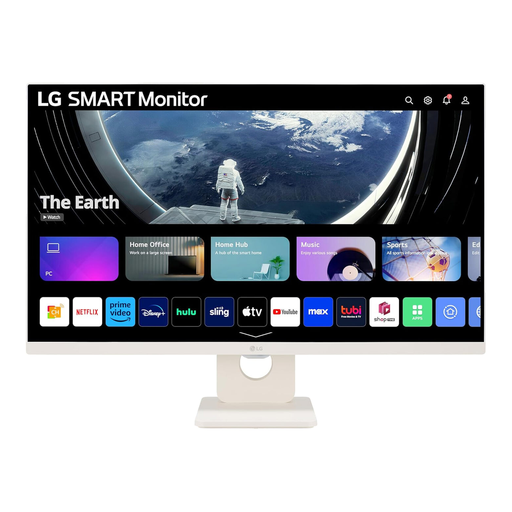 Image unavailable
Two HDMI inputs may suit a shared-screen setup when both laptops have compatible video outputs; they do not, by themselves, establish keyboard-and-mouse switching.
27-inch IPS display; Full HD 1080p; 100Hz; two HDMI ports.
 Image unavailable
The product description identifies Multi-Control for managing two devices with one keyboard and mouse. Check how the feature connects to each laptop and whether its video and USB paths match your setup.
USB-C with 65W power delivery; HDMI connection; Multi-Control function.
 Image unavailable
Consider this monitor if its USB-C video mode or HDMI connection matches the laptop you intend to connect. ASUS specifies that USB-C video requires a compatible device with DisplayPort Alt Mode.
23.8-inch Full HD IPS display; USB-C with 60W power delivery; HDMI connection.
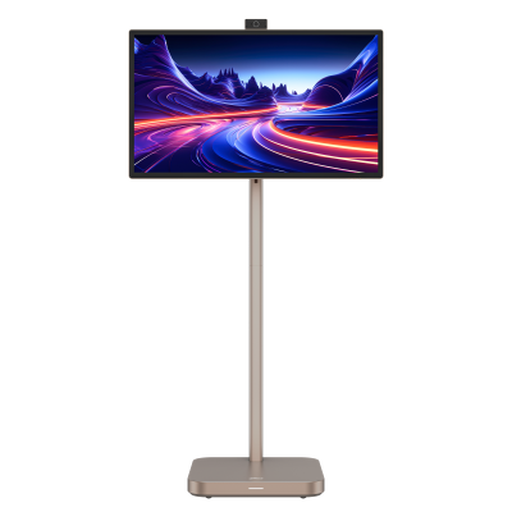 Image unavailable
Its HDMI and Type-C display connections may be relevant when those outputs match the laptops in your setup; check the exact Type-C video requirements before relying on that connection.
31.5-inch 4K UHD IPS panel; Android 11; 8GB+128GB; built-in battery rated for up to 4 hours.
 Image unavailable
This set may suit a setup where sharing keyboard and mouse input between devices matters more than switching the display. Check the connection method and permissions for each laptop.
Bluetooth or wireless USB receiver; connects to up to three devices. Listed compatibility includes Windows, macOS and ChromeOS.
It can with a compatible USB graphics dock and supported software, not simply with a USB-A-to-USB-C adapter. Kensington’s SD4780P documentation describes a DisplayLink model with two screen outputs. Check operating-system support, employer approval for the driver and how the laptop will be powered.
An MST-based connection can cause this because macOS does not support MST for independent extended displays, according to Plugable Technologies. Check the dock’s video technology and the exact Mac’s supported display configuration before relying on a second output.
Ask your employer or IT team whether the required driver and permissions are allowed. Synaptics’ DisplayLink guidance says macOS requires Screen Recording permission for DisplayLink Manager to function; the employer’s approval remains a separate check.
It can: Synaptics documents that some protected content may display as a black video image while DisplayLink screens are connected. Test the applications you need rather than assuming that ordinary desktop display support guarantees protected-video playback.
Connect each computer’s video path and the required USB upstream connection, then configure the monitor’s supported KVM controls. Dell documents software-assisted and on-screen-menu configuration for its monitors; follow the manual for the exact model and connection pairing.