Start with how the person prefers to use a device: spoken navigation, enlarged visual controls or physical buttons. iPhone, iPad and Android devices offer screen-reader and magnification routes, while a specialist handset may suit someone who places greater importance on tactile controls. Check setup, essential apps and everyday controls on the exact device before deciding; a larger screen or an accessibility feature alone does not establish that it will meet every need.
Who is this for?
People who rely on speech output
If spoken navigation is needed for calls, messages and everyday services, compare screen-reader controls from the first setup screen through to the apps the person uses. Apple Support UK documents VoiceOver during iPhone and iPad setup; Google and RNIB describe TalkBack setup on Android devices.
People who use enlarged visual controls
Try text size, contrast and magnification with familiar tasks, then decide whether a phone screen is comfortable or a larger tablet display is worth carrying. Apple and Google document magnification options, but their usefulness needs to be assessed with the person and their usual apps.
People who prefer tactile controls
Physical buttons or voice control may be more important than a larger touchscreen. Compare the controls needed for calling and messaging, and check separately how the handset handles any essential apps. RNIB Shop describes the BlindShell Classic 3 as one handset with large tactile buttons and voice control.
What should you check before choosing?
Choose the main way the person will control the device, then try setup and essential daily tasks on the model being considered.
| Priority | What to check | Your needs |
|---|
| Accessible setup |
Check whether speech or magnification can be enabled at the first screen; try the shortcut, Wi-Fi and account steps on the exact device. Apple Support UK says VoiceOver and Zoom are available from the Hello screen; Google says TalkBack setup varies by manufacturer and software version. |
I need to use the device while setting it up, rather than waiting until normal settings are available. |
| Daily navigation |
Try the screen reader or magnification with calls, messages, settings and essential apps. Check gesture controls, text size and contrast where relevant; Google notes that some Android magnification steps depend on the software version. |
Spoken feedback may matter most to me, or I may need enlarged content I can still navigate comfortably. |
| Physical controls |
Compare touchscreen gestures with the exact buttons, voice controls or alternative input options offered. RNIB Shop describes large tactile buttons and voice control on the BlindShell Classic 3; check app interaction separately. |
If touch gestures are difficult, I want controls I can locate and use for the tasks I do most often. |
| Screen and connectivity |
Try reading and magnification at the intended viewing distance. For a tablet, check its size for carrying and whether its connectivity suits use away from Wi-Fi. |
A larger display could help me read at home, but I may also need a device I can take out and use on journeys. |
| Moving and getting help |
Check access to the old device, accounts and the transfer method before starting. Apple Support UK says both devices stay occupied during a Quick Start transfer; Google Android Help says transfer steps can vary by device. Confirm where accessibility help is available afterwards. |
I want to move my contacts and accounts without losing access to the controls I need during setup. |
Common buying mistakes
-
Assuming a built-in feature makes setup straightforward
Wi-Fi, account details and transfer choices still need attention, and Android setup can differ between manufacturers and software versions.
Try the first-screen accessibility controls and the intended transfer method, then use the chosen mode to make a call, send a message and open an essential app.
-
Choosing by screen size or operating system alone
A larger display may help someone who uses magnification, but it does not replace a workable control method for someone who relies on speech or tactile reference points.
Let the person try their preferred combination of speech, enlarged controls, gestures and physical input on the exact device.
-
Assuming a specialist handset will handle every app
Tactile calling controls do not establish that banking, transport, messaging or authentication apps will work in the way the person needs.
List essential services before buying and confirm each app’s availability and usable interaction method on the handset.
Brand and platform references
Apple
An iPhone or iPad route for people considering spoken navigation or magnification from initial setup.
- Apple Support UK says VoiceOver and Zoom can be turned on from the Hello screen.
- Try the touchscreen gestures and essential third-party apps; built-in controls do not establish that every app will be usable.
Google Android
A phone or tablet platform to consider for TalkBack spoken navigation and screen magnification.
- Google Android Accessibility Help documents TalkBack and full or partial screen magnification.
- Google says TalkBack setup depends on the manufacturer, Android version and TalkBack version; check the exact device.
Samsung
A Galaxy phone or tablet route for buyers comparing Android accessibility controls on a specific model.
- Samsung UK describes TalkBack spoken feedback among its mobile accessibility options.
- Samsung says feature availability can vary by model specification, so check the device and its installed software.
BlindShell
A specialist handset route when physical controls and speech-led use take priority over a conventional touchscreen.
- RNIB Shop describes the BlindShell Classic 3 with large tactile buttons, voice control and support for third-party apps.
- Confirm how essential apps are controlled and whether the handset meets the person’s connectivity and support needs.
Joybuy phone and tablet options
These options cover a handset to assess for physical-control preferences and a Wi-Fi tablet to assess for larger-screen use. Check their accessibility controls and essential apps on the exact model before choosing.
 No image available
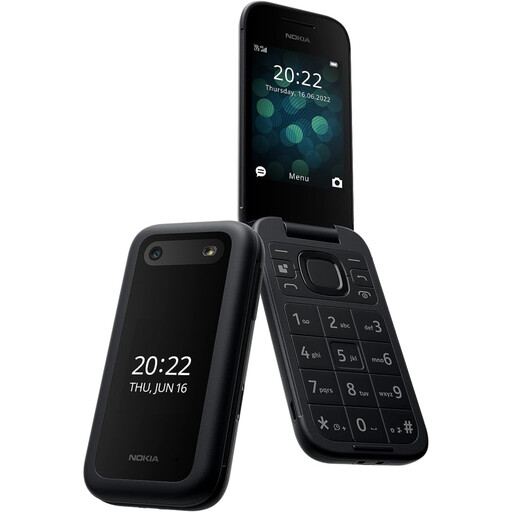
Nokia 2660 TA-1469
Consider this handset if physical controls are a priority. Try dialling and messaging, and confirm whether its speech, enlarged controls, initial setup and essential services work for the intended user.
View on Joybuy
 No image available
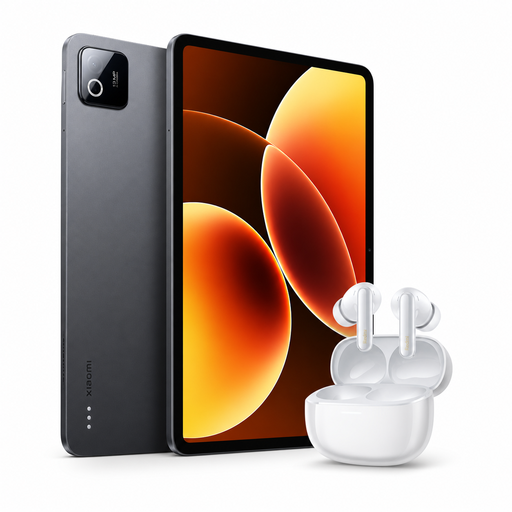
Xiaomi Pad 8 8GB RAM 128GB Wi-Fi Gray + Redmi Buds 6 Pro Glacier White Bundle
The tablet format is worth assessing if a larger viewing surface matters. This variant is listed with 8GB RAM, 128GB storage and Wi-Fi, bundled with Redmi Buds 6 Pro Glacier White. Try magnification, spoken navigation and setup on the exact tablet, and check whether Wi-Fi connectivity suits use away from home.
View on Joybuy
Questions about setup and everyday use
Can I turn on accessibility features before setting up an iPhone or iPad?
Yes. Apple Support UK says VoiceOver or Zoom can be enabled from the Hello screen. Try the chosen control method through the remaining setup steps, including Wi-Fi and account entry.
Will TalkBack and magnification work the same way on every Android device?
No. Google Android Accessibility Help says TalkBack setup varies with the manufacturer, Android version and TalkBack version; some magnification steps also depend on the software version. Check the installed software and practise the shortcuts on the exact phone or tablet.
What should I prepare before moving to a replacement device?
Make sure the old device and necessary account details are accessible, then check the transfer method offered by the new device. Apple Support UK says Quick Start occupies both devices until migration finishes; Google Android Help says Android transfer steps can vary by device.


