What should you check before choosing?
Start with the tasks the person wants to do, then try the screen and controls and decide who will help maintain the setup.
| Priority | What to check | Your needs |
|---|
| Starting screen |
Try the essential apps, text size and navigation with the intended user. Apple says Assistive Access can provide a more focused iPad interface; check the exact settings available on any Android model. |
I want to find calls, messages and photos without working through a crowded screen. Someone I trust can help arrange the layout with me. |
| Screen and device type |
Try reading, holding the device and completing a typical task. Compare a tablet with a familiar large-screen phone; do not assume screen size alone makes forms or accounts simpler. |
Calls and messages are my main tasks, so a phone may be enough. If I regularly read or fill in forms, I want to test whether another screen feels more manageable. |
| Accounts and updates |
Agree who manages sign-in and recovery details, app changes and updates. Apple Support says most settings changes, app additions and updates require leaving Assistive Access. |
I need to know whom to ask when a password, app or setting needs attention, without losing control of my own device. |
| Connection and practice |
Confirm how the device will connect to the internet and who can practise key tasks with the user. AbilityNet describes setup and settings help among its UK volunteer support activities. |
A tablet will only fit my routine if I can get online and have time to practise the things I actually want to do. |
Relevant brand features to check
These brand references point to settings worth examining on a specific device; they do not mean every model has the same features.
Apple
An iPad is worth examining when a supporter can configure a focused set of everyday apps.
- Apple Support describes Assistive Access as a simplified iPad interface that a trusted supporter can personalise.
- The App Store cannot be added within Assistive Access, and most settings changes, app additions and updates require leaving it. Test whether that routine suits the household.
Samsung
Samsung documents mobile accessibility controls that may be relevant when considering a Galaxy tablet.
- Samsung UK describes options including larger content, contrast settings and TalkBack on supported devices.
- Samsung says availability varies by model specification, so confirm the required controls on the exact tablet and software version.
Lenovo
Lenovo offers tablets across several screen-size ranges for households comparing how a device feels to hold and use.
- Lenovo UK lists tablet ranges including 8–8.9-inch, 10–12.9-inch and 13–13.9-inch screen-size groups.
- Check accessibility controls, software support and included accessories for the particular model rather than assuming they are shared across the range.
Tablet options on Joybuy
These tablets are options to examine if a larger device suits the household member’s tasks. Before choosing one, check its exact accessibility settings, setup requirements and charging arrangement with the person who will use it.
 No image available
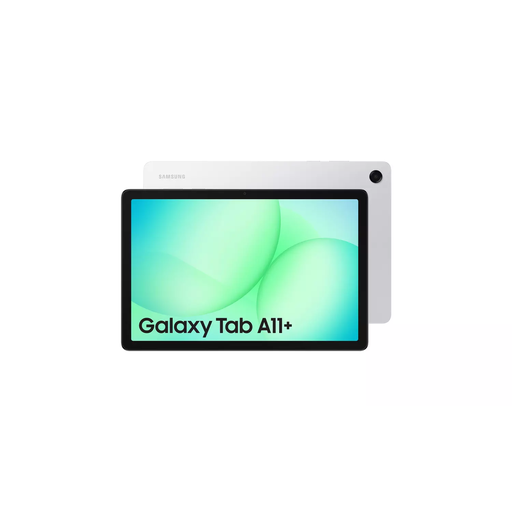
Samsung Tab A11+ SM-X230, 6/128GB, Silver
Consider this tablet if the person wants a separate device for reading and everyday online tasks. Check the exact model’s display controls and software version together before settling on a simplified setup.
View on Joybuy
 No image available
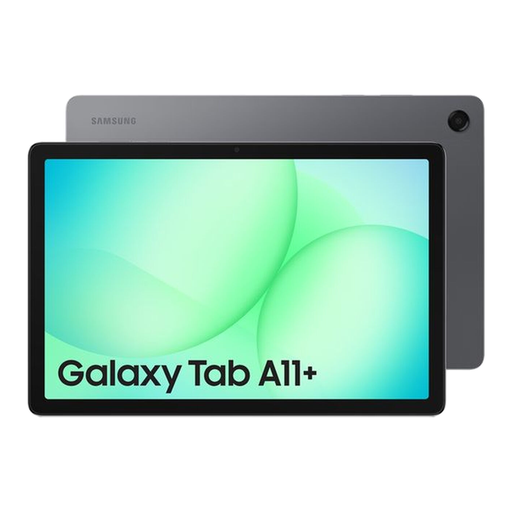
Samsung Galaxy Tab A11+, 8GB/256GB WiFi, Grey
This WiFi tablet is an option where the household has a connection ready for everyday online use. Check its exact accessibility controls and plan who will manage sign-in and later updates.
View on Joybuy
 No image available
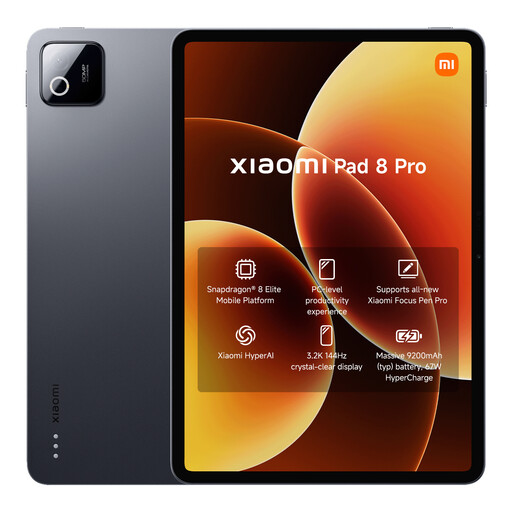
Xiaomi Pad 8 Pro, 12GB RAM/512GB, Grey
If this tablet’s size and controls feel comfortable for the intended tasks, check the required accessibility settings on the exact device. Confirm the UK charging arrangement and who can help with setup.
View on Joybuy
 No image available
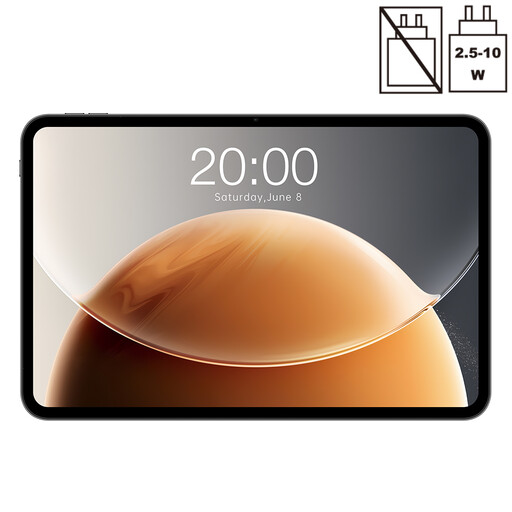
Teclast T65, 13.4-inch 120Hz, 6GB + 20GB virtual RAM/128GB
The stated 13.4-inch screen makes handling comfort particularly important to test. The title also lists Dual SIM 4G and Wi-Fi; check the exact navigation controls and front-camera details if video calls are a key task.
View on Joybuy
 No image available
Xiaomi Pad 8, 8GB RAM/128GB Wi-Fi, Grey
This Wi-Fi tablet is another option to try for reading and everyday online tasks. Verify the exact model’s accessibility controls and software version, then confirm its charging arrangement before purchase.
View on Joybuy
Common questions
Should I arrange setup help before buying a tablet?
Yes, if connecting, signing in or practising tasks is likely to be difficult. Decide who will help with the first few tasks and later questions; AbilityNet describes device setup and easier-to-use settings among the support its UK volunteers provide.
What should we do before handing over an iPad?
Set up the essential apps and contacts with the person, then practise their chosen tasks and charging routine. If using Assistive Access, Apple Support says most settings changes, app additions and updates require leaving that mode, so agree who will manage its passcode and follow-up changes.
Can an Android tablet have simpler controls?
Android offers accessibility settings, but check the exact tablet and software version for the controls needed. Google says feature names and navigation can vary by device and market, and Samsung says availability on its mobile devices varies by model specification.
When might a large-screen phone make more sense?
A familiar phone may suit someone chiefly making calls, sending messages and using it away from home. Try any regular forms or document tasks before relying on it alone: Ofcom reported that smartphone users found those tasks and online comparisons harder on a phone than on a laptop or desktop.
What should I check about the charger?
Confirm what is supplied with the exact tablet and choose a compatible charger if another is needed. For an unfamiliar plug, check current UK product-safety recalls; the Office for Product Safety and Standards has recalled a USB-C charger plug for serious electric-shock and fire risk.


