Laptop presenters short on sockets
If a separate laptop charger is awkward at your slide-preparation desk, a compatible USB-C connection could carry both the picture and laptop power.


Choose a monitor that can carry video and provide enough USB-C Power Delivery for your laptop if the aim is to avoid a separate laptop charger at the desk. Check that the laptop supports video over USB-C first; then weigh a compact screen against a larger editing workspace, adding docking ports only if you need them.
If a separate laptop charger is awkward at your slide-preparation desk, a compatible USB-C connection could carry both the picture and laptop power.
If you work across slides, notes, charts and reference windows, a 27-inch 4K display may be worth considering alongside USB-C charging.
If wired Ethernet and peripherals also need a place to connect, look at the monitor’s docking ports rather than charging alone.
Start with the laptop connection and charging requirement: screen size and docking features cannot make a one-cable setup work if the laptop cannot send video through its USB-C port.
| Concern | What to check | Who this matters to |
|---|---|---|
| One-cable connection | Confirm laptop USB-C video support and compare its charging requirement with the monitor’s Power Delivery rating. | If I have few free sockets, I want the display connection to carry laptop power too. Around 33% of consumers put that one-cable need first. |
| Slide-editing workspace | Compare screen size, resolution and aspect ratio for the slides and supporting windows you use. | When I keep notes or source material beside a slide, room to see the work matters most; around 27% of consumers prioritise the editing workspace. |
| Desk docking | Check for the Ethernet and USB ports your peripherals actually require. | If my keyboard, mouse and wired network need a desk connection, I would rather connect them at the monitor. Docking is the primary need for around 20% of consumers. |
| Desk fit | Check the monitor’s footprint and stand adjustment against the available desk space. | On a cramped desk, I need the screen to fit comfortably before gaining more display area; around 20% of consumers place desk fit first. |
A port used only for data or charging will not provide the intended USB-C monitor picture.
Check the laptop manual for DisplayPort Alt Mode or Thunderbolt support, as Dell Technologies advises for USB-C monitor video connections.
The stated Power Delivery rating must suit the particular laptop; a monitor’s USB-C socket alone does not establish that it can meet its charging needs.
Compare the laptop’s documented requirement with the monitor’s output, and check which cable is needed for video and charging together.
Ethernet and peripheral connections help consolidate a wired desk setup, but may not address a setup that uses Wi-Fi and few accessories.
List what must connect at the monitor before choosing a docking model.
Dell’s USB-C hub monitor range includes the 27-inch P2726HE and the more compact 24-inch, 16:10 P2425E.
LG’s 27U730A-B is a 27-inch 4K IPS option for a detailed slide-editing display.
The Philips 279P1/01 is relevant when a 4K monitor should also provide desk-docking connections.
These monitors offer different screen sizes and USB-C options for slide preparation. Check each laptop’s video and charging compatibility before treating any model as a one-cable solution.
 No image available
Consider this for a 4K slide-editing screen if its USB-C connection suits your laptop.
The product name specifies an IPS panel and USB-C 65 W charging. Check that the laptop can send video over USB-C and that 65 W meets its charging requirement.
 No image available
Consider the wide-format screen if you have room for it and want to arrange slide work across a large display.
The product name specifies a 32:9 curved screen and USB-C. Measure the desk footprint and confirm the laptop’s USB-C video and charging requirements.
 No image available
Consider this model where a flexible desk arrangement matters more than a large editing canvas.
Check its mounting options, the laptop’s USB-C video support and whether the monitor’s charging output meets the laptop’s requirement.
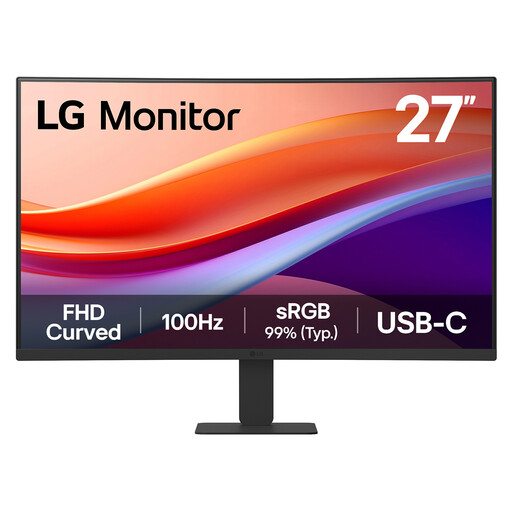 No image available
Consider this for slide work on a 27-inch screen if Full HD provides enough editing space for your layout.
The product name specifies a VA panel and USB-C. Confirm USB-C video compatibility and the charging output before planning to leave the laptop charger unplugged.
 No image available
Consider this when a larger 4K slide-editing screen is the priority and the desk can accommodate it.
The product name specifies USB-C. Before planning a reduced-socket setup, confirm its charging output and power-adapter arrangement as well as laptop video compatibility.
No: the laptop must support video over USB-C, and the monitor’s Power Delivery output must suit the laptop’s charging needs. Check the port, cable and charging requirements together before relying on one connection.
For a compatible laptop, use a suitable USB-C cable to connect it to a monitor that supports both USB-C video input and sufficient Power Delivery. LG Electronics UK states that the 27U730A-B can carry display, data and 90 W charging simultaneously, but the laptop and cable must also support the intended connection.
A USB-C docking monitor can do so if it has the required ports and works with your laptop. Philips UK describes Ethernet and peripheral docking for the 279P1/01; check the port list of the exact model you choose.
Check the monitor’s applicable conformity information rather than assuming one marking establishes compliance for every product. Guidance from the Office for Product Safety and Standards on GOV.UK says Great Britain continues to recognise certain goods meeting EU requirements, including CE marking, indefinitely; Northern Ireland has separate provisions.
Ask the retailer about its same-type electrical-waste take-back and collection arrangements before ordering. GOV.UK describes retailer responsibilities for taking back electrical waste of the same type as an item bought.