Who needs which backup arrangement?

Teams restoring shared work

For an office with several staff, laptops or shared files, the key question is whether its backup covers every working location and lets staff recover the files or devices they need. Compare supported workloads and restore methods before deciding between centrally managed cloud backup and a NAS. Synology documents file-level and full-device restore options for supported Active Backup for Business workloads.

Owner-managed firms protecting a second copy

When one person oversees invoices, contacts and documents, a routine they can maintain matters as much as the storage device. The National Cyber Security Centre advises against leaving a backup device permanently connected to the original system; decide who will separate the copy and test its restoration.

Businesses backing up personal information

Customer or staff information makes supplier terms part of the storage decision. For UK businesses using a supplier to process personal data on their behalf, the Information Commissioner's Office explains the need for a written processor contract. Check the actual service, its sub-processors and any overseas access before choosing a cloud arrangement.

What matters when choosing?

Business cloud backup

Consider it when: Staff use laptops in different places and the service covers the files or collaboration workloads your business must recover.

Allow for: Restoring a large data set depends on your connection; check account access, retention and supplier terms for personal data.

Network-attached storage

Consider it when: An office needs centrally managed local backups and supported restore options for several devices.

Allow for: A NAS needs administration and a separate off-site or offline copy; storage redundancy does not provide one.

External or encrypted removable drive

Consider it when: One person can manage a local copy of a defined data set and disconnect and store the drive separately.

Allow for: Manual handling can lead to missed copies; check device compatibility and how encryption keys will be kept accessible for a restore.

Combined online and offline backup

Consider it when: A single account, connected device or office incident must not remove every recovery path.

Allow for: Someone must own the backup schedule, separation of copies and regular restore tests.

Concern What to check Who this matters to
Restoring shared work List the devices, shared folders and cloud workloads to recover; test the file or full-device restore method you would actually use. If several staff need the same files after a device fails, I need a workable way to resume shared tasks, not just a copy somewhere. Around 29% of consumers put rapid shared-work recovery first.
Keeping copies separate Check where each copy lives, who can change it and whether an offline or disconnected copy can be maintained. After theft or an attack on the main system, I need a copy that the same incident has not reached. For around 29% of consumers, that separation is the primary concern.
Personal-data governance Review processor terms, sub-processors, storage and support locations, and the applicable retention and deletion controls. When customer or staff details are involved, I need to understand who handles them and where access takes place. Supplier and data-governance assurance comes first for around 24% of consumers.
A manageable routine Check capacity and device limits, who monitors backup jobs and whether that person can repeat a restore test. If I manage a small set of business files myself, I need a routine I can keep doing without overlooking failed copies. Around 18% of consumers prioritise that day-to-day simplicity.

Backup mistakes to avoid

  • Leaving the only backup connected

    A drive or NAS continuously accessible from the original system may be affected by the same incident. The National Cyber Security Centre advises that a backup device should not be permanently connected, physically or over a local network.

    Keep a separately protected copy and assign someone to disconnect, store and check it, or use an off-site arrangement alongside the local copy.

  • Choosing capacity without planning a restore

    Available storage says little about whether invoices, contacts, shared folders and the required file versions are actually included. The National Cyber Security Centre emphasises making backups restorable, not merely creating them.

    Write a checklist of priority data and devices, then restore a sample after setup and after major changes.

    An incomplete copy can leave staff rebuilding devices or retrieving working files individually.

  • Treating cloud storage terms as the whole data-protection decision

    Where a supplier processes personal data for a UK business, the Information Commissioner's Office explains that a written processor contract is required. Overseas access may also bring international-transfer requirements into the decision.

    Review the processing terms, sub-processors, support access, data locations and deletion process for the service you intend to use.

  • Applying one retention setting to every record

    Invoices, company accounting records and other information can be subject to different retention considerations. HM Revenue & Customs guidance addresses tax-record periods, while Companies Act accounting-record rules depend in part on the type of company.

    Map the backup schedule to the underlying records and have the resulting retention and deletion approach checked by an appropriate adviser.

Relevant brands for reference

Backblaze

A business cloud-backup option to examine when employee laptop and desktop files need an off-site copy.

  • Backblaze describes automatic file backup for business endpoints and offers retention and legal-hold controls.
  • Check the selected account region, covered workloads, processor terms and any overseas access for the service your business would use.

Synology

A NAS and cloud-backup ecosystem to examine for centrally managed backups of supported business workloads.

  • Synology documents scheduled tasks and several restore methods for supported Active Backup for Business workloads; its C2 business service describes backup for specified PCs, Macs and Microsoft 365 services.
  • Confirm workload support for the particular setup. An office NAS also needs maintenance and a separately protected copy.

Western Digital

An external-drive brand to consider for a managed local or secondary copy.

  • Western Digital documents backup software and Apple Time Machine compatibility for its My Book range; check the relevant model and computer setup.
  • A local drive needs an appropriate backup routine, separate storage and a tested way to restore its contents.

Joybuy storage choices

These NAS devices are options to assess for a centrally managed local setup; the portable drive is an option to assess for a separately managed local copy. Match any device to your workloads and restore plan, rather than treating the storage device alone as a complete backup arrangement.
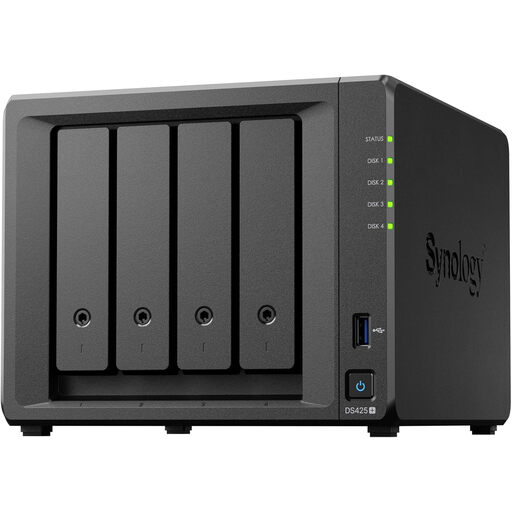
Synology DS425+ 4-bay NAS

Synology DS425+ 4-bay NAS

Consider this NAS if several staff need a central place for business files. Check which drives are included, which business workloads it can back up and how you would restore them; plan a separate protected copy as well.

View on Joybuy
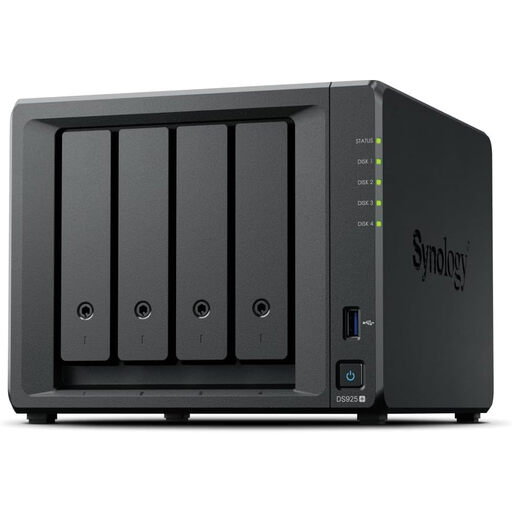
Synology DiskStation DS925+ 4-bay NAS

Synology DiskStation DS925+ 4-bay NAS

This is another 4-bay NAS to assess for central office storage. Before choosing it for backups, confirm compatible drives, whether drives are included, coverage of your business devices and the available restore methods.

View on Joybuy
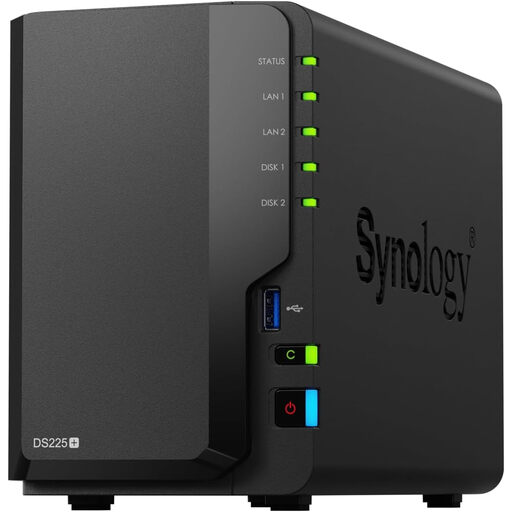
Synology DS225+ 2-bay diskless NAS

Synology DS225+ 2-bay diskless NAS

Consider this 2-bay NAS for a smaller central-storage setup if its backup options cover your business data. It is described as diskless, so choose compatible drives and confirm usable capacity, workload coverage and restore methods before relying on it.

View on Joybuy

Western Digital My Passport 2TB portable external hard drive in black

Western Digital My Passport 2TB portable hard drive, black

Consider this portable drive for a local copy that someone can disconnect and store separately. Its stated capacity is 2TB; check that this covers the data you intend to keep and that your planned backup and restore routine works with your devices.

View on Joybuy

Frequently asked questions

Is cloud backup on its own enough for a small business?

Cloud backup can provide an off-site copy, but it is enough only if the service covers the data you need and you can restore it within an acceptable time. Check access controls and recoverable versions, and test a restore. The National Cyber Security Centre notes that attackers may target backups, so a separate disconnected copy may be appropriate where one recovery path is not enough.

Do we need a contract with a cloud-backup supplier for personal data?

Yes, where your business is the controller and the supplier processes personal data on its behalf, the Information Commissioner's Office says a written processor contract or other legal act is required. Review the supplier's processing terms and sub-processors for the service you plan to use.

Does our backup have to stay in the UK?

Do not decide solely from the advertised storage region: check where personal data can be accessed as well as stored. The Information Commissioner's Office explains that whether an arrangement involves a restricted international transfer depends on its circumstances; assess the selected service and its overseas access before relying on its region setting.

How long should we keep backups of invoices and other records?

Base backup retention on the records inside the backup, rather than applying one setting to everything. HM Revenue & Customs guidance covers tax-record retention, and Companies Act accounting-record requirements differ by company type. Have an appropriate adviser reconcile the duties relevant to your records before setting a deletion schedule.