Who needs which backup approach?
The number of devices, the reliability of the connection and how staff handle removable media all affect the choice.
Teams with unreliable internet
A local copy can be made without a dependable online connection. The National Cyber Security Centre advises disconnecting external backup storage when it is not in use; arrange secure storage and a way to test restoration too.
Organisations with several computers
Central administration or automatic endpoint backup can reduce reliance on each person remembering to copy files. Check that every required device and location is covered, and that an earlier copy remains recoverable after a device failure or cyber incident.
Teams carrying customer data
For removable backup media, check encryption on the exact model, who controls access and how authorised staff would recover the files. Physical custody still matters when a drive travels between locations.
What should you check before choosing?
Start with what must be restored and from which devices, then check how each copy will be protected and accessed when needed.
| Priority | What to check | Your needs |
|---|
| Earlier versions |
Check how long deleted or overwritten files remain recoverable, and perform a test restore. A synchronised current copy alone may reproduce an unwanted change. |
I need to retrieve a clean version after accidental deletion, corruption or ransomware, not just keep another copy of today’s files. |
| Copy isolation |
For a local drive, plan when to disconnect and store it. For connected NAS or cloud backups, check separate administrator access, deletion controls and protected versions. The National Cyber Security Centre warns that attackers can target backups as well as original data. |
One compromised device or account must not be able to alter every copy I would use for recovery. |
| Device coverage |
List the computers, phones, shared folders and online services to protect. Check supported systems, enrolled devices, selected folders and the restore permissions for each service. |
Our staff work across several devices; I need to know which files are actually covered, including work kept in online services. |
| Portable access |
Check the exact drive’s encryption and connector, who holds its password or PIN, and what happens after failed access attempts. Keep another recoverable copy. |
If a removable drive containing customer files is misplaced, I still need controlled access to a separate backup. |
| Connection and capacity |
Compare the files to be backed up, expected growth and connection reliability with the route you plan to use. A manual drive needs a copying schedule; an online service needs connectivity when backups run. |
Internet access is unreliable, or our files span several devices. I need a routine that staff can complete and a copy large enough for the data selected. |
Relevant brand references
These examples illustrate features to check on particular product lines; a brand name alone does not establish what an individual drive, NAS or service includes.
Western Digital
Relevant when considering direct-attached external drives for local copies.
- Western Digital says WD Security provides password protection on supported external drives with 256-bit AES hardware encryption.
- Support varies by drive. Western Digital warns that a forgotten password can require erasure and permanent data loss, so check the exact model and keep another copy.
Kingston IronKey
Relevant to controlled portable copies of a limited set of critical files.
- Kingston describes hardware encryption and Admin, User and One-Time Recovery password options for its Vault Privacy 50 series.
- Those VP50 options must not be assumed for a different IronKey model. Check capacity, credentials and failed-access behaviour on the exact drive being considered.
QNAP
Relevant to centrally managed NAS arrangements for several devices.
- QNAP describes snapshots that can restore specified files and folders or a volume to an earlier state.
- Immutable storage depends on the product and configuration. Check the model, protection period, administrator controls and a separate recovery destination.
Synology
Relevant where a NAS backup arrangement calls for protected earlier versions.
- Synology describes immutable snapshots that restrict changes and deletion during a specified protection period.
- Confirm support on the exact NAS and its software configuration; ordinary snapshots should not be assumed to have immutable retention.
Backblaze
Relevant to centrally managed backup of Macs and PCs used across locations.
- Backblaze describes automatic computer backup and central management of backups and restores for its business service.
- Check the selected plan’s version-history setting and whether it covers every required device and file location; longer retention should not be assumed from the service name.
Joybuy options for local backup copies
These portable SSDs, an encrypted USB drive and an external hard drive suit different local-copy needs. Plan how each copy will be made, disconnected where appropriate and restored; choosing a storage device alone does not establish a complete backup routine.
 No image available
Samsung T7 Shield Portable SSD 1 TB, Blue
A portable local-copy option when a drive can be disconnected after backup. The named variant has 1 TB of storage and USB 3.2 Gen 2; check software compatibility, password recovery and your restore routine before using it for sensitive files.
View on Joybuy
 No image available
Samsung Portable SSD T7 1 TB, Blue
This USB Type-C, USB 3.2 Gen 2 drive is another portable choice for a local copy. If customer files will be stored on it, check the exact password-protection setup and recovery procedure, and keep a separate recoverable copy.
View on Joybuy
 No image available
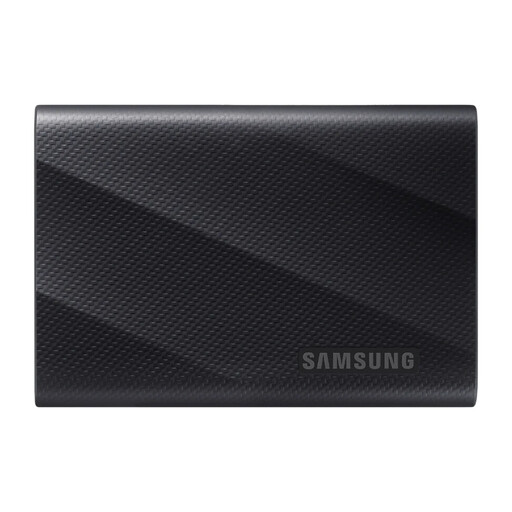
Samsung MU-PG1T0B 1 TB USB 3.2 Gen 2x2 SSD
A 1 TB USB Type-C option for a portable local copy. Check that the computers used for backup and restoration support the connection you intend to use, and establish the drive’s access-recovery and file-restoration procedures before relying on it.
View on Joybuy
 No image available
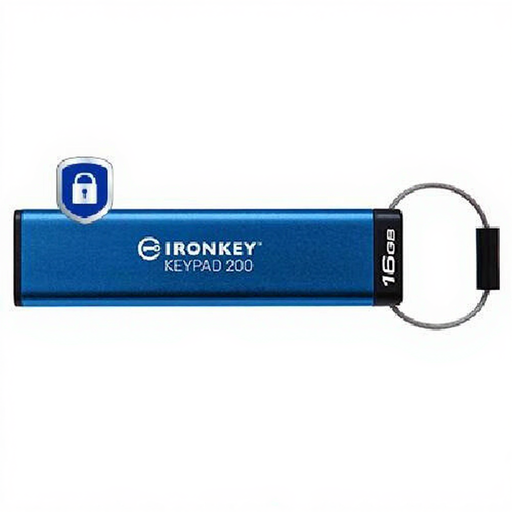
Kingston IronKey Keypad 200 16GB encrypted USB drive
Its stated 16GB capacity makes this a choice to assess for a limited set of critical files rather than an assumed full-device backup. Check the Keypad 200’s access and recovery rules, connector compatibility and the actual size of the files to be copied; do not treat a certification described as pending as completed.
View on Joybuy
 No image available
Western Digital Elements portable hard drive 4TB
This USB 3.0 external drive offers a 4TB local-copy option when backups cannot depend on internet access. Check the file system against the computers that must restore it, confirm encryption requirements separately, and disconnect and store the drive after each backup.
View on Joybuy
Frequently asked questions
Should cloud backup be the only route if our internet is unreliable?
No. The National Cyber Security Centre advises using an external storage device when reliable internet access is unavailable. A local drive can provide a copy without that connection; disconnect it after use, store it securely and test that the files can be restored.
Is a permanently connected drive or NAS enough against ransomware?
Not on its own. The National Cyber Security Centre warns that connected USB and network storage can be affected during an incident. Check isolation, separate backup credentials, recoverable earlier versions and a further offline or otherwise protected copy.
What should we check before backing up customer files to an encrypted USB drive?
Check encryption on the exact model, its capacity and connector, who administers access, and what happens if a password or PIN is forgotten or entered incorrectly. Keep the device in controlled custody and maintain another recoverable copy; features described for one encrypted-drive series do not automatically apply to another.
Do NAS snapshots replace a separate backup?
No. Snapshots can offer an earlier point to restore from, but a NAS remains connected storage unless the wider arrangement protects its backup copies. Check snapshot retention, separate administration and an additional offline or off-site recovery location.
How often should we test a restore?
Set a documented interval that reflects how much data loss and downtime the organisation can tolerate. Test the actual files, restore steps and access credentials, and repeat the test after a significant change to the backup arrangement.


