Choose the caption material before the printer: adhesive sheets, small cards and heavier paper call for a model whose published specifications cover the exact media type, size and weight. For black text on ordinary paper, a compact monochrome printer may be enough; choose colour when it carries information the captions need, and check desk clearance as well as the printer’s dimensions.
Who needs which printer?
Caption makers with little desk space
If most captions are black text on ordinary paper, start with a monochrome printer and measure the space it will occupy in use. Brother UK describes the HL-L1240W as a compact print-only option with a 150-sheet tray; that does not establish whether it will fit your particular desk.
People printing labels or small cards
Adhesive sheets and non-standard sizes make documented media support more important than a general claim that a printer is compact. Canon UK lists labels, custom sizes and a 60–163 g/m² cassette media range for the i-SENSYS LBP122dw; the intended stock must still match the applicable specifications.
Organisers using colour-coded captions
Colour may be necessary when it distinguishes categories or carries a logo. Colour printers also involve multiple toner colours, and output speeds can differ by mode: HP Store UK lists up to 19 pages per minute in black and 4 in colour for the Color Laser 150nw.
What matters when choosing?
Decide what the captions will be printed on, then check the printer’s usable desk fit and whether the design actually requires colour.
| Concern |
What to check |
Who this matters to |
| Desk fit |
Compare published dimensions with the usable width and depth; allow access for loading paper, collecting output and changing toner. |
I need the printer to remain on a narrow desk without blocking the space around it. Around 40% of consumers would put desk fit first. |
| Caption material |
Match the exact sheet to the printer’s media types, size limits and weight range, and check that adhesive material is rated for laser printing. |
If I use labels or small cards, I need to know that my chosen stock can be fed through the printer. Roughly 40% of consumers would make media compatibility their primary concern. |
| Colour requirements |
Decide whether colour conveys essential information; if it does, check colour output speed and the consumables the model uses. |
My category cues or logo need colour to work as intended, rather than black text alone. About 20% of consumers would prioritise colour communication. |
Buying pitfalls
-
Assuming a compact printer will fit
A small-looking printer can still take too much desk depth or be awkward to load against a wall.
Measure the intended position and the space needed to use the printer. Canon UK specifies dimensions of 356 × 283 × 213 mm with trays for the i-SENSYS LBP122dw; compare those dimensions with the available space rather than relying on the word “compact”.
-
Choosing label sheets before checking the printer
Support for ordinary paper does not establish support for adhesive stock. Canon UK explicitly lists labels for the i-SENSYS LBP122dw, while Brother UK lists plain and recycled tray media for the HL-L1240W.
Check the exact printer’s media types, sizes and weights against the sheet you intend to use. Avery UK identifies label materials by printer technology, so select a material marked for laser printing.
-
Buying colour for text-only captions
Colour helps when it carries a category cue or graphic, but it adds multiple toner colours to manage. Output speed can also vary: HP Store UK lists up to 4 colour pages per minute for the Color Laser 150nw, compared with up to 19 black pages per minute on that same model.
Mark the parts of your caption design that must print in colour. If there are none, compare monochrome models that meet your paper and space requirements.
-
Overlooking cartridge compatibility
HP Store UK states that the LaserJet M110w and Color Laser 150nw use dynamic security measures that may block cartridges with a non-HP chip.
If you intend to use third-party consumables, check the current cartridge requirements for the exact printer before choosing it.
Brands to consider for caption printing
Canon
The i-SENSYS LBP122dw is a monochrome option to examine when labels, small formats or heavier stock are part of the caption workflow.
- Canon UK lists labels, custom media from 76.0 × 127 mm and a 60–163 g/m² cassette media range for this model.
- It prints in monochrome, so it cannot produce colour-coded captions. Check its 356 × 283 × 213 mm dimensions with trays against the available desk space.
Brother
Brother’s HL-L1240W serves a straightforward monochrome, ordinary-paper route; its HL-L3240CDW is a separate option to examine when colour is needed.
- Brother UK lists up to 20 pages per minute, a 150-sheet tray, 5 GHz Wi-Fi and USB for the compact HL-L1240W.
- The listed HL-L1240W tray media are plain and recycled paper at 65–105 g/m². Do not assume it accepts a particular label sheet without checking that stock against the model’s specification.
HP
HP has monochrome and colour laser models to compare when caption layout and desk space point to different requirements.
- HP Store UK lists colour printing for the Color Laser 150nw, with advertised speeds of up to 19 pages per minute in black and 4 in colour.
- HP states that dynamic security measures on the LaserJet M110w and Color Laser 150nw may block cartridges using a non-HP chip; check the current policy if cartridge choice matters to you.
Joybuy products for black-text captions
These monochrome printers are choices to consider for text-led captions. Check each model’s dimensions and the compatibility of your intended paper or caption stock before deciding where it belongs on your desk.
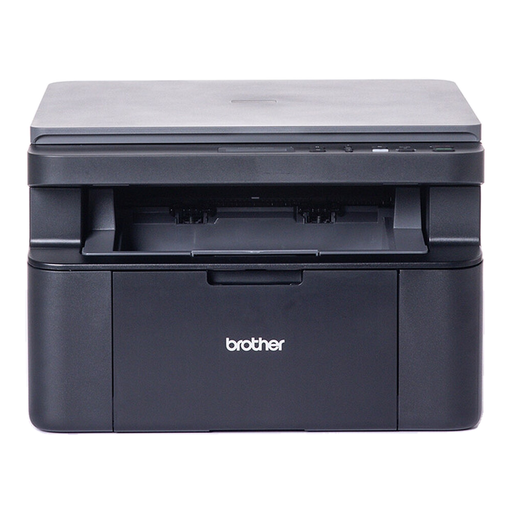 No image available
Brother DCP-L1640W Mono Laser Printer
Consider this monochrome laser model for black-text captions if your intended paper is compatible. Confirm the caption sheet’s media type, size and weight, then measure the space needed to load paper and access the printer.
View on Joybuy
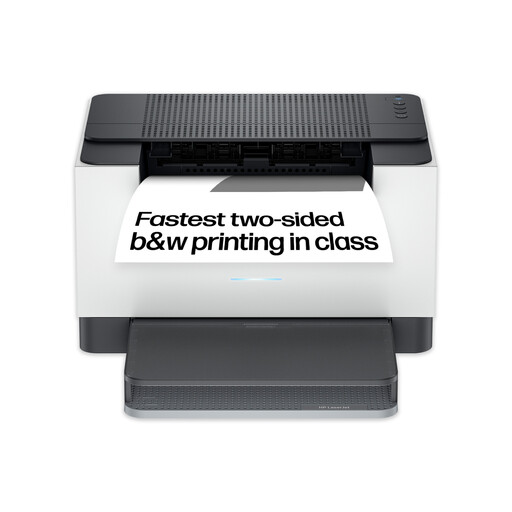 No image available
HP LaserJet M209dw Wireless Monochrome Printer
Consider this model for black-text captions when wireless printing is useful and its paper handling suits the job. Its stated features include two-sided printing and a 150-sheet input tray; check the exact caption stock and available desk clearance before buying.
View on Joybuy
Common questions
Can any laser printer print adhesive display captions?
No: choose sheets rated for laser printing and check that the exact printer supports labels in the required size and weight. Canon UK lists labels for the i-SENSYS LBP122dw, while Avery UK distinguishes materials intended for laser printers from those intended for other printer technologies.
Is monochrome enough for display captions?
Monochrome is a reasonable choice when captions rely on black text rather than colour-coded information or graphics. If colour carries meaning, compare colour models and their consumables; HP Store UK lists up to 4 colour pages per minute for the Color Laser 150nw, versus up to 19 in black on that model.
What should I measure on a small desk?
Measure usable width, depth and height, then compare them with the printer’s published dimensions in the configuration you will use. Leave room to load paper, collect printed sheets and reach the toner and trays; a matching footprint alone does not establish a practical fit.
Can I choose any third-party toner for an HP printer?
Check the cartridge requirements for the exact model rather than assuming any cartridge will work. HP Store UK states that the LaserJet M110w and Color Laser 150nw use dynamic security measures that may block cartridges with a non-HP chip.


