A 23.8–24.1-inch IPS monitor is a useful starting point for sprite animation on a small desk, but the right specification depends on the work you do most. Prioritise a supported 1080p high-refresh mode for motion playback, QHD for more editor workspace, or a 16:10 creative display when its colour specifications suit your delivery workflow. Check the stand footprint, computer connections and available display modes before choosing.
Who these monitors suit
Motion-preview-focused sprite animators
If you repeatedly play back and adjust short sprite loops, compare supported refresh modes as well as screen size. BenQ UK lists a 144Hz mode for its compact GW2490TC; your computer and connection must also support the mode you intend to use.
Pixel-detail and editor-workspace users
If drawing frames, inspecting edges and keeping editor panels visible take more of your time than rapid playback, a compact QHD screen may better match your priorities. Dell UK lists its P2425D at 2560×1440 and 100Hz.
Colour-managed indie artists
If sprite assets must fit an sRGB or Rec.709 workflow, compare the exact model’s stated colour coverage and calibration information rather than choosing by refresh rate alone. ASUS United Kingdom lists both colour spaces for the ProArt PA248QV.
What matters when choosing
For a small desk, decide whether playback, editing space or colour-managed delivery drives the choice; then check how the monitor will fit and connect.
| Concern |
What to check |
Who this matters to |
| Motion playback |
Confirm the refresh rate at your chosen resolution and whether your computer, cable and monitor input support that mode. |
If I spend much of my time judging how a sprite moves, I want the playback mode to work with my computer. Around 45% of consumers put motion playback first. |
| Pixel detail and workspace |
Compare native resolution and whether editor text and controls remain comfortable at your preferred scaling. |
When I draw individual frames, I need room for the artwork, panels and references without making the interface hard to use. Roughly 33% of consumers prioritise pixel detail and workspace. |
| Colour workflow |
Check the exact model’s stated colour spaces and calibration information against the settings used to deliver your artwork. |
If my assets must be prepared for an sRGB or Rec.709 workflow, I care about the display’s colour specifications and how I configure the application. Around 22% of consumers place that need first. |
Buying pitfalls
-
Choosing by refresh rate alone
A monitor’s maximum refresh rate is not necessarily the mode your computer will output through the connection you plan to use.
Check the supported resolution and refresh combinations for the intended input and your computer’s video output. After setup, select and confirm the display mode in the operating system.
-
Measuring the screen but not the stand
A compact diagonal does not tell you how much desk depth the base needs or where the screen will sit.
Measure the usable desk area and compare the complete stand dimensions. For an arm, check the monitor’s VESA pattern and weight alongside desk and clamp clearance.
If the supplied base is too deep, an alternative mount or a different desk arrangement may be necessary.
-
Assuming colour coverage settles colour accuracy
Stated colour-space coverage and factory calibration apply to a particular model; they do not configure every creative application or target device for you.
Match the model’s stated colour spaces and calibration information to your delivery workflow, then check the operating-system and application colour settings.
Brands to consider for compact monitors
BenQ
Its GW2490TC illustrates the compact Full HD, high-refresh route for animation playback.
- BenQ UK lists a 1920×1080 resolution and 144Hz refresh rate for the GW2490TC.
- Full HD offers fewer desktop pixels than QHD, and the intended refresh mode still depends on the computer and connection.
Dell
The P2425D and P2425HE illustrate different compact-workstation priorities: QHD workspace and Full HD USB-C connectivity.
- Dell UK lists the P2425D at 2560×1440 and 100Hz, and the P2425HE at 1920×1080 and 100Hz with up to 90W USB-C power delivery.
- Choose between those model-specific features according to your workspace and laptop-connection needs; check that any USB-C charging provision meets your laptop’s requirements.
ASUS ProArt
The PA248QV illustrates a compact creative-display route for work prepared in defined colour spaces.
- ASUS United Kingdom states 100% sRGB and 100% Rec.709 coverage for the PA248QV.
- Those model-specific claims do not mean every ProArt display has the same characteristics or that colour management is automatic in every application.
Joybuy monitor options
These options cover colour-oriented and QHD editing, a higher-refresh Full HD choice, and a USB-C screen for flexible placement. Compare the exact model’s display modes and physical fit against your own sprite-animation workflow.
 No image available
ASUS ProArt PA248CNV IPS WUXGA
Consider this WUXGA IPS model if vertical editing space matters for sprite sheets and timelines.
Check its refresh mode, colour specifications and stand footprint against your workflow and desk.
View on Joybuy
 No image available
ASUS ProArt PA247CV IPS FHD 75Hz
Consider this Full HD IPS model when your editing and colour-workflow needs matter more than a higher-refresh playback mode.
Its title specifies 75Hz; check the model’s colour information and your application settings before relying on it for colour-managed delivery.
View on Joybuy
 No image available
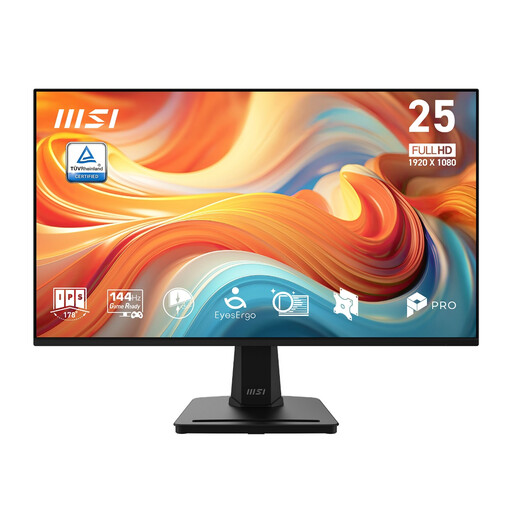
MSI PRO MP251 E14L 24.5-inch FHD 144Hz IPS
Consider this model if checking sprite movement is the priority and your desk can accommodate a 24.5-inch screen.
Its title specifies 1920×1080 and 144Hz. Confirm that your computer and chosen connection support the intended mode.
View on Joybuy
 No image available
ASUS ZenScreen MB249C IPS USB-C
Consider this IPS USB-C model if screen placement and connection options are important on your small desk.
Check the mounting arrangement, USB-C compatibility and refresh mode before choosing it for your animation setup.
View on Joybuy
 No image available
ASUS ProArt PA24ACRV IPS QHD
Consider this QHD IPS model if inspecting sprite detail and arranging editor panels take priority.
Check its refresh mode and colour specifications if motion preview or colour-managed delivery is also important to you.
View on Joybuy
Common questions
What monitor size should I consider for a small desk?
A 23.8–24.1-inch screen is a starting range for this setup, but measure the complete stand as well as the diagonal. BenQ UK lists a 241.6 mm stand depth for its 23.8-inch GW2490TC; an alternative mount changes the space needed only if it fits both the monitor and your desk.
Do I need 144Hz to animate sprites?
No: prioritise a supported 144Hz mode if you spend much of your time checking movement, not simply because you draw animated assets. If frame editing and on-screen panels matter more, Dell UK’s 2560×1440, 100Hz P2425D illustrates the compact QHD alternative; check the interface size and display modes that work for you.
How should I position a monitor for longer desk sessions?
Position it so you can view the screen comfortably without relying on screen size alone. The Health and Safety Executive advises placing the top of the screen at eye level, about an arm’s length away and directly in front of you; check that the stand or a compatible mount lets you achieve that arrangement on your desk.


