What should you check before choosing?
Start with the files you would need to recover, then check whether each storage route gives you a workable way to restore them.
| Priority | What to check | Your needs |
|---|
| Recovery |
Identify the files to protect and how to restore a file or a full working set. Check version retention and test a sample restore. |
I need documents, contacts or other operational files back in time to resume work after a device problem or cyber incident. |
| Separate copies |
Check whether one copy stays available if a device or account is affected. The National Cyber Security Centre advises against keeping all backups connected at once. |
If my usual files become inaccessible, I want another recovery route that is not continuously exposed to the same device. |
| Access and connectivity |
For cloud storage, check internet reliability, shared-file ownership and account controls. For local storage, check how the device is connected and stored between updates. |
Our team may need files from different locations, but a broadband outage should not leave essential work without a recovery plan. |
| Capacity |
Measure the protected files, then allow for growth and the versions you intend to keep. Check a device’s usable capacity or a service’s storage allowance. |
I want room for the files we actually back up, not a capacity chosen solely from the size of a computer’s drive. |
| Removable-media security |
Check encryption where appropriate for personal data, secure custody and documented recovery access. The Information Commissioner’s Office advises using encryption for personal information on removable media where appropriate to the risk. |
Customer or staff information on a portable device needs protection, but authorised staff must still be able to recover it. |
| Compatibility |
Confirm the operating systems, connections, required software and restore procedure for the exact device or service. |
I need the backup to work with the computers we use and to remain readable when we need to restore files. |
Joybuy storage options
These options include portable external drives for local file copies and a network-attached storage device for shared files. Match the device to your protected files and plan a separate recovery copy where the data is essential.
 No image available
Western Digital My Passport 2TB portable drive, Black
For a portable local copy, this 2TB external drive can be disconnected between updates. Its listing describes scheduled backup software and password-protected 256-bit AES hardware encryption; confirm those features for this model and test restoration. Check the macOS setup required for your computers, as the listing descriptions differ.
Joybuy
 No image available
Western Digital My Passport Ultra for Mac 5TB, Silver
This 5TB portable drive is a local-copy option for a Mac-based team. The listing specifies an HFS+ format and says Windows use requires a downloadable driver; check compatibility before sharing it across operating systems. Confirm the backup and restore process, and keep another recovery copy of essential files.
Joybuy
 No image available
Samsung MU-PE1T0S 1TB USB Type-C 3.2 Gen 2 (3.1 Gen 2), Black
This 1TB external SSD offers a portable place for a selected local file copy. Its listing describes compatibility with PCs, Macs and Android devices; check your connections and how files will be backed up and restored. Confirm encryption for this exact model before using it for sensitive personal data.
Joybuy
 No image available
Western Digital Elements Port. 4TB USB3.0, Black
This 4TB portable hard drive is an option for a local copy of a larger file set. The listing describes automatic recognition by Windows 10+ and says other operating systems may require reformatting. Check compatibility, arrange backup updates and test that the files can be restored after the drive has been disconnected.
Joybuy
 No image available
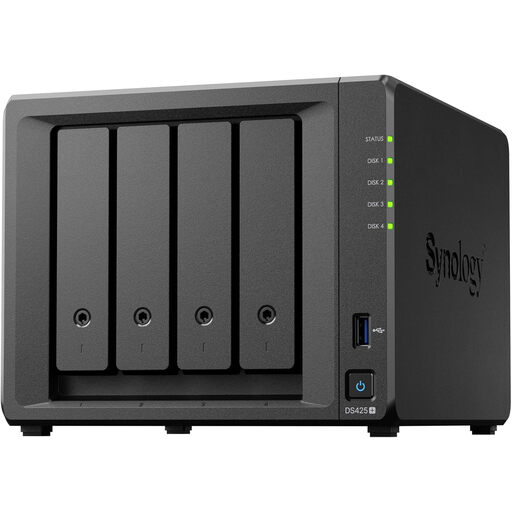
Synology DS425+ 4 Bay NAS
This network-attached storage device is a route for a team that needs a central location for shared files. The listing describes access controls, audit logs, backups and snapshots; check which drives are included, the usable capacity, backup destinations and how restoration works. A connected NAS does not itself provide a disconnected recovery copy.
Joybuy
Backup questions answered
When should a small business use both cloud and an offline device?
Use both when losing access to one copy could interrupt essential work. Cloud access can help staff working across locations, while a disconnected device provides another recovery route; the National Cyber Security Centre advises keeping an offline copy digitally disconnected when it is not in use.
Is a synced cloud folder enough protection against ransomware?
No: the National Cyber Security Centre cautions that cloud and connected local backups are not ransomware-resistant by default. Check account protection, version restoration and access controls, and keep an independent copy that remains available if the synced files are affected.
How much storage should a backup drive or cloud plan have?
Choose capacity from the files you need to recover, with room for growth and the versions you intend to retain. Include relevant shared documents, email exports, invoices, contacts, customer information and operational files; then check whether the selected device or plan covers that set.
How often should backups be tested?
Set a documented test schedule that reflects how quickly your business needs to resume work, and test both file restoration and access credentials. The Information Commissioner’s Office calls for the ability to restore access to personal data in a timely manner but does not prescribe one interval for every organisation.


