Start with the supplied router: once the new broadband service is working, check whether it can use your previous Wi-Fi name and password before replacing equipment. If devices still cannot connect, choose hardware for the identified problem: a compatible router setting or replacement router for a device-specific Wi-Fi requirement, an extender for one weak-signal area, mesh for several affected areas, or a hub only when the devices’ protocol requires one. Check the exact devices and your provider setup before buying.
Who this is for
Households reconnecting existing devices
If your phones, speakers, plugs or printers worked before the move or provider switch, try the new router’s settings before replacing them. Ofcom notes that using the previous Wi-Fi name and password may reduce the number of devices you need to update individually.
Owners of devices with specific connection requirements
Cameras, doorbells and smart-home devices may need a particular Wi-Fi band or a compatible bridge or coordinator. Check each model’s requirements rather than assuming that a newer router or a general-purpose hub will connect it.
Households with weak signal in the new home
If devices connect near the router but struggle in their intended rooms, test those locations before choosing an extender, access point or mesh system. The number and position of affected areas matter more than a coverage figure alone.
What to check before buying
Get the new connection working and test devices where you intend to use them; that separates a reconnection task from a Wi-Fi compatibility, coverage or hub requirement.
| Concern |
What to check |
Who this matters to |
| Reusing the router |
Check whether the working new router lets you set the previous Wi-Fi name and password; use a strong password. |
When my devices already meet the router’s requirements, I want to reconnect them without replacing working equipment. About 33% of consumers would put avoiding an unnecessary replacement first. |
| Device compatibility |
Check each device’s supported Wi-Fi band, security settings and setup instructions before choosing another router. |
If a camera cannot find the new network, I need to know whether its Wi-Fi requirements match the router. For about 25% of consumers, preserving a specific device’s connection would be the primary concern. |
| Signal reach |
Test affected rooms; assess an extender or access point for one weak area, or mesh placement for several. |
My devices connect near the router but struggle in the rooms where I need them. Restoring coverage would come first for about 25% of consumers. |
| Hub requirements |
Identify each device’s protocol and check the exact hub, coordinator or border-router compatibility. |
If I use Zigbee or Thread devices, stronger Wi-Fi alone may not provide the connection they require. About 17% of consumers would primarily need to resolve a hub or protocol requirement. |
Mistakes to avoid
-
Replacing the router before testing its settings
A new router may not be necessary just because the broadband provider has changed. Ofcom says setting the new router to the previous Wi-Fi name and password may reduce the need to update devices individually.
Bring the new service online, check those settings and test your devices before choosing replacement hardware.
-
Assuming a newer Wi-Fi label means every device will connect
Device requirements can differ from those of a phone or laptop. Google Home and Nest Help says European outdoor Nest cameras and doorbells need a router broadcasting 2.4 GHz during setup.
Check the exact device’s supported band, security settings and pairing instructions before buying a router or mesh system.
-
Buying a hub without checking the device protocol
A Wi-Fi router does not provide every smart-home radio connection. Home Assistant specifies a compatible Zigbee coordinator for Zigbee devices used with its Zigbee Home Automation integration.
List your devices by model and protocol, then confirm that the proposed hub or accessory supports them and your chosen platform.
-
Treating a coverage figure as a promise for your home
Walls, room layout and unit placement affect whether a remote device receives a usable signal. An extender also needs a suitable connection to the main router at its own location.
Test where devices lose connection, then plan one targeted extender or access point for a distinct weak area, or mesh units for several affected areas.
Brands to consider for specific needs
TP-Link
TP-Link offers standalone routers and Deco mesh systems for households assessing router settings or coverage after a move.
- TP-Link lists both 2.4 GHz and 5 GHz operation for its Deco X10; check the exact model and pack when comparing other Deco systems.
- A Deco model’s listed coverage does not establish the signal you will get in your new layout.
Google Nest Wifi
Google Nest Wifi products are relevant if you already use Google Home or Nest devices and are considering a Google-managed mesh setup.
- Google Home and Nest Help identifies Nest Wifi Pro as a Wi-Fi 6E product with Matter capability.
- Google says Nest Wifi Pro cannot form a mesh with older Nest Wifi routers or points, or Google Wifi points; check your existing equipment before expanding it.
eero
eero is another mesh route to assess if weak signal affects several rooms.
- Amazon’s eero 6 listing describes a Wi-Fi 6 mesh product with app-led setup.
- That description does not establish compatibility with your provider setup or every existing smart device.
NETGEAR Orbi
Orbi is NETGEAR’s mesh range to consider when the problem is Wi-Fi reach across the new home.
- NETGEAR offers Orbi systems in different Wi-Fi generations and pack sizes.
- Choose the exact system and number of units against your tested weak-signal locations; a mesh system will not replace a required smart-home hub.
Joybuy products by need
These routers, mesh systems and an extender are options to assess if testing shows that the supplied router needs replacing or Wi-Fi reach needs improving. Check your devices’ requirements and broadband setup before choosing among them.
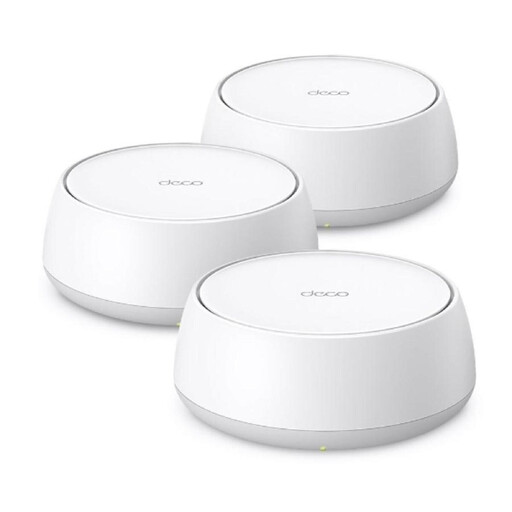 Image unavailable
TP-Link Deco BE22 (3-Pack) BE3600 Wi-Fi 7
Consider this three-pack mesh system if devices lose signal in several parts of the new home. Plan unit positions around the affected rooms, and check your modem setup and each device’s network requirements before replacing the existing Wi-Fi.
View on Joybuy
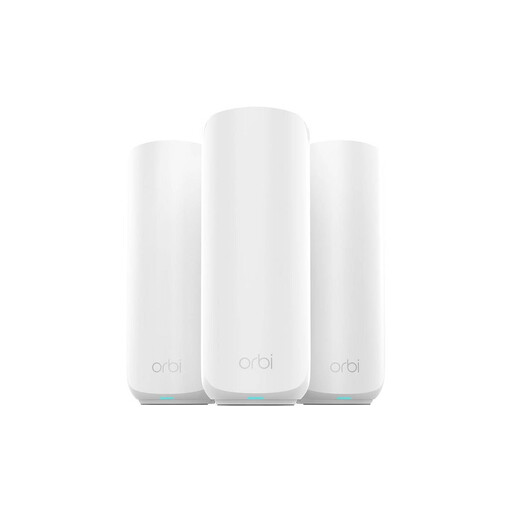 Image unavailable
NETGEAR Orbi 370 RBE373 (3-Pack) BE3600
This Wi-Fi 7 mesh system is an option for several weak-signal areas, provided a mesh route addresses the problem you observed. The listed variant is dual-band, white and specifies 2.5 Gbps Ethernet; check the required modem or gateway connection and your devices’ settings.
View on Joybuy
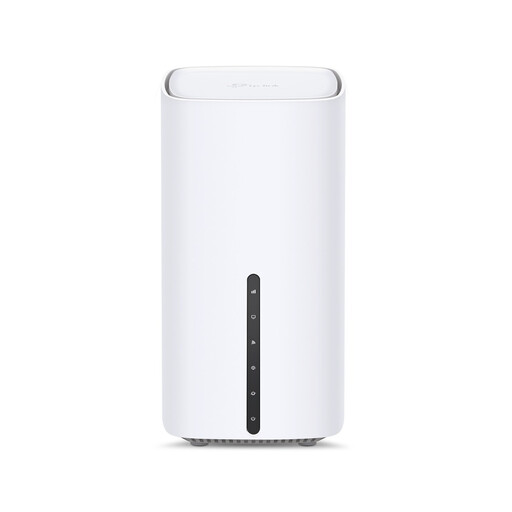 Image unavailable
TP-Link Archer NX500 5G AX3000 router
Consider a replacement router only if the supplied one cannot meet an identified connection requirement. This model is listed as a dual-band Gigabit router; confirm that its connection options work with your broadband or mobile service and that its network settings suit your existing devices.
View on Joybuy
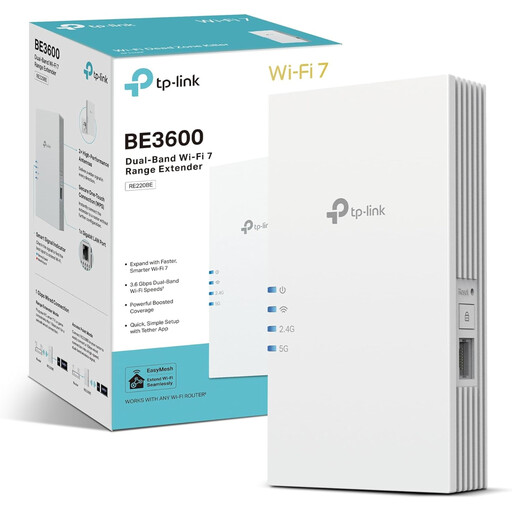 Image unavailable
TP-Link RE220BE BE3600 Wi-Fi 7 range extender
This range extender is a route to assess for one distinct weak-signal area rather than a protocol mismatch. Identify a position where it can still receive a usable signal from the router, and check the affected device’s Wi-Fi requirements.
View on Joybuy
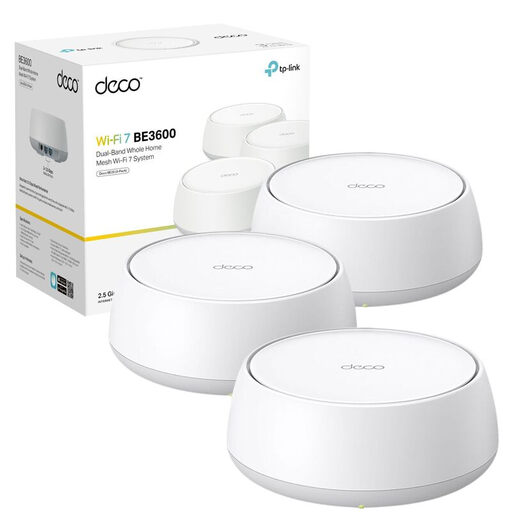 Image unavailable
TP-Link Deco BE25 Wi-Fi 7 (3-Pack)
Consider this three-pack mesh system when testing reveals weak Wi-Fi in several areas, rather than devices that simply need reconnecting. Check unit placement, your provider or modem setup and the network requirements of devices you intend to keep.
View on Joybuy
Common questions
Can I avoid reconnecting every device after changing broadband provider?
Possibly. Ofcom says you may be able to give the new router your old Wi-Fi name and password, reducing the need to update devices one by one. The router must allow those settings, and each device still needs compatible Wi-Fi and security settings.
Will an older smart device work with a Wi-Fi 6 or Wi-Fi 7 router?
Check the device rather than relying on the router’s Wi-Fi generation. Google Home and Nest Help says European outdoor Nest cameras and doorbells need a 2.4 GHz network broadcast during setup; check your own device’s band and security requirements before buying.
Should I choose mesh or an extender for the new home?
Assess an extender for one distinct weak-signal area where you can position it within usable range of the router. If several rooms have poor signal, assess mesh-unit placement instead. Test the affected device locations first so you are addressing reach rather than a connection-setting problem.
Do I need a new smart-home hub after moving?
Not just because you have moved. Check whether the exact devices need a compatible coordinator, bridge or Thread border router. Home Assistant specifies a compatible coordinator for Zigbee devices in its Zigbee Home Automation integration, while Philips Hue’s guidance distinguishes Matter-enabled products from older products supported through a Hue Bridge.


