Choose a smart speaker if spoken audio, timers and reminders are your main tasks; choose a smart display if you will regularly use video calls or information you need to see. A TV-focused voice device suits television control, but voice commands through a remote are not necessarily hands-free. Check calling methods, services, accounts, privacy controls and accessory compatibility for the exact setup before buying.
Who each device route suits
Audio and routine users
If music, radio, timers and reminders are your regular tasks, a speaker lets you focus on spoken control rather than a screen. Ofcom's exploratory UK smart-speaker research found that participants mainly reported content and household-management uses.
Visual callers and planners
A display is worth considering if you expect to use video calls, visible calendars, streamed video or compatible camera views regularly. Check the calling method and the people you intend to contact before choosing a device for that purpose.
Privacy-conscious connected-home users
If you plan to link contacts, calendars, media accounts or home accessories, decide which information the device can access or show. Check its voice-data controls, account settings and stated security-update support period.
Which needs should shape your choice?
Choose the main device around audio, visual tasks or television control. Add connected-home accessories only after checking that each works with your chosen voice ecosystem.
Smart speaker
Choose when: You mainly want spoken audio, timers, reminders and compatible home controls.
Trade-off: A speaker cannot show a video call, calendar or camera feed.
Smart display
Choose when: You will regularly use video calls or information that is easier to see than hear.
Trade-off: Personal results may be visible to someone nearby, so review the display settings.
TV-focused voice device
Choose when: Finding programmes and controlling compatible entertainment equipment are the main goals.
Trade-off: Its value depends on your TV setup; check whether voice control needs a remote.
| Concern |
What to check |
Who this matters to |
| Audio and routines |
Check support for your preferred audio services and the spoken tasks you expect to use. |
If I mainly want music, radio and reminders without picking up my phone, a speaker may cover my regular tasks. About 33% of consumers put spoken audio and routines first. |
| Visual calls and information |
Check the exact calling method and contacts, plus controls for information shown on screen. |
If seeing the person I call or glancing at a calendar matters, I need more than a speaker can display. Visual communication or information is the primary need for about 25% of consumers. |
| Privacy and accounts |
Review microphone and camera controls, personal-results settings, linked accounts and the stated security-update period. |
Before linking my calendar or home devices, I want to decide what the device can access and reveal. For about 25% of consumers, control over accounts and personal information comes first. |
| TV voice control |
Confirm TV and app compatibility, and whether commands work without handling a remote. |
If the television is where I want voice control, finding programmes matters more to me than room audio. About 17% of consumers make TV-centred control their primary need. |
Buying mistakes to avoid
-
Choosing a screen without a regular visual task
A display adds functions you can see, but those functions may do little for a routine centred on spoken audio. Ofcom's exploratory research found content and household-management tasks were participants' main reported smart-speaker uses.
List the tasks you expect to use weekly. Choose a display if calls, visible information, video or compatible camera feeds will be part of that routine.
-
Assuming voice calling needs no setup
Calling depends on the device, configured contacts, accounts and supported service. Video calling also requires an appropriate screen-equipped setup.
Check how you would call the specific people you have in mind, including what they need at their end.
-
Leaving personal-results settings unexamined
Google warns that anyone near a device may find or act on enabled personal results. Amazon says deleting Alexa voice recordings may affect the experience of some features.
During setup, review visible results, voice history, linked permissions and the microphone or camera controls available on your device.
-
Overlooking services and security support
Your preferred media service or home accessory needs to work with the chosen setup. The National Cyber Security Centre advises against buying devices that are already unsupported or nearing the end of support.
Check your services and accessories, then look up the manufacturer's stated security-update period for the exact model.
Some media services require a subscription; adding connected-home accessories can also mean more accounts and setup.
Brands and product lines to consider
Amazon
Echo speakers, Echo Show displays and Fire TV Cube serve different Alexa-based audio, screen and television tasks.
- Amazon describes microphone-off and Alexa voice-history controls. Its Echo Show support covers video calls on screen-equipped devices.
- Check calling setup, supported services and entertainment-equipment compatibility for the particular model.
Google
Nest Hub is a screen-led Google Home option for visible information and control of compatible home devices.
- The Google Store describes touch and voice control of compatible devices on Nest Hub (2nd Gen).
- Google says personal results can be accessible near the device. Review visibility settings and confirm the services you intend to use.
Apple
HomePod and HomePod mini are speaker-first Siri options for listening and compatible HomeKit control.
- Apple describes voice control of HomeKit accessories through HomePod.
- Check Apple-device, accessory and preferred media-service compatibility; a HomePod does not provide a built-in viewing screen.
A Joybuy TV streaming option
This Roku streaming stick is for TV-centred use with voice commands through its included remote. If you need to give commands without using a remote, confirm that the exact setup supports that before buying.
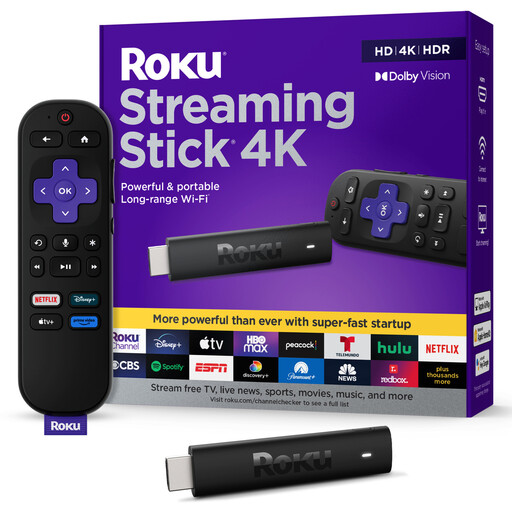 Image unavailable
Roku Streaming Stick 4K Doly Vision
Consider this model if voice-operated search and playback on your television are the priority rather than calling or spoken household routines. It is a 4K streaming stick supplied with a voice remote. Check your TV, preferred apps and intended voice-assistant functions; do not assume its remote-based commands work hands-free.
View on Joybuy
Common questions
Do I need a smart display if I live alone?
No, not if spoken audio and routines are your main uses. A display adds value when you will regularly use visual tasks such as video calls, calendars or compatible camera feeds; check that the exact device supports the tasks you want.
What should I check before using voice calling?
Confirm the device's calling method, contact and account setup, and whether the people you want to call use a compatible service. If you want video, check that your chosen device and calling method support it on a screen.
Which privacy settings matter during setup?
Review voice-history choices, linked-account permissions, personal results and any microphone or camera controls. Google says personal results may be accessible near a device; Amazon provides Alexa voice-history and privacy controls, so check the settings available on your chosen model.
How do I assess security-update support?
For relevant consumer smart devices supplied in the UK, the connected-product security regime has applied since 29 April 2024. The National Cyber Security Centre says manufacturers must state the minimum period for important security updates. Check that period for the exact model and keep its account and software secure during use.


