What to consider before choosing
Start with the kind of prompt the person will actually use—spoken, visible or conversational—then check setup, accessibility and privacy for the chosen device and room.
| Concern |
What to check when buying |
Who this matters to |
| Spoken reminders |
Try the wording, timing, volume and placement with the person; check that the device and account support the recurring prompt. |
If spoken cues are the main need, I would check that prompts can be heard and understood in the usual room. About 28% of consumers prioritising audible daily reminders share that concern. |
| Visible planning |
Check text legibility, viewing position and touch interaction, as well as which calendar entries or lists will appear. |
If the person needs to glance at a list or reminder, I would consider whether a screen can be placed where it is easy to see. Around 22% of consumers putting visible planning first share this priority. |
| Regular calls |
Confirm both callers’ devices, accounts, permissions and preferred answering method; try a call before relying on the setup. |
For households arranging regular calls, I would check that named contacts can use the intended service and that the person is comfortable answering. About 17% of consumers prioritising family calls share this need. |
| Privacy and access |
Agree device placement and camera use; review microphone and voice-history controls, account access and the person’s preferred way to interact. |
If the person’s comfort and control come first, I would discuss what may be heard or shown in shared rooms before setup. Around 17% of consumers prioritising privacy and accessible controls share that concern. |
| Existing setup |
Check Wi-Fi in the intended room, the setup phone or tablet, the household’s accounts and any required compatible accessories or services. |
If fitting the device into the home’s current setup is the main concern, I would check the required accounts, connection and equipment first. About 16% of consumers prioritising that fit share this need. |
Joybuy product choices
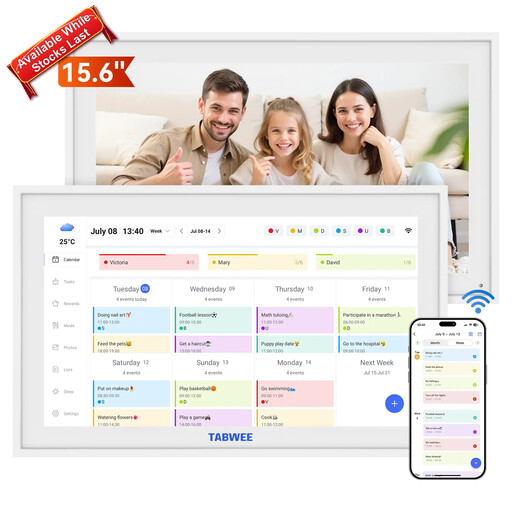
This product area covers visible household planning with a touchscreen digital calendar and family planner.
 No image available
TABWEE P15 Wi-Fi Digital Calendar
It may suit a household looking for a visible planning aid for shared schedules, appointments or meal planning.
Features include a 15.6-inch touchscreen, weekly and monthly planning, appointment scheduling and meal planning. Wi-Fi is used for synchronised weekly and monthly family planning, so check the connection in the intended room.
Joybuy
Frequently asked questions
How should we introduce reminders to someone receiving support?
Start with an everyday task and agree the wording, time and location with the person. Try audio and, if useful, a visible cue; Age UK describes different ways to tailor reminders. A reminder does not confirm that the task was completed.
Can a Nest Hub (2nd gen) send video during a call?
No: the Nest Hub (2nd gen) is camera-free, so it cannot send the user’s video. Google describes video calls on the camera-equipped Nest Hub Max; check that the intended contacts can use its supported service.
What should we check after setting up a speaker or display?
Check Wi-Fi in the intended room, who administers the account and whether the everyday controls work for the person. Google specifies Wi-Fi, a nearby socket and a compatible mobile device for Nest Hub (2nd gen); Apple specifies an iPhone or iPad, Wi-Fi and internet access for HomePod mini 2. Try a reminder and, if relevant, a call with the intended users.
Can Alexa’s emergency-contact feature replace calling 999?
No. Amazon says its emergency-contact feature is not a substitute for emergency response or 999, and Alexa calling does not support emergency-service numbers. Contacting someone also depends on Wi-Fi and correct contact details.
Does a family need formal consent under UK data-protection law just to use a speaker at home?
There is no blanket rule for every household use. The Information Commissioner’s Office says processing carried out purely for personal or household activities, with no professional or commercial connection, falls outside the UK GDPR’s scope. That exception depends on the circumstances; discuss the device, any camera and shared information with the people affected.


