Start with the programmes and controls your relative already uses: preserving a familiar route to live TV may matter more than adding another way to browse. If the existing screen works well, consider an add-on streaming device only if switching inputs and using its remote will be manageable; if you are replacing the screen, test the smart TV's everyday navigation before choosing it. In either case, check the required apps, captions, spoken guidance and account arrangements on the exact setup.
Who is the setup for?
The useful starting point is what the viewer can do without help, rather than the number of features on the box.
Familiar-channel viewers
Some older viewers are comfortable entering channel numbers but find guides and on-demand menus harder to navigate. Ofcom's research on internet-delivered TV found a sharp drop in usability when participants moved beyond traditional channel-number navigation.
Viewers needing readable or spoken controls
For people who need larger text, stronger contrast, captions or spoken menus, the particular TV, device and viewing service matter. Amazon, Apple, Google and Samsung document different accessibility controls, so check the functions the viewer will actually use.
Family-supported streamers
A relative may be able to watch independently once someone else has connected the equipment and managed sign-ins. Google's streaming-device setup guidance illustrates why HDMI access, internet and account details need to be planned before handover.
What matters when choosing?
Decide whether the television itself needs replacing before choosing an interface. A new screen keeps TV and apps in one device; an add-on streamer keeps the existing screen but introduces another input to manage.
Accessible smart TV
Consider it when: You are replacing the screen and want live TV and apps on the new television.
Allow for: The new interface may be unfamiliar, and accessibility functions vary by model and service; try the usual viewing tasks before committing.
HDMI streaming device
Consider it when: The existing television is satisfactory but its streaming interface does not suit the viewer.
Allow for: Selecting the correct HDMI input, using another remote and managing the device's setup may complicate ordinary TV viewing.
| Concern | What to check | Who this matters to |
|---|
| Familiar viewing |
Try finding a usual live channel, opening a familiar app and returning to live TV. Note any input switching. |
If familiar channels are the daily starting point, extra menus can interrupt a routine that already works; about 31% of consumers put familiar navigation first. |
| Setup and accounts |
Agree who manages Wi-Fi, sign-ins and account recovery; test access to the essential services. |
When a family member handles setup, I need the viewer to keep watching even if a sign-in prompt appears later. Managing accounts is the primary concern for about 25% of consumers. |
| Accessible viewing |
Test the exact model's menu controls and captions or audio description in the programmes used. |
If standard menu text is hard to follow or programme access depends on captions or audio description, those functions shape the choice; roughly 25% of consumers prioritise readable or spoken access. |
| Remote control |
Try Home, Back, direction and volume buttons; confirm remote compatibility and whether it needs line of sight. |
A remote needs to remain usable when a voice command fails or the wrong screen opens. Physical control and a reliable way back come first for about 19% of consumers. |
Common setup mistakes
-
Choosing the screen without trying the viewing route
Ofcom found that participants who could reach live TV by channel number often encountered more difficulty with guides and on-demand services. Picture specifications alone will not show whether the usual programme is easy to reach.
Before buying, try turning the TV on, finding a familiar channel, opening a main streaming app and returning to the starting point.
-
Assuming one caption setting covers every service
Roku says captions depend on the content provider, and some services use their own controls. A device setting cannot establish whether a particular programme has captions or audio description.
Open a programme in each service the viewer relies on and check its playback controls and available accessibility labels.
-
Adding a streamer without planning who supports it
An add-on device introduces input selection as well as internet and account setup. Google's guidance for its streaming devices specifies an HDMI display, a Google Account and a secure internet connection.
Show the viewer how to select the correct input, agree who owns the account and leave a short guide to the tasks they use regularly.
-
Assuming all voice remotes work alike
Roku distinguishes simple infrared remotes, which need a clear path to the device, from supported voice remotes. Voice capability depends on the device and remote combination.
Check the remote supplied with the exact product and make sure the viewer can still navigate with its buttons.
Brands to consider
These ecosystems offer different controls and setup requirements. Check the exact model, remote and viewing services rather than relying on a brand name alone.
Roku
Streaming devices and Roku TVs for households comparing straightforward remote operation with supported voice controls.
- Roku documents a screen reader and distinguishes simple from voice remotes.
- Voice support depends on the device and remote; some services control their own captions, and captioned content depends on the provider.
Amazon Fire TV
A streaming ecosystem with documented spoken navigation and viewing-accessibility settings.
- Amazon documents VoiceView for Fire TV navigation, alongside captions and audio description for supported content.
- Features and languages vary by device; Amazon says VoiceView works with Fire TV remotes, not the Fire TV Remote App.
Apple
Apple TV 4K is a route for households comfortable managing Apple accounts and the Siri Remote.
- Apple documents VoiceOver, Zoom, contrast controls and caption settings for Apple TV 4K.
- Feature and content availability varies by region and hardware model; check the required apps and the remote with the viewer.
Google
Google TV devices provide an add-on streaming route for households able to manage HDMI and account setup.
- Google documents TalkBack, captions, high-contrast text and accessibility shortcuts on Google TV.
- Google's streaming-device setup requires a compatible HDMI display, a Google Account and secure internet access.
Samsung
A smart-TV route to consider when replacing the screen and testing its built-in controls.
- Samsung UK documents Voice Guide, magnification and enlarged menu or text settings on supported TVs.
- Samsung says functions can vary by model, broadcast and area; captions also require supported content.
Streaming devices on Joybuy
These Roku streaming sticks are options for adding streaming to an existing television. If changing inputs or using another remote would disrupt familiar viewing, assess that task before choosing either device.
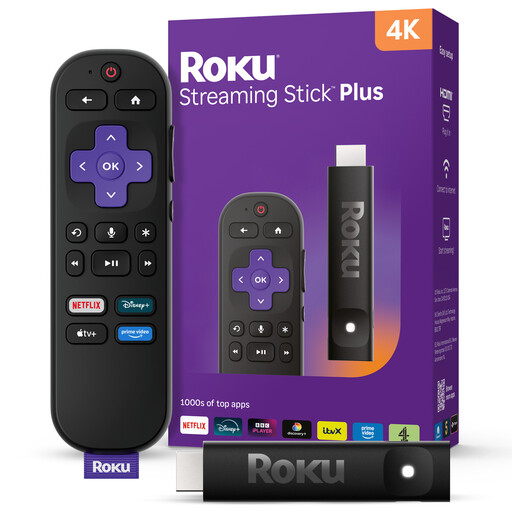 Image unavailable
Roku Streaming Stick 4KPlus
Consider this streaming-stick option if you want to keep the existing screen. Before choosing it for independent viewing, confirm the TV connection, essential apps, supplied remote layout and accessibility controls for this exact model, then try the route back to familiar TV.
View on Joybuy
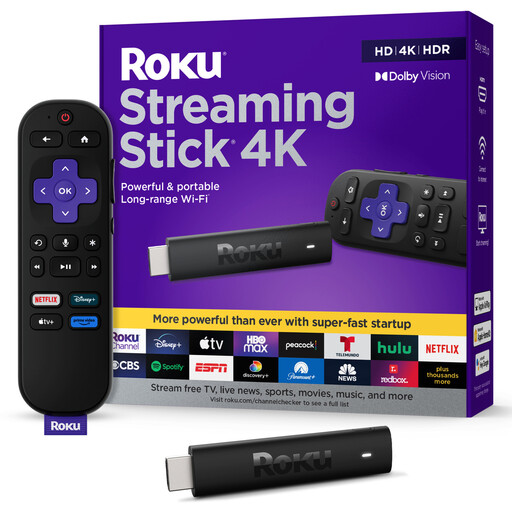 Image unavailable
Roku Streaming Stick 4K Doly Vision
This is another streaming-stick option for a household keeping its current TV. If BBC iPlayer is essential, confirm its availability on the exact device alongside the other required apps; also try the supplied remote and check caption and spoken-navigation controls before deciding.
View on Joybuy
Questions about everyday use
Will turning on captions in the device settings cover every app?
No. Roku says captions require the provider to supply them, and some services use their own in-app controls. Test the programmes and services your relative watches, not just the device menu.
What should the family arrange before setting up a streaming device?
Agree who will own the account and manage sign-ins, recovery and any subscriptions. Google's streaming-device setup requires a Google Account and secure internet access; check the requirements of the particular device you choose.
Can voice control replace an easy-to-use remote?
Treat voice control as an additional way to search, not the only way to navigate. Check that the exact device supports its remote's voice function and that your relative can still use the physical Home, Back and volume controls.


