Viewers who rely on subtitles
If readable subtitles are important, check the options in the UK apps and programmes you watch. Netflix explains that some titles may offer subtitles without the extra sound information included in SDH captions.


Choose based on whether the UK apps and programmes you actually use provide the access feature you need on that exact setup, rather than relying on a device-wide accessibility setting. If your TV already works for those apps, its settings or remote shortcuts may be enough; a streaming player changes the interface, while voice controls and dialogue adjustment address different needs and cannot add a missing programme track. Channel 4, for example, lists audio description on Roku and tvOS, but not currently on its Fire TV app.
If readable subtitles are important, check the options in the UK apps and programmes you watch. Netflix explains that some titles may offer subtitles without the extra sound information included in SDH captions.
Spoken navigation and audio-described programmes are separate features. Check that the intended service, device and programme provide the audio-description track you need; Apple Support UK notes that an AD option is available only where offered.
If finding content or changing settings is the main obstacle, compare spoken menus, accessibility shortcuts and the supplied remote. Ofcom reports that users of access services want more consistent interfaces and easier ways to find accessible content.
Choose when: Its exact model and UK apps provide the access tracks you need, and its menus and remote are usable.
Trade-off: TV caption or menu settings do not establish that every installed app or programme supports the same features.
Choose when: Your TV’s HDMI connection works, but another player’s app or controls better fit your needs.
Trade-off: Check the app, programme, connection and power arrangement; a player’s caption settings may not carry into every app.
Choose when: Finding menus or programmes is the main barrier, so a compatible voice remote or shortcut may help.
Trade-off: Voice search and spoken menus do not show that a chosen programme has an audio-description track.
Choose when: Clearer speech is the main need and subtitles or audio description are already addressed.
Trade-off: Availability depends on the TV model, and dialogue adjustment is not a substitute for subtitles, signing or narration.
Compare the exact app and programme first, then check whether the TV interface, an added player or different controls address the remaining difficulty.
| Concern | What to check when buying | Who this matters to |
|---|---|---|
| Subtitles in the apps you use | Check the UK app and programme for subtitles or SDH, and whether caption styling works within that app. | If I need readable text and relevant sound information, I would check both the track and the app; around 25% of consumers put usable subtitles first. |
| Audio description for programmes | Check the AD option on a representative title in the exact UK app and device. | I need described programmes, not only spoken menus; around 25% of consumers prioritise programme audio description. |
| Navigation and remote usability | Try the supplied remote, spoken-menu options, shortcuts and navigation in the apps you use. | If reaching content and controls is the main hurdle, I would test those steps directly; around 20% of consumers prioritise simpler navigation. |
| Finding signed programmes | Check that the intended UK service offers the signed programme and makes it findable on your device. | When I need signed versions, I would check programme availability rather than infer it from a TV menu; around 15% of consumers prioritise signed programming. |
| Dialogue clarity | Check the exact TV model’s dialogue setting and any proposed accessory’s compatibility. | If speech clarity is my main concern, I would check the model’s controls without treating them as a replacement for an access track; around 15% of consumers prioritise clearer dialogue. |
A player’s accessibility features do not establish that a particular app or programme has an AD track. Amazon describes audio description for selected Prime Video titles, while Channel 4 does not currently list AD support on its Fire TV app.
Before changing hardware, test the specific UK app and a programme you intend to watch.
Spoken navigation can help you operate an interface, but it does not establish that a programme has audio description or signing.
Check menu navigation and programme playback as separate tasks, including whether the service offers the relevant track.
A new player needs a suitable connection to the TV, and its exact variant and power arrangement matter.
Check the TV input and the player’s box contents before choosing. Apple and Google specify separately sold HDMI cables for the models described in their product information.
A compatible HDMI cable may need to be bought separately for those Apple TV 4K and Google TV Streamer models.
A streaming-player option to consider when its interface and the intended UK apps suit your access needs.
Apple TV 4K is a player route to compare if VoiceOver, remote controls or an app platform listed for AD matter to you.
Fire TV is worth comparing when its controls and the apps you rely on meet your needs.
Google TV Streamer is a route to compare if TalkBack, a remote shortcut or built-in Ethernet is relevant to your setup.
A smart-TV route to compare when you want accessibility settings and a shortcut on the TV rather than an additional player.
A BRAVIA or Google TV route to compare when model-specific spoken navigation or dialogue adjustment is relevant.
These options cover smart TVs with built-in Fire TV and Freely, plus Roku streaming players for use with a compatible TV. Check the required access features in the exact UK app and programme before choosing a setup.
 No image available
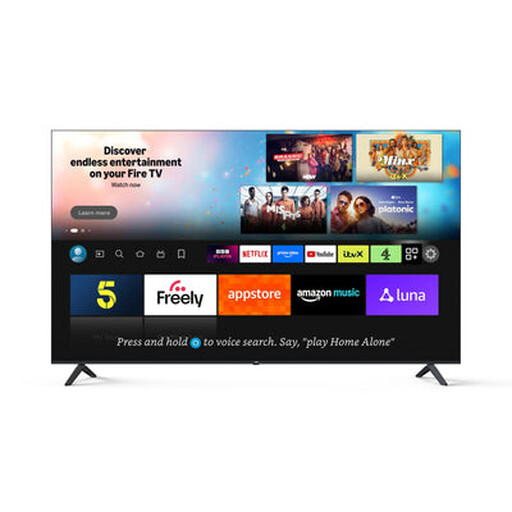
Consider this smart-TV setup if you want voice-operated search and playback controls; check that your essential apps provide the access tracks you need.
43-inch, 4K Ultra HD, QLED; built-in Fire TV and Freely; Alexa Voice Remote; HDR10+; Dolby Audio; Energy Rating E.
The product description says Freely works over Wi-Fi without an aerial or satellite dish. Internet access is required for streaming, and some apps may require subscriptions; channel and app availability may change.
 No image available
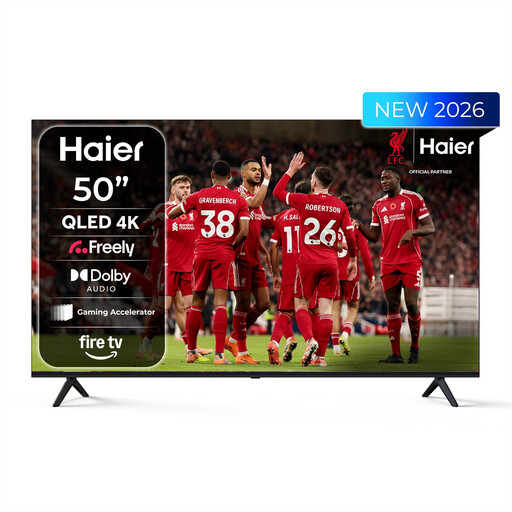
Consider this smart-TV setup if you want voice-operated search and playback controls; check that your essential apps provide the access tracks you need.
50-inch, 4K Ultra HD, QLED; built-in Fire TV and Freely; Alexa Voice Remote; HDR10+; Dolby Audio; Energy Rating E.
The product description says Freely works over Wi-Fi without an aerial or satellite dish. Internet access is required for streaming, and some apps may require subscriptions; channel and app availability may change.
 No image available
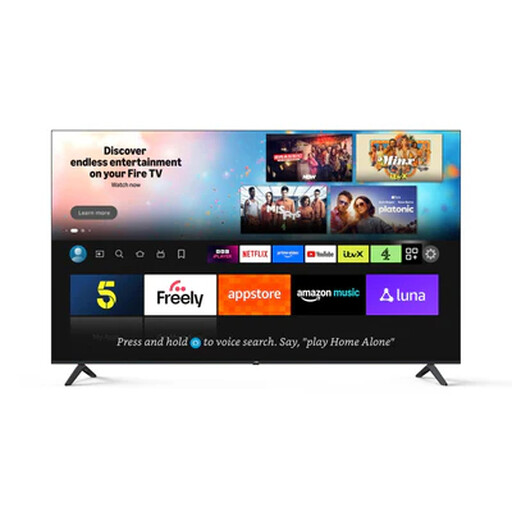
Consider this smart-TV setup if you want voice-operated search and playback controls; check that your essential apps provide the access tracks you need.
65-inch, 4K Ultra HD, QLED; built-in Fire TV and Freely; Alexa Voice Remote; HDR10+; Dolby Audio; Energy Rating E.
The product description says Freely works over Wi-Fi without an aerial or satellite dish. Internet access is required for streaming, and some apps may require subscriptions; channel and app availability may change.
 No image available
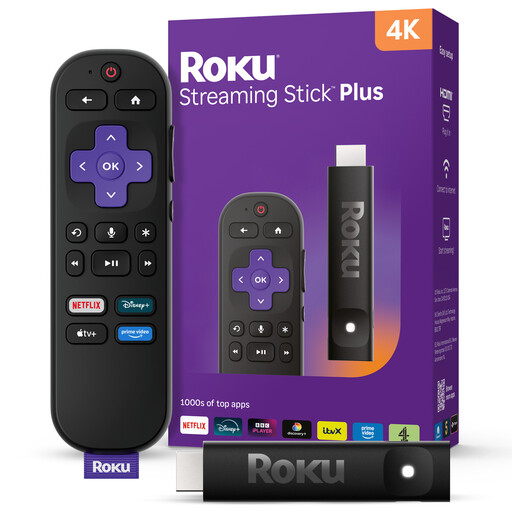
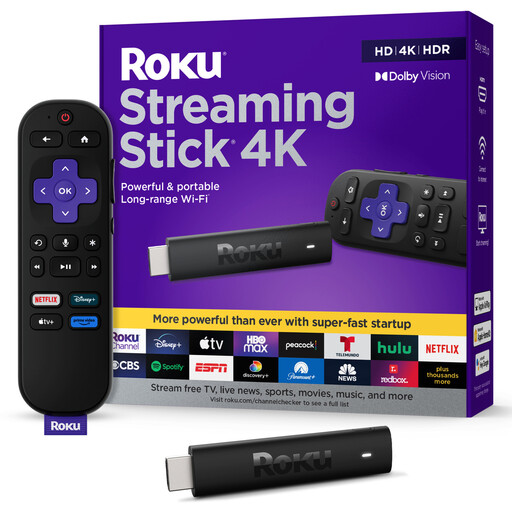
Consider this player if its app selection and remote controls suit your viewing setup; test the particular access feature in each essential app.
The product description specifies a Voice Remote Pro with voice search, playback control and headphone audio, and a plug-and-play connection to a TV’s HDMI port.
Roku captions depend on programme support. Channel 4 lists Roku for audio description, but that does not establish support in every app or title. Headphones are needed for private listening.
 No image available
Consider this player if its app selection and voice-remote controls suit your viewing setup; verify the access features on the exact app and programme.
The product description specifies a voice remote for searching and controlling playback, and a compact connection to a TV’s HDMI port.
Roku captions depend on programme support. Channel 4 lists Roku for audio description, but that does not establish support in every app or title.
No; the service, device and programme all need to offer the AD track. Channel 4 lists AD on Roku and tvOS, but not currently on its Fire TV app.
A device’s caption preference may not control captions inside every app. Google TV Help warns that its caption preferences might not apply to certain apps, so check the app’s own subtitle or SDH controls on a programme you watch.
Enable the screen reader or shortcut you need, then open a representative programme in each essential UK app and test its subtitle or AD control with the supplied remote. Menu narration and programme audio description are separate functions.
Not necessarily; first check whether a compatible accessibility shortcut, spoken-menu setting or different remote addresses the control problem. If an app or programme lacks the access track you need, changing controls alone will not add it.
Check the exact model’s box contents before buying. Apple and Google specify separately sold HDMI cables for the Apple TV 4K and Google TV Streamer models described in their product information.