People restoring online access on a tight budget
A device needs to handle communication, accounts and essential services, but it also needs a connection you can use regularly. Check access to Wi-Fi or mobile data alongside the device itself.


Choose around the online tasks you must complete, the connection you can use and any screen, keyboard or accessibility needs. A smartphone can serve portable communication and basic account access; consider a tablet for a larger touch display or a laptop for regular typing, longer forms and documents. If affordability is the main obstacle, check whether a suitable, still-supported refurbished device or help through a local organisation is available.
A device needs to handle communication, accounts and essential services, but it also needs a connection you can use regularly. Check access to Wi-Fi or mobile data alongside the device itself.
Choose a device that you or a trusted helper can set up, update and use to recover account access. Ofcom identifies confidence, connectivity and affordability as barriers to digital inclusion.
Try the intended tasks with the screen, input method and accessibility settings you would actually use. AbilityNet advises choosing around individual needs rather than assuming one type of computer will suit everyone.
Start with the tasks that would be difficult without a device, then check how you will connect, set it up and continue using it.
Consider it when: portable messages, calls, verification codes and basic online services are the immediate need.
Trade-off: a small touchscreen may make long forms and sustained typing difficult.
Consider it when: a larger touch display would help with reading, browsing or video calls.
Trade-off: regular document work may call for a suitable external keyboard.
Consider it when: longer forms, documents, learning or work call for regular typing.
Trade-off: check its weight, keyboard comfort, software and update requirements for the intended user.
| Priority | What to check | Your needs |
|---|---|---|
| Essential tasks | Try a typical form, document or video call. Check whether touch input or a physical keyboard works for the task. | If I regularly write documents or complete long forms, a keyboard matters more to me than having the smallest device. |
| Connection | Check available Wi-Fi and whether access away from home requires mobile data. If considering a supplied data SIM, ask the participating organisation about handset and network requirements. | I need to know where I can get online, not just whether the device has a wireless connection. |
| Setup and accounts | Work out who can help with initial setup and updates. Check how passwords and account-verification access will be retained or recovered. | I want a setup I can manage or get trusted help with. Ofcom reported in April 2025 that 8% of UK internet users said they lacked confidence online. |
| Accessibility | Test screen readability, weight and input comfort with the intended user. Try the specific accessibility feature needed during a real task. | A screen reader, captions or larger text only helps me choose if the particular device works for the task I need to complete. |
| Used devices | Confirm security-update support for the exact model. Reset a second-hand device before signing in, following National Cyber Security Centre guidance. | If I accept or buy a refurbished device, I need it prepared for my accounts and supported for continued use. |
| Local help | Ask a local organisation what devices, connectivity and setup help it currently offers. Confirm any conditions before relying on a scheme. | When getting a suitable device or connection is the barrier, I would check local support before deciding what to buy. |
A device cannot provide useful online access where the intended user has no workable connection or cannot manage its setup.
Before choosing, list the essential tasks, available Wi-Fi or mobile data, and who can help with setup and updates.
Ongoing connectivity and help with maintenance may affect whether the device remains usable.
Previous-user data and the exact model's remaining security-update support matter when the device will be used for personal accounts.
Check the model's update support and use its factory-reset or erase-all-content function before signing in, as advised by the National Cyber Security Centre.
A listed setting does not show whether someone can comfortably read a form, type or join a call on that device. AbilityNet recommends assessing individual tasks and needs.
Where possible, have the intended user try the exact task with their preferred screen settings and input method before choosing.
Good Things Foundation says its National Device Bank works through local organisations rather than supplying devices directly to individuals.
Contact a participating organisation to ask what help is currently available and what conditions apply; make a separate plan if a device is needed urgently.
Platform information can help narrow the choice, but the exact device and the tasks it must handle still need checking.
Consider a Chromebook for browser-based tasks and regular typing if its required apps work on ChromeOS.
Consider a Windows laptop or desktop where documents, keyboard-based work or particular Windows tools are important.
An iPhone or iPad may be worth assessing if a touchscreen suits the intended tasks and particular Apple accessibility features are relevant.
These options include laptops for typing and documents, smartphones for portable access, and a tablet for larger-screen touch use. Check each device against your tasks, connection and software needs; refurbished devices and local support remain separate routes to consider.
 No image available
A Chromebook option to consider for regular typing and browser-based tasks; check that any required software works on ChromeOS and confirm this model's remaining update support. The name specifies a 14-inch WUXGA (1920 x 1200) display, Intel Core i3-1315U, 8GB RAM and 256GB SSD.
 No image available
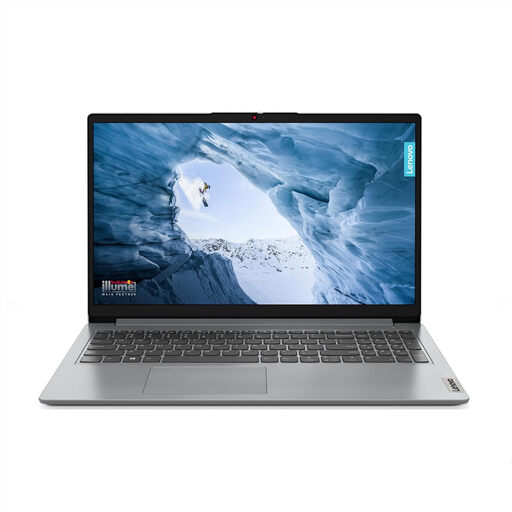
A laptop route for forms and document work where a physical keyboard is useful; check whether the apps you need work with Windows 11 Home in S Mode. The name specifies a 15-inch Full HD display, AMD Ryzen 3 7320U, 8GB RAM and 128GB SSD. Confirm update support for the exact model.
 No image available
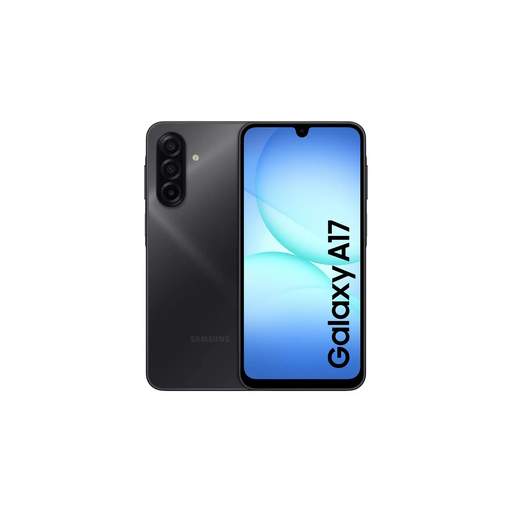
A smartphone option for portable communication and basic online access, provided its touch input suits the intended tasks. The name specifies 5G, Dual SIM, 4GB RAM and 128GB storage. Check the exact model's update support and whether you have a suitable connection.
 No image available
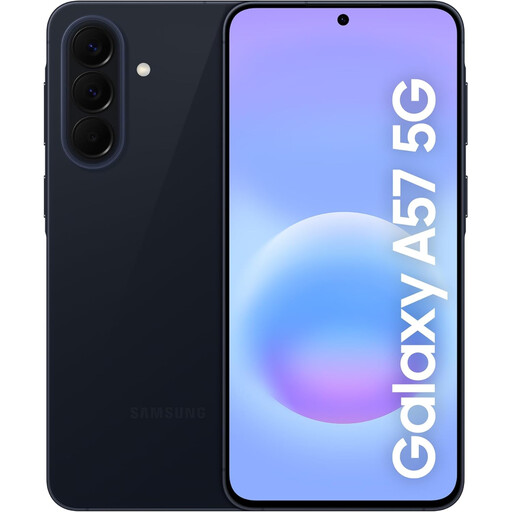
Another smartphone option for portable communication and browsing. The name specifies 5G and 256GB storage. Try the intended forms or typing tasks on a touchscreen, and check the exact model's security-update support before relying on it for essential accounts.
 No image available
A tablet option if a larger touch interface suits reading and browsing. The name specifies Wi-Fi, 8GB RAM and 128GB storage; check that you will have usable Wi-Fi where needed. For regular typing, check keyboard compatibility and what accessories are included, as well as the exact model's update support.
Choose for the task you could not otherwise complete: a smartphone for portable communication and basic account access, a tablet when a larger touch display helps with reading or calls, or a laptop for regular typing, longer forms and documents. If accessibility affects use, try the screen and input method with that task before deciding.
A refurbished device can be an option if the exact model still receives security updates and it has been prepared for a new user. Check support before accepting it, and follow National Cyber Security Centre guidance to factory-reset or erase a second-hand device before signing in.
Local help may be available, but check with a participating organisation rather than assuming a device or data will be supplied. Good Things Foundation says the National Device Bank distributes through local organisations, not directly to individuals. Its National Databank onboarding material states that data recipients must be at least 18, belong to a low-income household and meet at least one specified connectivity-related condition.