Control-detail learners
If you spend much of a session reading small cockpit labels, maps and procedural prompts, judge how clearly you can see the interface at your usual viewing distance before prioritising refresh rate.


A 27-inch QHD IPS monitor with adaptive sync is a starting point if you need to read cockpit panels and follow movement during practice. Consider 4K if small labels are the main difficulty and your PC can deliver the resolution and refresh rate you want. For long sessions, check screen positioning and glare as well as the display specification; OLED also calls for care when cockpit elements stay in place.
If you spend much of a session reading small cockpit labels, maps and procedural prompts, judge how clearly you can see the interface at your usual viewing distance before prioritising refresh rate.
If practice involves frequent camera pans, manoeuvres and moving targets, check refresh rate and adaptive-sync compatibility against the frame rates your PC can deliver.
If you practise for extended periods, make room for screen positioning, glare control and breaks in the decision. The Health and Safety Executive’s display-screen guidance addresses these parts of workstation setup.
Start with the part of spacecraft-control practice you most need the screen to support, then check the connection and desk setup needed to use it comfortably.
| Concern | Buying checks | Who this matters to |
|---|---|---|
| Readable controls | Compare cockpit text at your viewing distance; check the resolution and refresh rate available from your PC and chosen input. | If small labels and navigation panels slow down my practice, I need to read them without losing track of the controls. Around 31% of consumers put control readability first. |
| Smooth movement | Check your PC’s typical simulator frame rate, adaptive-sync compatibility and the refresh rate supported by the selected port. | When I pan the camera or track a moving target, I want motion to remain easy to follow. Movement is the primary concern for around 23% of consumers. |
| Long-session setup | Check how the screen can be positioned at your desk and assess reflections from windows and lighting. | I need a screen position that works with my desk rather than relying on a display specification to solve discomfort. Around 31% of consumers prioritise positioning and glare control. |
| Static cockpit displays | If considering OLED, read the exact model’s image-care instructions and warranty terms for prolonged static content. | If my HUD and instrument panels remain in place for hours, I want to understand the panel-care routine before choosing OLED. For around 15% of consumers, static-interface care comes first. |
Dell UK specifies QHD at 180Hz over DisplayPort 1.4 for the Alienware AW2725DM, while its HDMI specification lists QHD at up to 144Hz.
Check the exact resolution and refresh rate supported by the monitor input, cable and graphics output you plan to use.
LG UK specifies 180Hz as the normal refresh rate of the 27GS75QN-B. Its optional 200Hz mode requires overclocking and DisplayPort 1.4-capable graphics hardware and cable.
Compare standard operating modes first, then check the requirements for any optional mode you intend to use.
LG UK Support warns that leaving the same image on an OLED monitor for a long time may cause faint marks. Persistent cockpit interfaces make this a relevant check.
Read the care instructions and warranty terms for the exact OLED model before deciding whether it suits your sessions.
The Health and Safety Executive identifies overuse, improper use and workstation conditions as factors in display-screen discomfort. Resolution and refresh rate do not replace a workable screen position.
Check stand adjustment or mounting, control reflections and build short, regular breaks into long sessions.
Dell UK lists two distinct 27-inch IPS routes: the QHD AW2725DM at 180Hz and the dual-resolution AW2725QF, with 4K at 180Hz or FHD at 360Hz.
LG UK specifies the QHD IPS 27GS75QN-B at 180Hz as standard, with NVIDIA G-SYNC Compatible and AMD FreeSync support.
Samsung UK specifies the 27-inch curved QHD Odyssey G65B at 240Hz, with 1ms GTG and AMD FreeSync Premium Pro.
These monitors cover different ways to approach long spacecraft-control sessions: 4K or QHD detail, higher-refresh movement and curved-screen options. For the OLED models, weigh persistent cockpit displays against the care routine for the exact monitor.
 No image available
Consider this model if reading small cockpit controls is your priority and you want a 27-inch 4K option.
The listed dual-mode refresh figures are 240Hz and 480Hz, with AMD FreeSync Premium Pro, DisplayPort 2.1 and HDMI 2.1. Check which resolution applies to your intended mode and whether your PC and cable can deliver it.
 No image available
This 27-inch QHD option is relevant if you value a 240Hz specification for movement and are willing to assess OLED care for persistent HUDs.
Its title specifies a 0.03ms response time. Check the exact model’s image-care instructions and warranty terms before using it for long sessions with fixed cockpit elements.
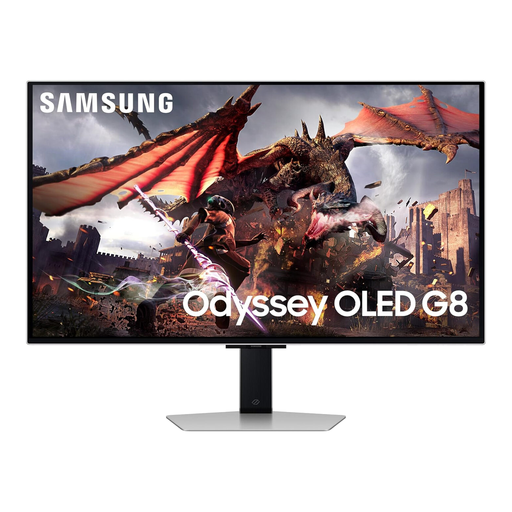 No image available
Consider the larger Ultra HD screen if cockpit detail and screen size are priorities, provided OLED care fits the way you practise.
Before buying, check this model’s instructions and warranty for persistent images. If variable-frame-rate handling matters, confirm its adaptive-sync specification too.
 No image available
This curved, larger-screen option suits a shopper considering 4K cockpit detail who is comfortable checking OLED care requirements.
The title specifies 3840 × 2160 resolution, 165Hz and USB-C 65W. Confirm the model’s static-image guidance and adaptive-sync specification if either affects your choice.
 No image available
This QHD curved option is relevant if you want a larger screen and adaptive sync for movement-focused practice.
The title specifies 2560 × 1440 resolution and VESA 100 × 100mm mounting. Check that its positioning works at your desk and that your PC, port and cable support the mode you intend to use.
Choose 4K if small cockpit labels and navigation panels are your main difficulty and your PC can support the mode you want. QHD is worth considering if you also prioritise higher frame rates; compare the simulator’s interface at your normal viewing distance before deciding.
No. LG UK specifies 180Hz as standard for the 27GS75QN-B; 200Hz is an optional overclock requiring DisplayPort 1.4-capable graphics hardware and cable.
Position the screen to suit your desk, adjust lighting to limit reflections and take regular breaks or changes of activity. The Health and Safety Executive gives this advice for display-screen work; it is useful setup guidance, not a gaming-specific legal requirement.
Not necessarily, but static-image care should be part of the choice. LG UK Support warns that leaving the same image on an OLED monitor for a long time may cause faint marks, so check the exact model’s care instructions and warranty against your normal use.