For solo laptop training at a standing desk, start with a speakerphone that connects to your computer by USB, then check its stated microphone pickup range, full-duplex support and echo cancellation for two-way discussion. If you change desks or also use a phone, check the exact model’s wireless connections; consider wider room coverage only when several people need to speak from the same space.
Who needs which setup?
Solo standing-desk trainees
If you attend laptop-based training alone and shift position while standing, focus on the computer connection and the stated microphone pickup conditions. Full duplex and echo cancellation are worth checking when the session includes questions and discussion.
Flexible-desk hybrid workers
If you move between desks or sometimes join from a phone or tablet, check which wired and wireless connections the exact model supports for each device. A portable design is useful only if its connection method fits the equipment you actually use.
Small-group training participants
If colleagues share one training session, count everyone who needs to speak and consider where they will sit or stand. Check the manufacturer’s stated meeting capacity and placement guidance rather than choosing solely by how easily the unit fits on a desk.
What matters when choosing?
Decide who needs to be heard from the standing desk, then match microphone placement and the connection method to the training device.
| Concern |
What to check |
Who this matters to |
| Voice pickup |
Check the stated pickup range and whether the model supports full duplex and echo cancellation. Plan a clear position for it on the desk. |
If I shift position during questions, I need colleagues to hear me without having to lean towards the unit; around 42% of consumers put reliable voice pickup first. |
| Device connection |
Match the USB connector to your laptop or dock, and check which devices the model supports over Bluetooth. |
Moving between desks makes a quick connection more important to me than room coverage. For around 33% of consumers, connection and mobility are the primary concern. |
| Shared-session coverage |
Count the people who will speak and compare their positions with the model’s stated meeting capacity and placement guidance. |
When colleagues join from different positions, I need a setup intended to pick up more than one speaker; shared-session coverage comes first for around 25% of consumers. |
Mistakes to avoid
-
Assuming Bluetooth works with every training device
Connection support depends on the model and host device. Jabra specifies USB-C or USB-A for computer use with the Speak2 55, while its Bluetooth connection is specified for smartphones and tablets.
Check the connection method for your laptop, phone or tablet, then select the speakerphone as both microphone and speaker before the session.
-
Choosing room-scale coverage for one person
A setup intended for several speakers addresses a different need from solo laptop training. Yealink describes the CP900 for meetings of up to six people, while AnkerWork describes optional two-unit daisy chaining for the PowerConf S500.
Count who needs to speak and where they will be positioned before deciding whether wider coverage is relevant.
-
Treating noise reduction as a guarantee
Jabra’s stated microphone and noise-reduction features for the Speak2 55 do not establish how clearly you will be heard at every distance or in every noisy room.
Compare the stated pickup conditions with your desk position, keep the unit unobstructed and reduce avoidable nearby noise where possible.
Brands to consider for this setup
Jabra
Jabra’s Speak2 range includes speakerphones for personal and small-room working.
- For the Speak2 55, Jabra lists USB-C and USB-A computer connections, four beamforming microphones, full duplex and acoustic echo cancellation.
- Jabra states microphone pickup of up to 2.3 m for that model; placement and surrounding noise still matter, and its specified Bluetooth connection is for smartphones and tablets.
Yealink
Yealink positions the portable CP900 for personal use and small shared meetings.
- Yealink’s CP900 datasheet states USB and Bluetooth connectivity, six-microphone beamforming, full duplex and support for meetings of up to six people.
- Check how the exact variant connects to your training device and whether its stated meeting capacity fits the room layout.
AnkerWork
AnkerWork offers PowerConf speakerphones for personal use and shared-room arrangements.
- AnkerWork describes USB-C, Bluetooth and dongle connections for the PowerConf S500, with optional pairing of a second unit for wider coverage.
- That expandable arrangement is relevant when people are spread across a shared space; confirm the exact connection and setup requirements before choosing it for training.
Joybuy speakerphones
These choices include a Bluetooth conference speakerphone to consider for shared sessions and a wired speakerphone to consider for a solo desk setup. Check each model’s computer connection and microphone requirements against your training arrangement.
 No image available
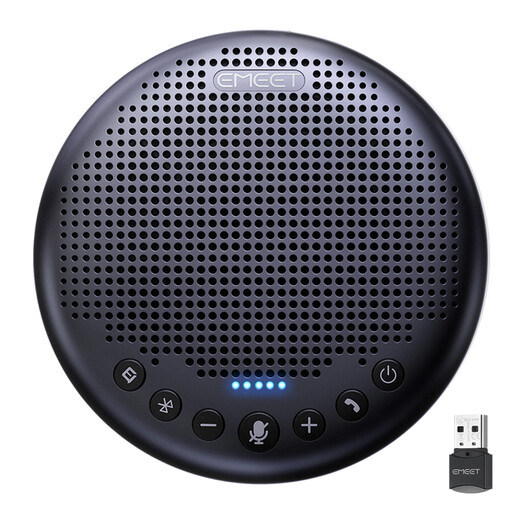
EMEET Lunaplus 8-Mic Bluetooth Conference Speaker
Consider this model when several people need to join the same training session. Its product title specifies eight microphones and 360° voice pickup; check the usable microphone distance and the exact computer connection modes for your setup.
View on Joybuy
 No image available
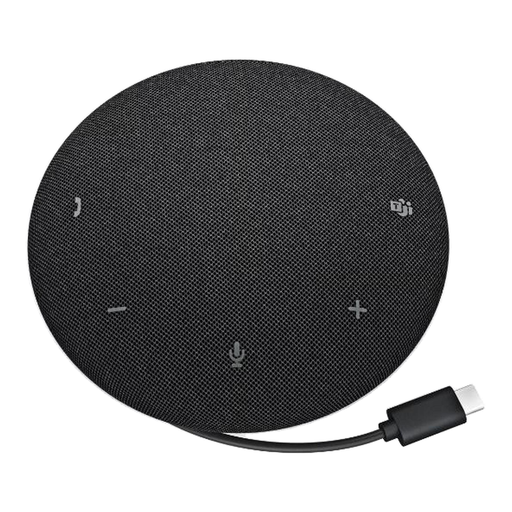
DELL Pro Wired Speakerphone SP325
A wired speakerphone is a route to consider for solo laptop training when the cable can reach a suitable position on the standing desk. Check the connector and cable reach; if the session involves discussion, also confirm full-duplex and echo-cancellation support for this model.
View on Joybuy
Common questions
Should I use USB or Bluetooth for laptop training?
USB is a straightforward choice when the speakerphone can stay cabled to your laptop or dock. Bluetooth may suit cable-free use, but check support for your exact host device: Jabra specifies USB-C and USB-A for computer connection on the Speak2 55 and Bluetooth for smartphones and tablets.
What should I check before the session starts?
Connect the speakerphone and select it as both the output speaker and input microphone in your device and training app. AnkerWork’s PowerConf S500 setup guidance calls for checking the sound settings and software audio settings; the menu names will depend on your device and app.
Will noise reduction remove every sound around my standing desk?
No. Microphone distance, placement, room acoustics and the type of nearby noise all affect what other participants hear. Keep the speakerphone unobstructed and use the manufacturer’s stated pickup conditions when deciding where to place it.


