Solo tutors at a quiet desk
You teach mainly from one computer and want hands-free speaking and clear playback of students' questions without a more involved microphone setup.


Choose a USB-capable speakerphone with full-duplex audio if you teach from a reasonably quiet desk or want people beside you to join the discussion. If you teach alone in a noisy or echoey room, a close headset microphone is generally the more dependable choice for picking up your voice over background sound. Check the connection and microphone pickup area for your setup, then test the audio in the room where you teach.
You teach mainly from one computer and want hands-free speaking and clear playback of students' questions without a more involved microphone setup.
A co-tutor, learner or small group sometimes joins you around a table. You need to consider simultaneous conversation and whether everyone sits within the speakerphone's stated pickup area.
Household sounds or room echo could make your voice harder to follow. The University of Edinburgh's remote-teaching guidance favours a headset microphone for picking up speech over background noise; University of Michigan Online Teaching also advises reducing reverberation.
Start with the sound of your teaching room and the number of people who need to speak beside the device. Then decide whether a fixed USB connection or the flexibility of Bluetooth better suits your teaching devices.
| Concern | What to check | Who this matters to |
|---|---|---|
| Voice clarity in the room | Look for noise and echo-control features, but make a short recording at your usual speaking position. Reduce avoidable noise and reverberation where practical. | If household sounds or echo compete with my explanations, I need students to follow my voice without extra effort; around 46% of consumers put room-noise clarity first. |
| Two-way discussion | Check full-duplex support and the exact model's stated microphone pickup area against where local contributors will sit. | When someone beside me joins a tutorial, I want their questions and remote replies to flow without taking turns at the microphone; around 27% of consumers prioritise discussion coverage. |
| Connection and portability | Match the supplied connector to your computer. If you move between devices, check the intended Bluetooth connection and how to select the audio device in your teaching software. | If I teach from different devices or rooms, I need a setup I can prepare before each session; around 27% of consumers place connection and portability first. |
Noise and echo-control features do not remove every household sound or reflection from hard surfaces. University of Michigan Online Teaching recommends reducing reverberation so students can hear speech clearly.
Record a short sample at your normal speaking volume in the teaching room. If your voice remains difficult to distinguish, reduce room noise or consider a headset microphone.
A stated pickup area helps with placement, but wider coverage does not establish clearer speech for one tutor in a noisy room.
Mark where you and any local contributors will sit, then compare those positions with the exact model's stated pickup guidance.
A connected speakerphone will not help if the computer or teaching platform is still using another microphone or output device. AnkerWork's PowerConf S500 instructions, for example, note that manual audio-device selection may be needed.
Check the computer port and supplied connection, select the intended input and output in your software, and run a test call using your normal teaching arrangement.
Connections, bundled accessories and platform certifications need to be checked for the particular model and variant. A manufacturer's pickup or battery figure is not a promise about your room or settings.
Match the full model name to its specifications and confirm any adapter, dongle or platform certification you need before ordering.
The Speak2 range includes a USB-focused desk option and models aimed at wider hybrid-work use.
The Sync 20 series is relevant when tutorials move between a computer and another teaching device.
The PowerConf S500 is positioned for conference-style conversations that may include several people locally.
These speakerphones cover two tutorial setups: a Bluetooth tabletop option when people may contribute nearby, and a wired option for a fixed desk. Check each connection against your teaching computer, and test voice pickup in your own room.
 No image available
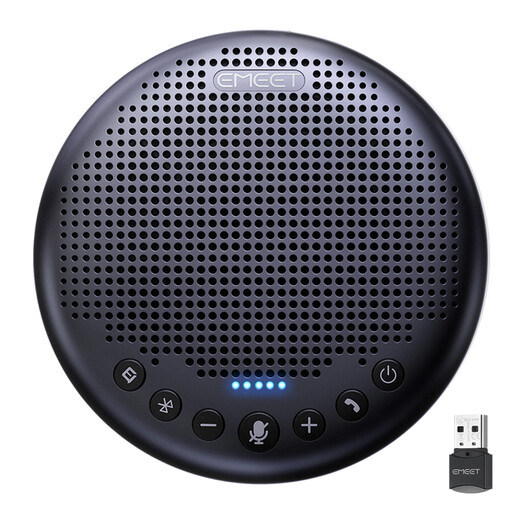
Consider this tabletop model if local contributors may join your tutorial. Its product title lists eight microphones, 360° voice pickup and a 5W speaker; check the connection mode for your devices and test how voices sound in the teaching room.
 No image available
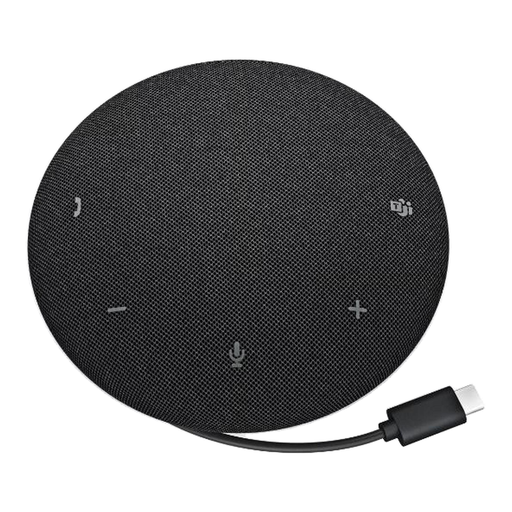
This wired speakerphone is an option for a fixed teaching desk. Check that its connection suits your computer; if students and local contributors often speak at once, confirm full-duplex support for the SP325 before choosing it.
A speakerphone suits hands-free teaching in a reasonably quiet room; a headset microphone is generally the safer choice when you teach alone amid noise or echo. The University of Edinburgh's remote-teaching guidance notes that a headset microphone picks up speech preferentially over background noise.
Connect the speakerphone using a method that suits your device, select it as both microphone and speaker in your computer and teaching software, then make a recording or test call. Use your normal speaking position and room so the test captures the conditions students will hear.
Full-duplex audio is particularly useful when questions, interruptions or local contributors make conversation overlap. If you mainly deliver a one-way explanation, first consider whether your microphone position and room acoustics let students hear your voice clearly.
Take unwanted electrical equipment and batteries to an appropriate recycling collection point rather than putting them in household rubbish, as GOV.UK advises. Check local collection arrangements for the device and its battery.