For sprite animation in a shared office, start with the noise claims for the exact keyboard and the shortcuts you use most. A low-profile productivity model may suit noise-first work, a quieter mechanical productivity model may suit those who also want macros, and a compact remappable model may suit more extensive shortcut customisation. Check the chosen layout, operating-system and software requirements, and how the keyboard fits your desk before buying.
Who needs which features?
Shared-office sprite animator
If colleagues work nearby, look for a noise-related claim tied to the exact model or switch configuration without losing access to your everyday shortcuts. Logitech and Razer each describe noise-reduction features for particular keyboards, rather than every model they make.
Shortcut-heavy animator
If you switch frequently between tools, frames and layers, compare the keyboard's physical keys with your command list. Aseprite allows shortcut customisation, while the Keychron K3 Max and Razer Pro Type Ultra offer different approaches to remapping or macros.
Long-session desk user
If animation sessions keep you at a display-screen workstation for extended periods, assess the keyboard alongside the desk, mouse, monitor and working conditions. The Health and Safety Executive advises considering the whole workstation, not a keyboard feature in isolation.
What matters when choosing?
Choose a keyboard route by the compromise you are willing to make between model-specific noise features, shortcut control and physical layout; then check how it works at your desk.
Low-profile productivity keyboard
Consider it when: Nearby colleagues make typing noise a priority and familiar key access matters more than extensive remapping. Logitech says increased key stability reduces noise on the MX Keys S.
Check: MX Keys S Smart Actions require Logi Options+; Logitech says systems other than Windows and macOS receive basic functions without the software.
Quieter mechanical productivity keyboard
Consider it when: You want mechanical keys and macro or remapping controls while still looking for an office-oriented noise feature. Razer describes silent switches and sound-dampening foam on the Pro Type Ultra.
Check: Razer's noise and comfort descriptions are model-specific claims; confirm the layout and how its wrist rest fits your workstation.
Compact remappable mechanical keyboard
Consider it when: Custom layers and macros take priority over dedicated physical keys. Keychron offers QMK/VIA remapping on the 75% K3 Max.
Check: Confirm that the chosen K3 Max layout and layers accommodate your animation commands, and select the intended UK-ISO variant if that layout matters to you.
| Concern | What to check | Who this matters to |
|---|
| Typing noise |
Look for a noise-related statement for the exact model and switch variant; try that configuration in the workspace if possible. |
If I work beside colleagues, I want my typing to cause less disruption without giving up the commands I need. Around 42% of consumers put shared-office noise first. |
| Animation shortcuts |
Compare your frequent commands with the physical keys, remapping options and software support on your operating system. |
When I repeatedly change tools, frames or layers, I need those commands within comfortable reach. Roughly 33% of consumers prioritise shortcut customisation. |
| Desk setup |
Check keyboard position and hand-rest space alongside mouse and monitor placement; review the workstation if the setup changes. |
During long sessions, I need a keyboard that fits the space where I actually work, rather than relying on a wrist rest alone. About 25% of consumers place workstation fit first. |
Mistakes to avoid
-
Assuming compact or mechanical means quiet
Neither layout size nor switch category establishes how suitable a keyboard will be beside colleagues. Logitech's MX Keys S and Razer's Pro Type Ultra have different, model-specific noise-related claims.
Check the exact model and switch configuration, and try its typing sound in the intended workspace where possible.
-
Choosing a compact layout before checking shortcuts
A 75% layout has a smaller physical key set. Even where animation-software shortcuts can be customised, commands you use frequently may need a layer or a new assignment.
Write down your regular tool, frame, layer and playback commands, then check their positions and any remapping requirements on the chosen keyboard.
-
Expecting one ergonomic feature to fix the desk setup
The Health and Safety Executive advises assessing display-screen equipment as part of the whole workstation, including equipment, furniture and working conditions. A wrist rest alone does not establish that a setup fits its user.
Check keyboard and mouse placement, room for your hands and monitor position, and request a workstation review where applicable.
Brands to consider
Logitech
The MX Keys S represents a low-profile productivity option. Logitech says its increased key stability reduces noise and describes programmable keys, Smart Actions and multi-device switching for this model.
- Worth considering when shared-office typing and familiar shortcut access matter.
- Smart Actions depend on Logi Options+; check operating-system support before relying on them.
Keychron
The low-profile, 75% K3 Max offers QMK/VIA remapping and comes in UK-ISO versions, according to Keychron.
- Relevant when custom layers or macros are central to an animation workflow.
- Confirm the exact layout and switch variant, and check whether its physical keys accommodate your shortcuts.
Razer
Razer positions the Pro Type Ultra as a mechanical productivity keyboard with silent switches, sound-dampening foam, a wrist rest and macro controls.
- Relevant if you want mechanical keys alongside model-specific office-noise features and remapping.
- Razer's noise and comfort descriptions are product claims; check the exact layout and workstation fit.
Joybuy keyboards for this setup
These keyboards offer different starting points for a shared-office animation desk: a split-layout wireless model with a wrist rest, and a compact mechanical model with a US key layout. Check your shortcut and noise requirements against the exact model rather than assuming either covers every workflow.
 No image available
HP 960 Ergonomic Split Layout Wireless Keyboard with padded wrist rest
Consider this split-layout option if desk position and shortcut access both matter; check that its programmable-key setup works with your operating system and animation software.
The product name specifies wireless operation and a padded wrist rest. Check the exact key layout before buying, and assess the listing's quiet-key claim in your own shared workspace.
View on Joybuy
 No image available
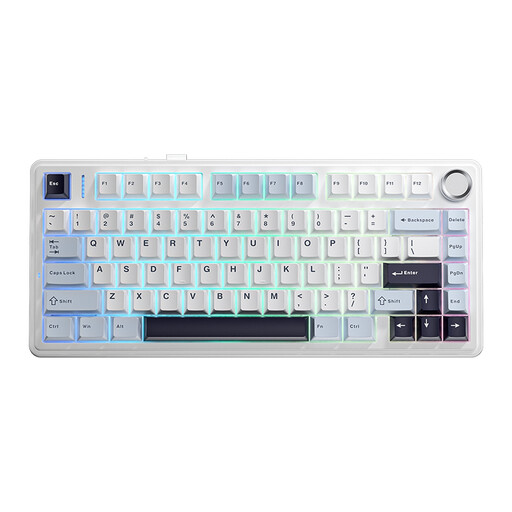
AULA F75 75% wireless mechanical keyboard, US QWERTY
Consider its compact layout if desk space matters, but check whether your frequent animation commands remain easy to reach. Confirm remapping or macro support before relying on custom assignments.
The product name specifies wired, Bluetooth and 2.4G connection modes, PBT keycaps and a US QWERTY layout. Assess the listing's noise-reduction claim against the needs of your shared office.
View on Joybuy
Common questions
Do I need a dedicated macro keyboard for sprite animation?
Not necessarily: Aseprite allows keyboard shortcuts to be customised, so start by listing the commands you actually use. Remapping or macros may help if repeated commands are awkward to reach, but check that the particular keyboard and its software support your operating system.
Is a mechanical keyboard too noisy for a shared office?
Not solely because it is mechanical; assess the exact keyboard and switch configuration instead. Razer describes silent switches and sound-dampening foam on the Pro Type Ultra, while Logitech attributes reduced noise on the MX Keys S to increased key stability. Neither statement measures how every keyboard will sound at your desk.
Should a new keyboard be considered in a workstation assessment?
Yes, consider how the new keyboard affects the complete display-screen workstation, not just how its keys or wrist rest feel. The Health and Safety Executive says employers must assess display-screen workstations and consider equipment, furniture and working conditions; ask for a review if the change affects your setup.


