Colour-focused sprite creators
You create and review sprites in a defined colour workflow, such as sRGB or Rec.709, and need to check a monitor’s stated coverage against that workflow rather than choosing by refresh rate alone.


For sprite creation, start with a monitor whose stated colour space matches your project and whose position can be adjusted for the shared desk. Consider 4K for a more detailed workspace or a higher refresh rate when reviewing movement is the deciding task; if people or computers change, check video connections, charging, peripheral switching and the whole workstation rather than assuming one monitor feature solves the setup.
You create and review sprites in a defined colour workflow, such as sRGB or Rec.709, and need to check a monitor’s stated coverage against that workflow rather than choosing by refresh rate alone.
You change users, laptops or peripherals at one workstation. Ports, laptop charging, switching arrangements and screen position all affect whether the setup works for everyone.
You frequently preview sprite movement or play-test animation, so the refresh mode your computer can actually output matters alongside the workspace and connections.
For consumers choosing one monitor for sprite animation at a shared desk, decide which requirement takes priority when colour work, switching, motion review and physical fit compete.
| Concern | What to check | Who this matters to |
|---|---|---|
| Colour consistency | Match the stated colour space and calibration claim to the project’s workflow; check the exact model. | If sprite palettes and UI colours need consistent review, I would put colour handling ahead of refresh rate. Around 31% of consumers would make colour consistency their primary concern. |
| Connections and switching | Check each computer’s video output, USB-C functions and charging needs, then confirm how shared peripherals will switch. | When people bring different computers to the desk, I need a workable way to connect each one without assuming a USB-C socket does everything. Roughly 31% of consumers would put connection and switching practicality first. |
| Motion review | Confirm the resolution and refresh mode available through the intended computer, cable and monitor input. | If I repeatedly preview movement or play-test animations, the refresh mode I can use becomes a deciding factor. Around 23% of consumers would prioritise motion review. |
| Physical fit and adjustment | Measure the desk and check the stand or mount, adjustment range and placement of other equipment. | With several people using the workstation, I need room to reposition the screen without crowding the keyboard or other equipment. For roughly 15% of consumers, physical fit and adjustment would come first. |
USB-C features differ by model and computer. BenQ specifies a KVM switch and 65 W USB-C power delivery for the PD2705Q, while ASUS specifies a USB hub and 96 W USB-C power delivery for the PA279CRV; neither set of features should be assumed for another monitor.
List the computers and peripherals that must connect, then check video, data, charging and switching functions for the exact monitor and each computer.
Depending on those connections, the desk may also need a separate dock, switch, charger or suitable cable.
A higher refresh rate is relevant to movement review, but it does not establish the colour-space coverage or calibration claim needed for a particular sprite project.
Put refresh rate first if motion review decides the purchase; otherwise compare the exact colour-space claims and connection features alongside it.
Screen adjustment is only part of a workstation used by different people. The Health and Safety Executive’s display-screen guidance addresses equipment, furniture, working conditions and individual needs together.
Check desk space, screen placement, glare and keyboard and mouse positions for the people using the workstation. If considering an arm, check the mounting arrangement as well.
The PD2705Q illustrates a 27-inch QHD creator-monitor route for an sRGB or Rec.709 workflow at a desk shared between compatible computers.
The PA279CRV illustrates a 27-inch 4K creator-monitor route when the project calls for a wider-gamut workflow and the computer can use the intended connections.
Two different Dell models illustrate separate priorities: the U2724DE for a Thunderbolt hub connection and the S2725QS for 4K motion review.
The UltraFine 27UP850K-W illustrates a 27-inch 4K IPS option with USB-C for a compatible computer and an adjustable desk setup.
These QHD and 4K options are relevant to editing or reviewing sprites. Compare each model’s stated display features with the connections and adjustment needed at the shared desk.
 No image available
Consider this QHD model if sprite editing and motion previews both matter to your workflow. It is listed as an IPS monitor with a 100 Hz refresh rate; check the exact unit’s USB-C functions and how two computers would share peripherals.
 No image available
Consider this IPS WQHD model for a sprite-editing workspace if its connections suit the computers at the desk. Check the required laptop charging output and how shared peripherals would switch between computers.
 No image available
Consider this 27-inch 4K UHD display if you want a more detailed workspace for sprite tools and review. It is listed with a 16:9 aspect ratio; check desk fit, USB-C video and charging needs, and the switching arrangement for shared peripherals.
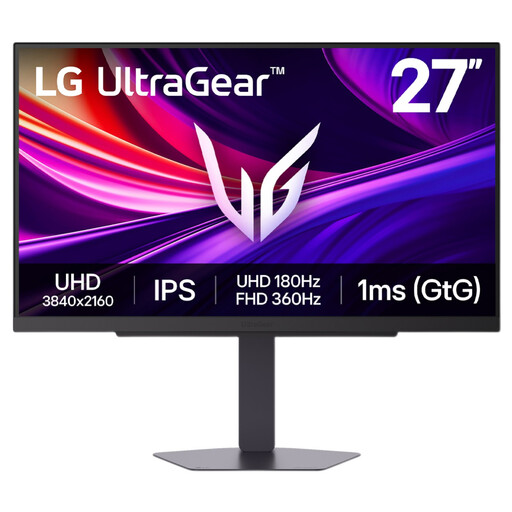 No image available
Consider this dual-mode model if reviewing animation movement is a priority. Check which resolution and refresh combination your computer and connection can output; the stated 360 Hz maximum should not be assumed at 4K. Plan separately for switching computers and peripherals at the desk.
 No image available
Consider this 4K UHD model if a 60 Hz refresh rate meets your sprite-editing and playback needs. Check the adjustment range required by everyone sharing the desk, as well as the computers’ connection and switching needs.
No. The Health and Safety Executive says employers must assess the workstation when workers use display-screen equipment daily as part of their normal work for continuous periods of an hour or more. Screen adjustment is one part of a review that also considers the equipment, furniture, working conditions and individual needs.
The Display Screen Equipment Regulations’ schedule says the screen must swivel and tilt easily to suit the user and that a separate base or adjustable table must be possible. Check the screen’s position together with desk space and the placement of the keyboard and other equipment.
No: the connector alone does not establish which functions a monitor and laptop can use together. For instance, ASUS specifies USB-C power delivery of 96 W for the PA279CRV, while BenQ specifies 65 W for the PD2705Q. Check video support, charging needs and peripheral connections on the exact monitor and computer.
The Health and Safety Executive says an assessment is needed when a new workstation is set up, a new user starts, the workstation or its use changes, or users report pain or discomfort. Sharing the desk with another person may change the screen position and equipment arrangement that need reviewing.