Choose an enclosure that explicitly supports your old SSD, then a dock that supports two extended external displays with your laptop. An integrated SSD dock works only if both its drive bay and display outputs meet those needs: UGREEN’s Revodok Pro 10-in-1, for example, has an M.2 NVMe slot but only one HDMI output. DisplayLink offers another route to two extended screens, with software and permission requirements on macOS.
Who this setup suits
People reusing an old M.2 SSD
If you have removed an M.2 drive from a computer, identify whether it uses SATA or NVMe and check its length before choosing a bay or enclosure. As Kingston Technology explains, M.2 describes the drive’s form factor, not a single storage interface.
People who need two separate workspaces
If different documents or calls need to stay visible on each external screen, look for two extended displays rather than two sockets that duplicate the same picture. Check both the laptop’s video capability and the dock’s stated display mode.
Mac users seeking extended displays
Do not assume a native USB-C dock with two display outputs will extend the desktop across both external screens. UGREEN states that the external macOS displays on its cited 11-in-1 dock are identical; DisplayLink’s macOS route requires its Manager app and Screen Recording permission.
What to check before buying
Identify the SSD first, confirm how your laptop can drive two extended screens, then check charging and setup requirements. A separate enclosure keeps the drive choice distinct from the display choice, but adds a device and cable.
| Concern |
What to check |
Who this matters to |
| SSD compatibility |
Identify 2.5-inch SATA, M.2 SATA or M.2 NVMe. For an M.2 drive, match its protocol and length to the bay or enclosure. |
If I cannot tell whether my removed SSD uses SATA or NVMe, a physically similar bay could still be incompatible; around 39% of consumers put drive compatibility first. |
| Independent screens |
Confirm two extended displays at your required resolution and refresh rate, for your laptop connection and operating system—not just two video sockets. |
When I need different work on each monitor, a duplicated picture defeats the purpose; roughly 38% of consumers prioritise independent screens. |
| Power and setup |
Compare the dock’s laptop charging output with your laptop’s requirement; check the charger, cable and any DisplayLink software requirements. |
I want to keep my laptop charged without overlooking a cable or a required setup step; around 23% of consumers put power and setup needs first. |
Mistakes to avoid
-
Assuming every M.2 SSD is NVMe
An M.2 drive can use SATA or NVMe. An M.2 NVMe bay should not be treated as compatible with an M.2 SATA drive.
Read the drive label or original computer specification, then match both its protocol and length to the enclosure or dock.
-
Counting display ports instead of extended screens
Two connectors do not establish that a laptop can show two different external desktops. UGREEN states that its cited native dual-display dock shows identical external screens on macOS.
Check for an explicit two-extended-display statement covering your laptop connection and operating system.
-
Confusing PD input with laptop charging output
The cited UGREEN dock accepts 100W Power Delivery input but states up to 85W laptop charging with a suitable 100W charger and cable. Plugable states up to 82W pass-through for its cited DisplayLink dock.
Compare the stated output to your laptop’s charging requirement and check which charger and cable come with the dock.
A suitable charger or cable may need to be sourced separately.
-
Overlooking DisplayLink workload limits
Plugable says its USBC-6950PDZ DisplayLink dock is not compatible with HDCP-protected video playback, gaming or 3D rendering.
If those activities matter, check whether your laptop supports a suitable native USB-C or Thunderbolt video dock instead.
Relevant brands to consider
UGREEN
Relevant when comparing an integrated M.2 NVMe dock with a separate native-video dock.
- UGREEN lists an M.2 NVMe slot and one 4K/60Hz HDMI output for its Revodok Pro 10-in-1.
- Its cited 11-in-1 dual-display dock has HDMI and DisplayPort outputs but no stated SSD bay; UGREEN says its two external macOS displays are identical.
Plugable
Relevant when two extended displays matter more than an integrated SSD bay.
- Plugable describes its USBC-6950PDZ as a DisplayLink dock for two extended 4K/60Hz HDMI displays on supported systems.
- It needs DisplayLink software and a separate SSD enclosure. Plugable excludes HDCP-protected playback, gaming and 3D rendering for this model.
StarTech.com
Relevant when the old M.2 SSD needs its own enclosure alongside a display dock.
- StarTech.com lists PCIe NVMe and M.2 SATA support in 2230, 2242, 2260 and 2280 lengths for its M2-USB-C-NVME-SATA enclosure.
- That enclosure handles storage, not the two external displays; the display dock must be chosen separately.
Joybuy product choices
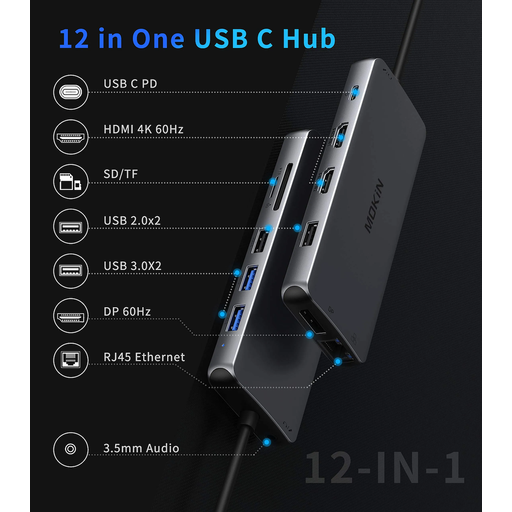
This USB-C adapter is a display-and-peripheral option for a setup that uses a separate enclosure for the old SSD. Check its extended-display capability with your laptop before choosing it for two independent screens.
 No image available
USB-C 2 HDMI + DisplayPort Multiport Adapter
For a desk using a separate SSD enclosure, this adapter provides two HDMI outputs, DisplayPort, two USB 3.0 ports and two USB 2.0 ports. Its name also lists RJ45, PD, SD/TF and audio connections. Before relying on two independent screens, confirm your laptop’s USB-C video capability and the resolution and refresh rate available when multiple outputs are connected; choose the enclosure to match your SSD.
View on Joybuy
Questions about SSDs and two screens
Can one dock reuse my old SSD and run two independent monitors?
It can only do both if its storage bay accepts your SSD and its display outputs support two extended screens with your laptop. UGREEN’s cited integrated M.2 NVMe dock has one HDMI output, so it does not meet the two-screen requirement by itself. A compatible SSD enclosure paired with a suitable dual-monitor dock lets you check each function separately.
How do I check whether my old M.2 SSD will fit?
Match the drive’s protocol and length to the enclosure or dock specification. Kingston Technology distinguishes M.2 SATA from M.2 NVMe; the M.2 shape alone does not establish compatibility. Check the drive label or original computer specification before ordering.
Why might two external Mac monitors show the same picture?
A dock’s two outputs do not necessarily provide two extended macOS desktops. UGREEN specifically states that the external displays on its cited 11-in-1 native dock are identical on macOS. Look for an explicit extended-display claim for your Mac and the dock’s display technology.
Does DisplayLink need software on macOS?
Yes. DisplayLink says its macOS products require DisplayLink Manager, and macOS Screen Recording permission must be granted for the app to function. Check those setup requirements alongside the dock’s stated display and workload limits.
What should I do with an SSD or dock I no longer need?
Remove personal data from the SSD before passing it on or disposing of it, and check an appropriate local electrical-recycling route for unwanted equipment. GOV.UK describes waste electrical and electronic equipment rules intended to reduce disposal to landfill; local collection arrangements vary.


