Choose a compact external SSD if you regularly move large game captures to a computer or edit from the drive, provided the connection can support the speed you need. A portable HDD is a practical choice when retaining more clips matters more than transfer speed. For either type, check the capture device’s USB and formatting requirements, the drive’s physical size and the amount of footage you plan to keep.
Who needs which drive?
Frequent capture editors
If you often transfer clips to a computer or edit from an external drive, a compact SSD is worth considering. Check the computer’s port and cable before relying on a quoted transfer speed: Samsung UK makes its T7 Shield speed figures conditional on the connection.
Long-term clip archivists
If you mainly keep past sessions, replays and screenshots, decide how much footage you want to retain before prioritising transfer speed. Western Digital’s My Passport range and Seagate’s FireCuda Gaming Hard Drive range illustrate portable HDD capacity options; check the dimensions of the particular capacity you choose.
Console capture users
Start with the drive’s intended role on your console. Microsoft’s Xbox capture guidance specifies USB 3.0 and NTFS for external captures, while Seagate’s PS5 setup instructions concern formatting a drive for USB extended storage. Those are different workflows, so check the instructions for your own capture setup.
What should you check before buying?
Identify where you record and edit captures first, then balance connection speed, retained footage and the space the drive and its cable will occupy.
| Concern |
What to check |
Who this matters to |
| Transfers and editing |
Check the drive, host port and cable together. Samsung UK’s stated T7 Shield maxima require USB 3.2 Gen 2, a suitable cable and UASP; peak figures are not sustained-performance guarantees. |
If I move large clips to a computer often or edit from the drive, waiting for transfers matters to my workflow. Around 31% of consumers put transfers and editing first. |
| Desk space and clutter |
Compare the chosen variant’s full dimensions and allow room for its cable. Check whether it needs a separate power supply. |
When the available desk space is tight, I need a drive and cable that fit without crowding the setup. Roughly 25% of consumers prioritise a small footprint and less clutter. |
| Archive capacity |
Estimate storage from your capture settings or recent file sizes and the hours you want to retain; leave space for exports and duplicate files. |
If I keep many sessions and screenshots, I would rather retain the archive than choose a drive chiefly for fast editing. For about 25% of consumers, archive capacity is the primary concern. |
| Console workflow |
Confirm whether the drive is for captures or game storage, then check the console’s USB and formatting instructions before changing the drive’s role. |
If I record on a console, the drive needs to work for that specific capture task, not merely connect to the console. Around 19% of consumers put console-workflow compatibility first. |
Mistakes to avoid
-
Expecting quoted SSD speeds from every USB port
Samsung UK’s T7 Shield transfer maxima depend on USB 3.2 Gen 2, a suitable cable and UASP. A slower connection can limit the speed available to the drive.
Check the computer or capture workstation’s port and the cable you intend to use before choosing a drive on its peak-speed figure.
-
Formatting before copying existing captures
Seagate’s PS5 Game Drive setup instructions state that formatting for USB extended storage erases the drive’s data. Changing a drive’s role can therefore put clips already on it at risk.
Copy any captures, screenshots and project files you want to keep to another location before formatting.
-
Treating Xbox game storage as capture storage
Microsoft’s Xbox capture guidance says a drive formatted for Xbox games will not work for external captures; its capture workflow calls for USB 3.0 and NTFS.
Use a drive prepared for captures, or move existing files before reformatting a drive for that role.
-
Choosing capacity from a generic footage-hours claim
Recording time changes with the capture device and its settings. Elgato’s figures for the legacy 4K60 S+ use a particular bitrate setting and note that variable-bitrate recordings can use less space.
Plan capacity from your own settings or recorded-file history, the hours you intend to keep and room needed for exports or duplicate files.
Relevant brands to consider
Samsung
Samsung’s portable T7 Shield SSD line is relevant when a compact drive and frequent clip transfers are priorities.
- Samsung UK lists 1 TB, 2 TB and 4 TB T7 Shield options and states maxima of 1,050 MB/s read and 1,000 MB/s write.
- Those figures require USB 3.2 Gen 2, a compatible cable and UASP. Samsung’s durability claims do not replace keeping a backup of wanted captures.
Western Digital
Western Digital’s My Passport portable HDD line provides a capacity reference for people building a retained-capture archive.
- Its data sheet lists My Passport capacities from 1 TB to 6 TB.
- The drive’s height varies by capacity, so check the dimensions of the specific variant against the available desk space.
Seagate
Seagate has portable HDD and SSD lines relevant to gaming storage, but their intended console roles need to be distinguished from capture storage.
- Seagate lists its FireCuda Gaming Hard Drive line at capacities up to 5 TB.
- Seagate’s PS5 Game Drive setup instructions cover USB extended storage and state that formatting erases data; they do not establish that the same setup suits every capture workflow.
Joybuy drives for this setup
These portable SSDs and HDDs cover compact transfer-focused storage and larger capture archives. Choose by your available desk space and retention needs, then check the requirements of the device that will record or use the captures.
 Image unavailable
Samsung MU-PE1T0S 1 TB portable SSD, black
Consider this compact-SSD route if you regularly transfer captures or work from an external drive. The named variant has 1 TB of storage and a USB 3.2 Gen 2 Type-C connection; Samsung UK’s T7 Shield peak-speed figures depend on a compatible host, cable and UASP. Check your capture device’s formatting requirements separately.
Joybuy
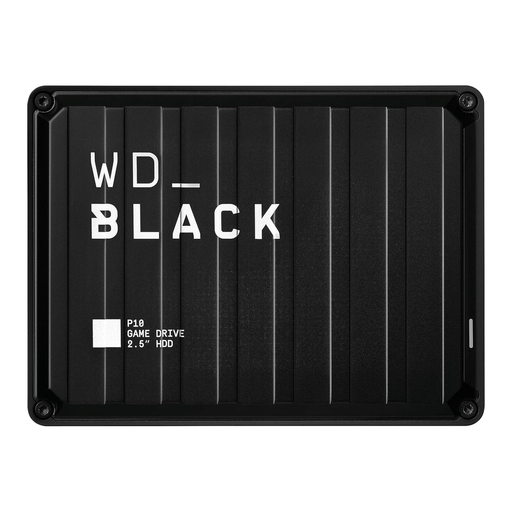 Image unavailable
Western Digital WD BLACK P10 Game Drive 2 TB
Consider this 2 TB game drive if retaining captures matters more to you than choosing an SSD for frequent editing. Game-drive naming does not establish compatibility with a console’s capture-storage role, so check that role and its formatting requirements before buying.
Joybuy
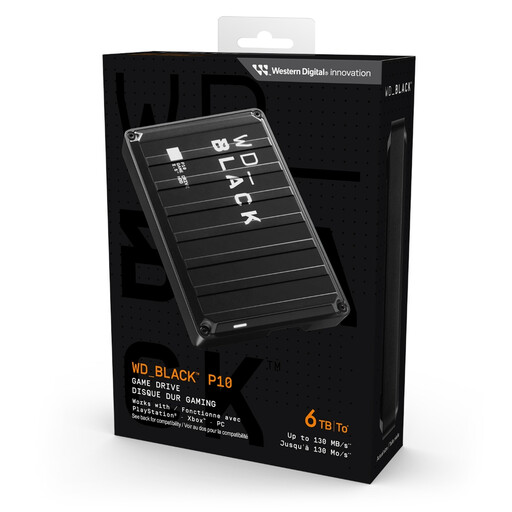 Image unavailable
Western Digital WD BLACK P10 Game Drive 6 TB, black
The 6 TB variant is an option when you intend to retain a larger capture archive. Check its full dimensions and cable clearance for your desk, and confirm that your capture platform accepts the drive for the intended task rather than assuming game-storage compatibility covers captures.
Joybuy
 Image unavailable
SanDisk Portable SSD 2 TB
This portable 2 TB SSD is worth considering if you want SSD storage for a compact capture setup. Check the connection needed for your transfer workflow and the capture device’s file-system requirements before assigning it a recording or archive role.
Joybuy
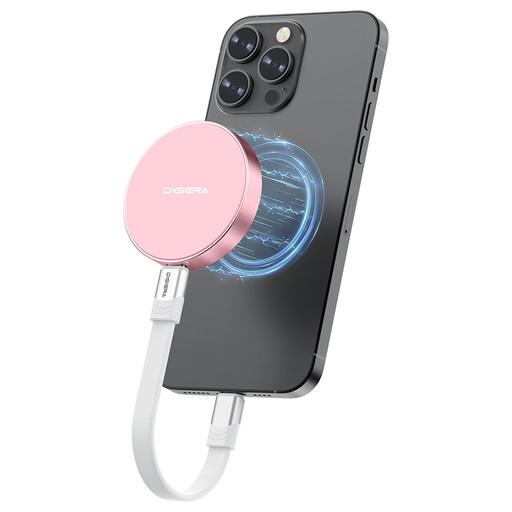 Image unavailable
DigiEra LPS2000M-3 magnetic portable SSD 1 TB, pink
Consider this 1 TB USB-C SSD if a portable drive fits your capture-storage plan. Its name specifies USB 3.2 Gen 2x2 and a transfer figure of up to 2,000 MB/s, not a guaranteed speed for game captures. Check whether your host supports that connection, and measure the drive and cable space before choosing it for a tight desk.
Joybuy
Common questions
Should I choose an SSD or HDD for captured gameplay?
Choose an SSD if frequent transfers or editing from the drive matter most and your connection can support the workflow; choose a portable HDD if retaining more footage is the priority. Check the chosen variant’s dimensions and your capture device’s storage requirements either way.
How much space do game captures need?
Use your capture device’s settings or recent file sizes to estimate the hours you want to keep. For a device-specific reference, Elgato’s legacy 4K60 S+ table gives 1.5 GB per minute at its 200 Mbps setting, or about 90 GB per hour; its variable-bitrate recordings can use less, so do not apply that figure to every setup.
Can one Xbox external drive hold games and external captures?
Not while it is formatted for Xbox games, according to Microsoft’s Xbox capture guidance. That guidance specifies USB 3.0 and NTFS for external captures, so use a drive prepared for captures or move your files before changing an existing drive’s role.
Will formatting an external drive erase my clips?
Yes, formatting can erase files already on the drive. Seagate’s PS5 Game Drive instructions explicitly warn that formatting for USB extended storage erases all data; copy wanted clips elsewhere before that operation.


