For dense staff rotas and several open windows, start with an adjustable QHD monitor if the computer supports its native resolution and the screen fits the desk. A Full HD display may suit simpler, single-window work. Choose USB-C connections or built-in meeting equipment only when they serve the laptop and desk workflow.
Who needs which setup?
Multi-window rota planners
Staff moving between schedules, spreadsheets, email and availability information may value room for detailed grids. The QHD displays specified by HP, BenQ and Samsung offer 2560 × 1440 resolution; check that the computer can drive the chosen monitor at its native resolution.
Laptop-based rota coordinators
Staff who connect a work laptop at a regular desk may want display, charging and peripherals connected with fewer cables. Dell, LG and Samsung list USB-C desk features on the business models discussed below, but the useful functions depend on the laptop and its connection.
Hybrid meeting schedulers
Staff who plan rotas while joining remote meetings may prefer fewer separate desk accessories. LG lists a webcam, microphone and speakers on its 27BA850-B; its Full HD display still needs to suit the schedule layout.
What matters when choosing?
Start with the rota layout and the workstation, then decide whether laptop connections or meeting equipment justify extra features. The Health and Safety Executive advises considering the whole display-screen workstation, not the monitor in isolation.
| Concern |
What to check |
Who this matters to |
| Readable rota workspace |
Compare native resolution and screen size with the rota layout, and confirm the computer supports that resolution. HP specifies 2560 × 1440 for its E27u G5 and requires a compatible output for its preferred mode. |
When several schedules and messages are open, I need room to read names and shifts without constant window switching; around 33% of consumers put readable workspace first. |
| Workstation positioning |
Check height and tilt adjustment, plus swivel, pivot or compatible mounting if needed. Allow enough desk depth to position the screen; the Health and Safety Executive advises a screen top around eye level and a viewing distance of about an arm’s length. |
During long planning sessions at a shared desk, I want to position the screen for my own viewing posture; roughly 27% of consumers prioritise workstation fit. |
| Laptop connections |
Confirm USB-C video support, the laptop’s charging requirement and whether wired networking or a shared keyboard and mouse are needed. A USB hub alone does not establish laptop charging. |
If I connect a laptop at the same desk each day, fewer separate connections would make setup simpler; about 20% of consumers place laptop connectivity first. |
| Meeting equipment |
Check the camera, microphone and speakers against meeting requirements, alongside the display resolution. LG lists all three on the Full HD 27BA850-B. |
When shift discussions regularly happen by video, I would rather avoid separate meeting accessories; around 20% of consumers make integrated meeting tools their primary concern. |
Buying pitfalls
-
Treating an adjustable monitor as the whole workstation solution
A well-specified screen can still be poorly positioned. The Health and Safety Executive says a workstation assessment, where required, considers equipment, furniture, working conditions, the task and individual requirements.
Assess the workstation where applicable, then choose a stand or compatible mounting arrangement that lets the user position the screen appropriately.
-
Assuming every USB-C connection does the same job
Video, charging, data and multi-monitor functions depend on the laptop and connection. HP also specifies a compatible computer output and connection for native QHD operation on its E27u G5.
Check the laptop model’s video output and charging requirement, then confirm the cable and any network or additional-monitor functions needed at the desk.
If the planned connection cannot provide the required functions, the desk may still need a separate charger, dock, adapter or cable.
-
Putting a built-in webcam ahead of the display
LG’s 27BA850-B combines meeting equipment with a Full HD screen. That may suit frequent calls, but staff who work with dense rota grids should also consider whether they need the workspace of a QHD display.
Decide on the schedule layout and screen positioning first; choose integrated meeting hardware when it addresses a regular desk task.
Brands to consider for rota-planning monitors
Dell
Dell lists adjustable business displays, including the P2425HE USB-C hub model for laptop-connected desks.
- Dell specifies a 23.8-inch Full HD IPS screen, height, pivot, swivel and tilt adjustment, RJ45 Ethernet and up to 90 W USB-C power delivery for the P2425HE.
- Its Full HD resolution offers fewer pixels for rota grids than the cited QHD models. The P2425HE specifications should not be assumed to apply to the separately listed P2425.
HP
HP’s E27u G5 is a QHD business-monitor option for detailed schedules and document work.
- HP specifies a 27-inch 2560 × 1440 screen, anti-glare treatment and height, tilt, swivel and pivot adjustment for the E27u G5.
- HP says the connected computer and DisplayPort or HDMI connection must support 2560 × 1440 to run the monitor in its preferred mode.
LG
LG’s 27BA850-B combines a business display with equipment for video meetings and laptop connections.
- LG lists a 27-inch IPS screen, webcam, microphone, speakers, LAN, an adjustable stand and USB-C power delivery up to 90 W.
- The 27BA850-B is Full HD rather than QHD, a distinction worth weighing when detailed rota workspace is the priority.
BenQ
BenQ’s BL2790QT combines QHD resolution, stand adjustment and USB-C features for a laptop-based desk.
- BenQ lists a USB hub, 65 W USB-C power delivery, height, tilt, pivot and swivel adjustment, and daisy-chaining options for the BL2790QT.
- BenQ notes a Thunderbolt requirement for daisy-chaining with Mac devices; check the intended computer and multi-monitor arrangement.
Samsung
Samsung’s ViewFinity S60UD is a QHD business-monitor option for desks using laptop connections or two input sources.
- Samsung lists USB-C charging up to 90 W, LAN, daisy-chaining and a built-in KVM switch for controlling two sources with shared peripherals.
- Those connection features are less relevant to a single-computer desk. The ViewFinity S60UD is a different model from the Odyssey G6 listed below.
Joybuy monitor choices for rota-planning desks
These monitors offer different screen sizes and display formats for planning rotas at a desk. Compare each exact model’s resolution, positioning options and connections with the computer and workstation it will serve; features of the business models discussed above do not automatically carry over to these products.
 Image unavailable
MSI MD272UPSW 27-inch 4K UHD Smart Monitor with Google TV
Consider this model where detailed on-screen work and a USB-C-connected laptop are both part of the desk setup.
Its listed features include an IPS panel, Dolby Audio and USB-C power delivery rated at 65 W. Check that the laptop can send video through the intended connection and that 65 W meets its charging requirement.
View on Joybuy
 Image unavailable
Samsung Odyssey G6 S27DG612 27-inch QHD OLED monitor
The 27-inch QHD format is relevant if rota work involves detailed grids or several windows, provided the computer supports the resolution.
This Odyssey G6 is listed as an OLED gaming monitor with a 240 Hz refresh rate. Check its stand and required laptop connections for the intended desk rather than assuming it has the ViewFinity S60UD’s business-docking features.
View on Joybuy
 Image unavailable
Dell P2425 24-inch monitor
Its 24-inch format is worth considering where the rota is usually viewed in one window or desk space is limited.
Confirm the exact P2425 resolution, stand adjustment, refresh rate and connections before purchase. This is not the P2425HE USB-C hub model described in the brand section.
View on Joybuy
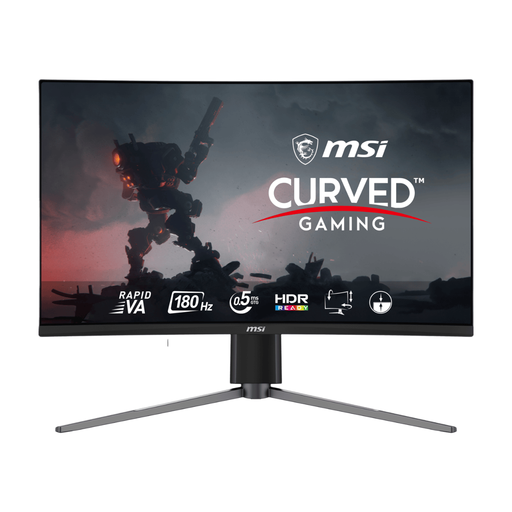 Image unavailable
MSI MAG 27CQ6F 27-inch WQHD curved monitor
The WQHD screen is relevant to detailed rota grids if the computer supports its native resolution.
The product name specifies a curved Rapid VA gaming display and a 180 Hz refresh rate. Its listed stand adjustment is tilt only; if the workstation needs height, swivel or pivot adjustment, check suitable mounting options.
View on Joybuy
 Image unavailable
AOC Q32V4 31.5-inch IPS monitor
Consider the larger screen only if the desk and viewing distance accommodate a 31.5-inch display for rota work.
The product name lists an IPS panel and built-in speakers but uses mixed resolution terminology. Confirm the exact native resolution and stand-positioning options for the Q32V4 before deciding whether it fits the workstation.
View on Joybuy
Common questions
Is a 27-inch QHD monitor useful for planning staff rotas?
It can be a sensible choice when staff view dense grids, long lists or several windows and the computer supports QHD output. A smaller Full HD display can still suit mainly single-window work; check the application layout and available desk space before choosing by screen size alone.
Does an adjustable monitor fulfil display-screen-equipment duties?
No. The Health and Safety Executive says employers must assess workstations for workers who use display screen equipment daily as part of normal work continuously for an hour or more. An adjustable monitor can help with positioning, but the assessment also considers the rest of the workstation, the work and individual requirements.
Where should staff position a rota-planning screen?
The Health and Safety Executive advises placing the top of the screen around eye level and the display about an arm’s length away. Keep the screen in front of the user and check that the chosen stand or mounting arrangement allows that position at the actual desk.
Can staff who use rota-planning screens request an eye test?
Yes, if they are display-screen-equipment users. The Health and Safety Executive says employers must arrange an eye test when such a worker asks for one; the monitor purchase itself does not replace that arrangement.


