Choose a conventional productivity mouse if scrolling through long layouts and assigning shortcuts matter most; consider a vertical mouse if a more upright grip is your priority, or a thumb trackball if the desk leaves little room to move a mouse. Whichever shape you choose, keep it within easy reach and use it with a straight wrist: the Health and Safety Executive advises assessing the whole workstation, not just the pointing device.
Who each mouse type may suit
Designers navigating long layouts
If you regularly move between page sections, tools or displays, a conventional productivity mouse with adjustable pointer speed, scrolling controls and configurable buttons is a direct option to assess. Check which controls work with your design software and computer.
Designers prioritising hand position
If a palm-down grip feels uncomfortable during extended work, consider the fit of a vertical mouse or tilted trackball. Shape alone cannot correct a mouse that is too far away or an unsuitable workstation layout; the Health and Safety Executive advises looking at the whole setup.
Designers with limited desk space
When a keyboard, laptop or notes leave little room to move a mouse, a stationary thumb trackball offers a different way to control the pointer. Check whether thumb-led movement feels suitable for the small selections your design work requires.
What matters when choosing
Conventional productivity mouse
Consider it when: Scrolling through long landing pages and assigning repeated actions to buttons are central to your workflow.
Trade-off: Its grip is not vertical, so it may not suit someone whose priority is a more upright hand position.
Vertical mouse
Consider it when: You want to assess a more upright grip for extended design sessions.
Trade-off: Hand size, handedness and the feel of the grip matter; a vertical shape does not fix poor mouse placement.
Thumb trackball
Consider it when: Your standing desk has little clear surface for moving a mouse.
Trade-off: Thumb-led pointing takes a different technique, so try fine cursor selections if you can.
| Concern |
What to check |
Who this matters to |
| Layout navigation |
Adjustable pointer sensitivity and scrolling controls; check whether useful shortcuts can be assigned. |
Moving between long page sections and artboards makes repeated navigation a priority for me; around 36% of consumers put this workflow need first. |
| Hand and forearm position |
Grip fit, handedness and whether the mouse stays within easy reach with a straight wrist. |
During extended standing sessions, I care most about finding a grip that suits my hand without stretching towards the mouse. Around 29% of consumers prioritise this positioning need. |
| Desk space |
The space needed to move a mouse versus a stationary trackball, and whether thumb control suits precise selections. |
With equipment taking up the desk surface, I would rather keep the pointing device in one place; for around 21% of consumers, conserving movement space comes first. |
| Computer compatibility |
The connection method, operating-system support and any software needed for button assignments. |
On a work computer, I need the mouse and my intended shortcuts to function within the permitted setup; around 14% of consumers make compatibility their primary concern. |
Buying pitfalls to avoid
-
Treating a new mouse as the whole ergonomic solution
A different grip cannot compensate for a mouse placed out of reach. The Health and Safety Executive advises considering equipment, furniture and working conditions together.
Check desk height and mouse reach, and aim to use the mouse with a straight wrist. If discomfort persists, consider the wider workstation rather than repeatedly changing mouse shape.
-
Choosing a vertical shape without checking fit
Hand-size and handedness guidance is model-specific. Logitech positions Lift for small to medium hands and offers a left-handed option; that guidance does not establish the fit of another vertical mouse.
Check the exact model’s size and handedness information, and try the grip where possible before relying on its shape for extended work.
-
Equating a high DPI figure with precision
Dots per inch (DPI) describes pointer sensitivity, not how accurately every designer will make small interface selections. A setting that is too fast or too slow can make control awkward for the task.
Look for adjustable sensitivity and assess the setting against your display and working area. If you need glass-surface tracking, check the exact model’s stated surface conditions.
-
Assuming shortcut buttons work the same on every computer
Custom assignments can depend on configuration software and its compatibility with your operating system or workplace rules.
Confirm the connection method and whether the software needed for your intended shortcuts can be used on your work computer.
Relevant brands to consider
Logitech
Its referenced range covers conventional productivity mice, vertical mice and thumb trackballs.
- Logitech specifies adjustable sensitivity and MagSpeed scrolling for MX Master 3S, a vertical shape for Lift, and a 20° tilt for MX Ergo S.
- The models serve different grip and space needs. Check the exact variant, hand-size guidance and software support rather than assuming their features are interchangeable.
Razer
Its Pro Click V2 is a productivity-oriented mouse for those considering scrolling modes and programmable controls.
- Razer describes an extended thumb rest, programmable shortcuts and selectable scrolling modes for Pro Click V2.
- Check whether its configuration software and the assignments you want suit your work computer; extra controls may add little if you need only basic pointing.
Trust
Its Vyran offers another ergonomic mouse shape for buyers considering scrolling and multi-device connections.
- Trust specifies a 50° angle, a tilt-enabled scroll wheel and adjustable 1,000–4,800 DPI for Vyran.
- Check the exact model’s grip fit, connection options and software compatibility against your workstation.
Joybuy mouse choices
These mice offer conventional and vertical-grip options for landing-page design. Compare their controls, fit and work-computer compatibility against your main priority; a gaming specification alone does not establish an advantage for design work.
 Image unavailable
Logitech MX Master 3S Black mouse
Consider this conventional mouse if navigating long layouts is your priority rather than using a vertical grip. Check the exact variant’s scrolling controls and whether the shortcut software works on your work computer.
View on Joybuy
 Image unavailable
HP 920 Ergonomic Wireless Mouse, Black, with Detachable Wrist Rest
Consider this mouse if you want to assess a more upright grip for extended design work. The black variant includes a detachable wrist rest; check hand fit and whether you can use HP Accessory Center before relying on custom button assignments.
View on Joybuy
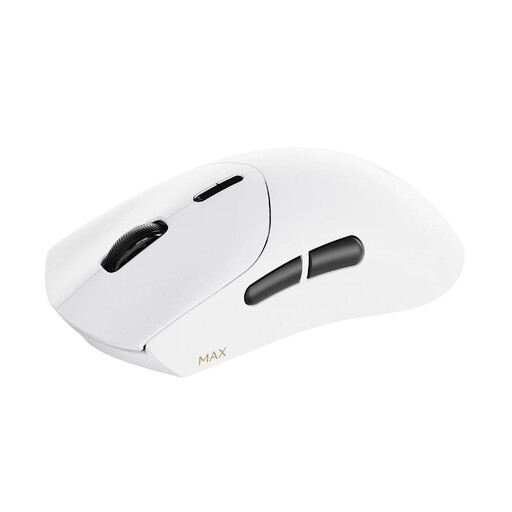 Image unavailable
Rapoo VT7 MAX Wireless Gaming Mouse, White
Consider this model if programmable controls matter more to you than a vertical grip. Its stated features include 10 programmable buttons, a 53 g weight and an 8K wireless polling rate; those figures do not establish a design-work advantage. Check scrolling behaviour and A HUB compatibility for your intended shortcuts.
View on Joybuy
 Image unavailable
V7 MW500BT Bluetooth Vertical Ergonomic Mouse
Consider this vertical mouse if an upright grip and forward/back navigation suit your workflow. The stated variant has Bluetooth and 2.4 GHz connection modes, six buttons and an adjustable sensor rated up to 1,600 DPI. Check hand fit and whether its controls meet your shortcut and scrolling needs.
View on Joybuy
Questions about mice for standing-desk design
Do I need a vertical mouse because I work at a standing desk?
No. Consider a vertical mouse if its grip suits your hand and a more upright hand position is your priority. The Health and Safety Executive also advises keeping the mouse within easy reach and using it with a straight wrist; a different shape does not replace those adjustments.
Where should I put the mouse on a standing desk?
Keep it close enough to use without stretching your arm, with room to maintain a straight wrist. Adjust the desk and keyboard placement so that position is practical; the Health and Safety Executive advises considering the whole workstation.
Will design shortcuts need mouse configuration software?
Custom button assignments may need the relevant configuration software, even when basic pointing does not. Logitech says Logi Options+ can configure buttons on supported devices; check your exact mouse, operating system and workplace software permissions before planning a shortcut workflow.
How do I clean a thumb trackball?
Follow the instructions for the exact model before removing or cleaning its ball. Logitech says the ball on its ERGO M575 for Business is removable for cleaning, but that feature should not be assumed for every trackball.


