Choose enough immediately visible, labelled controls for the timer, scene changes, microphone and recovery actions you need during a run. A compact key-based controller suits a short command list; more keys help when many scenes and controls must stay visible, while dials are worth considering for gradual adjustments only if the intended actions support them.
Who needs which controls?
Solo runners needing low-look controls
If you run and present at the same time, give timer and recovery commands distinct, recognisable positions away from gameplay inputs. Elgato documents Stream Deck actions for OBS, and a Windows LiveSplit plugin is available through Elgato Marketplace; check that your timer setup meets its requirements.
Runners producing a multi-scene broadcast
Gameplay, camera, intermission, timer visibility and audio can compete for space on the controller. Elgato specifies 32 customisable LCD keys for Stream Deck XL and 15 for Stream Deck MK.2; count the commands you want visible together before choosing a layout.
Presenters adjusting audio live
If you make repeated, gradual adjustments during commentary, rotary controls may be useful. Stream Deck + has four push encoders, but Elgato notes that not every Stream Deck plugin supports dials.
What matters when choosing?
Start with the commands that cannot wait until a run is over, then decide whether your remaining controls call for more visible keys or supported rotary adjustments.
Compact labelled keys
Consider when: Your essential timer and broadcast commands fit on a small set of direct keys. Elgato Stream Deck MK.2 has 15 customisable LCD keys.
Trade-off: Secondary commands may need pages or folders.
More labelled keys
Consider when: You want separate, visible commands for several scenes and fallback actions. Elgato Stream Deck XL has 32 customisable LCD keys.
Trade-off: The larger layout takes more desk space and offers keys rather than rotary controls.
Keys and dials
Consider when: Your presentation needs gradual adjustments as well as trigger actions. Elgato Stream Deck + combines eight LCD keys with four push encoders.
Trade-off: Dial support depends on the action or plugin, and fewer key commands fit on its main surface.
| Concern | What to check | Who this matters to |
|---|
| Timer and recovery commands |
Test the exact start, split and recovery actions in your timer setup; check the timer plugin and host computer before relying on direct control. |
If I am running and presenting alone, I need to recognise a timer or recovery command without searching through pages mid-run. Around 40% of consumers put that need first. |
| Visible broadcast controls |
Count the scene, source, audio and fallback commands that must remain visible together, then compare that count with the model’s physical keys. |
With several presentation scenes to manage, I want the next change ready without navigating a folder. Roughly 30% of consumers prioritise visible broadcast controls. |
| Gradual live adjustment |
Check whether each intended adjustment accepts dial input; a dial-equipped controller does not make every plugin action rotary. |
During commentary, I may need to adjust a level repeatedly rather than press an on/off key. About 30% of consumers place gradual control first. |
What can complicate the setup?
-
Assuming every action works with a dial
Elgato says not all Stream Deck plugins support dials. An encoder may therefore add little to a workflow built around key-only timer commands.
List the actions you intend to rotate, press and tap, then check each assignment in the relevant plugin before the event.
-
Checking the hardware but not the host software
Elgato warns that Stream Deck software may not work as expected on Windows on ARM. The LiveSplit plugin listed in Elgato Marketplace is Windows-only, so a suitable key layout alone does not establish timer compatibility.
Confirm your operating system, processor, Stream Deck software, OBS version and timer integration against the requirements for the setup you intend to use.
-
Relying on a long USB extension
Elgato recommends an extension of no more than one metre for Stream Deck and does not guarantee operation through an extension.
Use the supplied cable where practical. If an extension is necessary, test the complete desk and streaming setup before presenting live.
An unreliable cable may also mean rearranging the desk or obtaining a shorter extension.
-
Treating older Loupedeck hardware as a current software route
Loupedeck announced the end of its product-line sales effective 28 March 2025 and the end of support for legacy software version 5.8 and its marketplace effective 30 March 2026.
If considering remaining or used hardware, check which software version supports your required actions and what seller support applies to that unit.
Moving to another control setup later could take time if the available software no longer meets your workflow needs.
Brands to consider
Elgato
Stream Deck offers key-based and keys-plus-dials layouts for building an OBS-led speedrun presentation.
- Elgato documents OBS scene, source, audio, transition and recording or streaming actions; a separate Windows LiveSplit plugin is listed in Elgato Marketplace.
- Check the host software and intended plugin: key counts vary by model, and not all plugins support dials.
Logitech
MX Creative Console pairs a configurable display-key keypad with tactile dialpad controls, with Logitech highlighting creative-application workflows.
- Logitech describes customisation through Logi Options+ and profiles for selected applications.
- Test the particular OBS and timer actions you require rather than assuming a creative-app profile covers them.
Razer
Stream Controller X is a 15-key option for app and content-creation controls, according to Razer.
- Razer specifies 15 Switchblade keys for Stream Controller X.
- Confirm the model’s software and your exact OBS and timer actions before choosing it for a speedrun setup.
Joybuy controllers for a compact setup
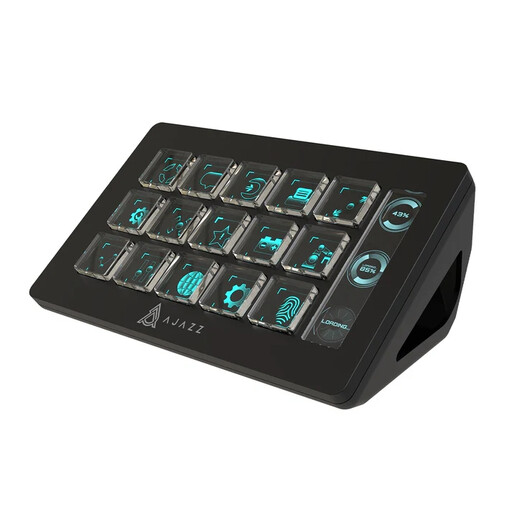
This compact, key-based option is relevant if you want a small set of direct presentation commands; check its timer and software setup before making it part of a live run.
 No image available
AJAZZ AKP153 Studio Controller, 15 macro buttons (Black)
A compact option for assigning a focused set of presentation commands. Its product listing names 15 macro buttons, OBS and PC/Mac use; confirm the controller software, the precise OBS actions and any LiveSplit timer commands you need before relying on it during a run.
Joybuy
Questions before you buy
Can a Stream Deck control OBS during a speedrun?
Yes, Elgato documents Stream Deck actions for OBS scenes, audio, source visibility, transitions and recording controls. Its documented integration baseline is Stream Deck 5.3 or newer with OBS Studio 27.0 or newer; also check the current software requirements for your host computer.
Can I use direct Stream Deck controls for LiveSplit?
A LiveSplit plugin listed in Elgato Marketplace provides direct Stream Deck control on Windows. Its listing specifies Stream Deck 6.5 or later and LiveSplit.Server, and says it does not support dials; confirm those requirements against your timer setup before buying for that purpose.
Do I need dials to present a speedrun?
Not if your essential commands are fixed actions such as splitting, changing scenes and muting. Consider dials when you need repeated gradual adjustments, and check the exact action first: Elgato notes that not all Stream Deck plugins support them.


