What matters when choosing?
For a controller tutorial, start with the actions you need during a take, then check whether the controller and recording software can perform them on your computer. Key count matters less if the controls you need cannot be mapped.
| Concern |
What to check |
Who this matters to |
| Hands-off recording and scenes |
Check how your recording software maps record/stop, scene changes and source visibility. For Elgato’s OBS integration, confirm the required Stream Deck and OBS versions. |
When I demonstrate button presses, I want to start recording and change prepared views without reaching for the keyboard; around 36% of consumers put hands-off recording and scene control first. |
| Live audio adjustment |
Decide whether mute is enough or you need repeated level changes. Check the available mappings and monitor the correct OBS audio source during a test. |
If I balance voice and gameplay sound during a take, I want controls I can adjust while listening to the result; roughly 29% of consumers prioritise live audio adjustment. |
| Dedicated actions |
Count the scenes and other commands you need visible at once, then consider whether folders or profiles would suffice on a smaller controller. |
With several prepared camera and gameplay views, I do not want to search for a command mid-demonstration; around 21% of consumers make immediate access to many actions their main priority. |
| Fixed, labelled shortcuts |
Compare physical labels with LCD icons, and check that the keypad software supports your computer and intended hotkeys. |
For a repeatable recording template, I would rather learn a fixed set of labelled keys than change on-key icons; roughly 14% of consumers place this kind of shortcut control first. |
Joybuy controllers for tutorial workflows
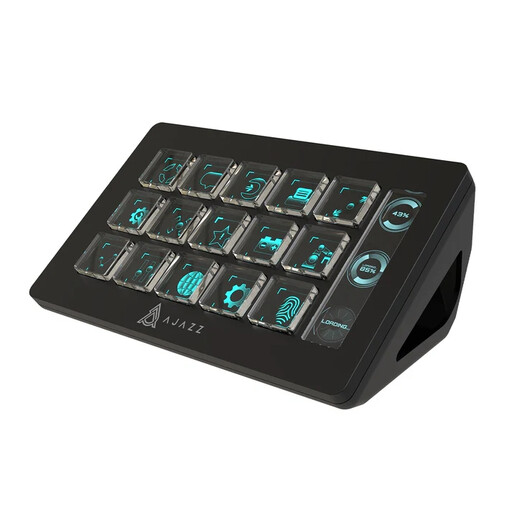
The controller below is a 15-button option to consider if you want a fixed set of shortcuts while filming. Check its action mappings against your recording workflow before choosing it for OBS controls.
 No image available
AJAZZ AKP153 Studio Controller, 15 Macro Buttons (Black)
The 15-button layout may suit a tutorial with a repeatable set of shortcuts. It is listed for PC/Mac; check current software compatibility and whether its mappings cover the recording, scene and source actions your setup requires.
Joybuy
Frequently asked questions
Can a stream controller record a controller tutorial by itself?
No. A stream controller triggers configured software actions; it does not replace a recording application, camera or capture device. Elgato documents record/stop controls for its OBS integration, while OBS Studio uses separately configured sources for video inputs.
What should I set up before mapping controller buttons in OBS?
Create and test the scenes and sources your tutorial needs, then map the recording, scene and audio actions you will use during a take. For Elgato’s documented OBS integration, check the stated minimum versions of Stream Deck 5.3 and OBS Studio 27.0 before configuring those actions.
Do I need dials to control tutorial audio?
Not if occasional mute controls or fixed audio settings meet your needs. Elgato’s Stream Deck + has four push encoders, which are worth considering if you repeatedly adjust levels and can map them to the intended functions. Test your audio sources and watch the OBS meters during a short recording.
What should I check about a controller sold for use in Great Britain?
Check the exact model, seller, supplied accessories and applicable marking information rather than relying on a generic product image. Department for Business and Trade guidance says UKCA and CE markings express a manufacturer’s belief that relevant product requirements are met; a marking alone does not establish the details of an individual listing. Northern Ireland has different processes.
What if a controller bought from a trader is faulty?
Contact the seller with the order details and a clear account of the fault. The Consumer Rights Act 2015, section 22, sets a time limit for the short-term right to reject where that right applies; the appropriate remedy depends on the circumstances. A fault remedy is distinct from a change-of-mind return.


