Silent-film catalogue planners
If you have particular films, restorations, archives or rental services in mind, check both the UK playback route and the exact edition before choosing hardware.


Choose a streaming device after checking that it supports the UK service carrying the silent-film edition you want: the hardware cannot guarantee a particular restoration, score or intertitle version. For a dark-room setup, match the device to your TV or projector and check text controls in the intended app. A device’s 4K or HDR capability helps only when the film and display support it, while captions depend on the provider.
If you have particular films, restorations, archives or rental services in mind, check both the UK playback route and the exact edition before choosing hardware.
If you already use a TV or projector in a low-light room, match the streamer’s output to the display and HDMI connection rather than choosing formats the equipment or film cannot use.
If you rely on subtitles or captions, check whether your chosen service supplies them for the film and whether its playback controls let you present them readably.
For silent films in a dark room, start with the film and UK service you intend to use. Then check how the device fits your display, text needs and installation.
| Concern | What to check | Who this matters to |
|---|---|---|
| Film and service access | Check that the intended service works on the platform in the UK, then inspect the exact film edition and its viewing options. | I want a particular restoration or score, so access to that edition comes before device features. Around 40% of consumers put film and service access first. |
| Display compatibility | Check the TV or projector’s HDMI connection, resolution and relevant HDR support against the film stream. | My dark-room display should determine which output formats are worth considering. For around 30% of consumers, matching the display is the primary concern. |
| Readable text and controls | Check whether the chosen title has a text track and whether its app offers the caption styling and playback controls you need. | I need supplied subtitles or captions to be easy to follow without interrupting the film. Readable text and controls come first for around 20% of consumers. |
| Reliable installation | Check power and network connections at the viewing position, including whether a stick needs wall power. | I want the film to play without connection or power interruptions in a fixed setup. Around 10% of consumers make installation reliability their main concern. |
A streamer’s listed formats do not establish what an individual film will display. Output also depends on the TV or projector and the HDMI chain.
Check your display’s supported formats and the intended stream before making 4K or HDR a deciding factor.
Plan for a suitable cable: Apple sells the Apple TV 4K HDMI cable separately, while Google recommends an Ultra High Speed HDMI 2.1-certified cable for optimal Google TV Streamer performance.
Roku says captions depend on the service provider, and some apps use their own controls. Device settings cannot supply a text track that the provider has not included.
Check a relevant title in the intended service for its available subtitles or captions and the controls that app provides.
Roku warns that some TV USB ports cannot provide enough power for a Streaming Stick, which can lead to a low-power warning.
Follow the stick’s power instructions and make sure a mains outlet is accessible if wall power is needed.
GOV.UK says a TV Licence is required to watch or record programmes as they are broadcast and to watch on-demand BBC programmes on iPlayer. Those activities depend on how you use the device, not which streamer you buy.
Consider whether your planned viewing includes live programmes or BBC iPlayer, and check the applicable GOV.UK guidance.
Apple TV 4K is an HDMI box for compatible televisions and projectors, with Wi-Fi and a higher-capacity Wi-Fi and Ethernet variant.
Google TV Streamer (4K) is an HDMI box with cross-app discovery features and built-in Ethernet.
Fire TV Stick 4K Plus is a compact HDMI-stick option using Amazon’s Fire TV interface.
Roku streaming players and Streaming Sticks are HDMI options for viewers who place importance on setup and caption controls.
These Roku stick-format choices are relevant to an HDMI-connected dark-room setup. Check your intended UK film service and edition, your display and the available power connection before choosing either model.
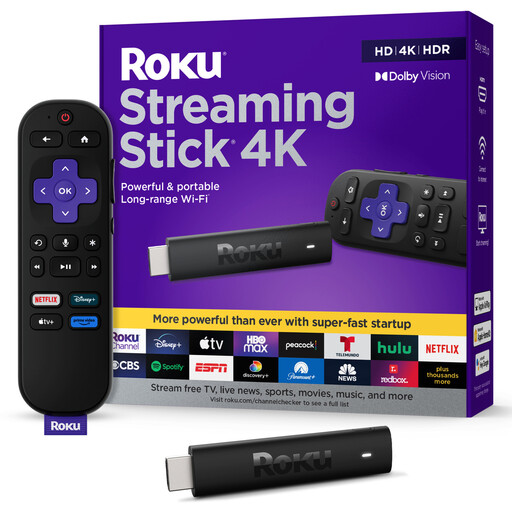 Image unavailable
A stick-format choice for an HDMI display when you want a compact streaming setup.
The product name specifies 4K and Dolby Vision; usable output depends on the film and display. Check the chosen service’s film edition and text tracks, and follow Roku’s wall-power guidance if TV USB power is insufficient.
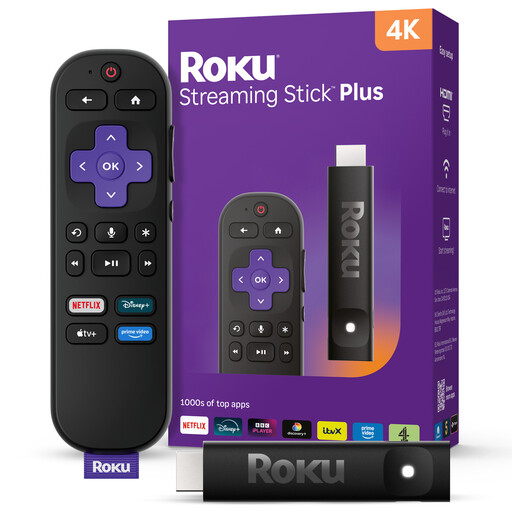 Image unavailable
A stick-format option for viewers using an HDMI-connected display.
Check that your UK service offers the intended film edition and any text track you need. Roku notes that some apps use their own caption controls; follow its power guidance if the TV USB port cannot supply enough power.
No: 4K or HDR is relevant only when the particular stream and your TV or projector support it. Apple specifies a compatible 4K and HDR display for those Apple TV 4K formats, while Google says Google TV Streamer output is limited by the connected display.
The device alone cannot guarantee a particular restoration. Check that the intended service works on the platform in the UK, then inspect the exact title for its edition, score, intertitle language and available text tracks.
Use a suitable mains power connection following the device’s instructions. Roku advises wall power if a Streaming Stick shows a low-power warning because the TV USB port supplies too little power.
The requirement depends on what you watch, not the streaming device itself. GOV.UK says you need a TV Licence to watch or record programmes as they are broadcast or to watch on-demand BBC programmes on iPlayer; check its guidance against your planned services.