What matters when choosing the audio route?
For occasional streaming on an existing monitor, choose a sound route you can control, then check the HDMI chain and power arrangement for the streamer you want to use.
Monitor headphone output
Choose when: The monitor has an accessible 3.5 mm output and your existing audio equipment has a compatible input.
Trade-off: Volume may still depend on the monitor's controls, so check how its headphone output behaves.
Audio that bypasses the monitor
Choose when: Private listening or a movable speaker matters, and your streamer supports the intended Bluetooth device or app-based headphone route.
Trade-off: Google allows one connected Bluetooth audio device at a time; Roku Headphone Mode needs a phone or tablet on the same wireless network as the Roku device.
HDMI audio extractor
Choose when: The monitor accepts HDMI video but cannot provide the audio output needed by your speakers, soundbar or amplifier.
Trade-off: This adds a powered device whose audio outputs, video pass-through and HDCP support must match the rest of the setup.
ARC or optical soundbar connection
Choose when: The monitor has the corresponding ARC/eARC or optical output and the soundbar accepts it.
Trade-off: An ordinary monitor HDMI input does not provide audio return merely because the soundbar has HDMI.
| Concern |
What to check |
Who this matters to |
| A workable sound route |
Check the monitor's usable audio outputs and whether the intended streamer can pair with your audio device; for wired extraction, match the extractor's output to your equipment. |
If my monitor's speakers or outputs do not meet my needs, I need a way to hear streaming audio without depending on its awkward controls. Around 31% of consumers put a workable sound route first. |
| Accessible volume control |
Check which device the remote or app actually controls, and whether the chosen speaker or headphones have their own volume control. |
When volume is buried in a rear monitor menu, I want to adjust it from where I watch. Convenient volume control is the primary concern for around 31% of consumers. |
| Protected 4K or HDR playback |
Compare the monitor input's resolution, refresh rate and HDCP support with every inserted device's video and HDR pass-through. |
If I am choosing a 4K or HDR stream, I do not want an audio component in the HDMI chain to prevent the picture format I need. Around 23% of consumers prioritise video-chain compatibility. |
| A simple occasional setup |
Check HDMI clearance, the streamer's required power arrangement and whether the monitor's existing sound is adequate. |
For occasional viewing, I would rather use the monitor's existing sound if it works for me than add more equipment. Keeping the setup simple comes first for around 15% of consumers. |
Joybuy streaming devices for monitor setups
This Roku streaming-stick option is relevant if you want to add streaming to an existing monitor; work out its connection, power, sound and volume-control requirements for your setup before choosing it.
 No image available
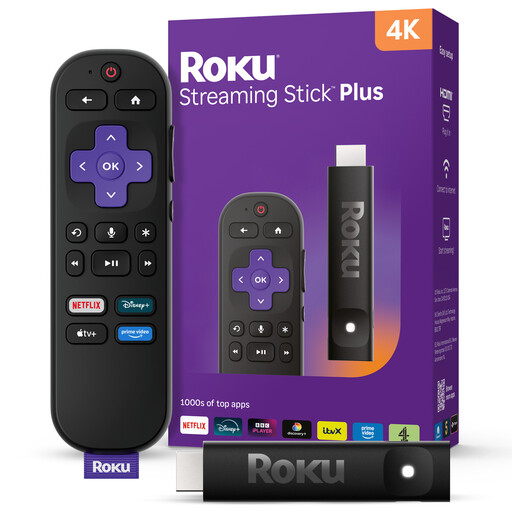
Roku Streaming Stick 4KPlus
A streaming-stick option for occasional viewing on a computer monitor. Check this 4KPlus model's connection and power requirements against your monitor.
If private listening or remote volume adjustment matters, confirm which headphones work with this model and which device its volume controls operate. For the picture format you want, check the monitor input and full HDMI chain.
View on Joybuy
Questions about streaming on a monitor
Can I use a computer monitor with a streaming stick?
Yes, if the monitor has a suitable HDMI input and you can power the chosen streamer. Also plan where sound will play and how you will control it; for protected 4K or HDR playback, check the display input and any intermediate equipment against the streamer's requirements.
Will the streaming remote control my monitor's volume?
Not necessarily: volume controls intended for a compatible TV or audio device may not operate a monitor. Check the remote's supported control path and consider audio equipment with its own controls if the monitor's menu is inconvenient.
How do I get sound if my monitor has no useful audio output?
You can consider direct Bluetooth pairing on a compatible streamer, Roku app-based headphone listening on a supported device, or an HDMI audio extractor feeding suitable audio equipment. Check pairing requirements or, for an extractor, its outputs and video pass-through before choosing.
Will an HDMI audio extractor preserve 4K and HDR?
Only if the particular extractor supports every format required by your setup. Compare its resolution, refresh rate, HDR and HDCP specifications with the streamer, monitor and content you intend to watch; a 4K label alone does not establish HDR support.
Do I need a TV Licence to stream on a monitor in the UK?
You need the required TV Licence to watch or record live TV or use BBC iPlayer, even when the display is a computer monitor, according to GOV.UK and TV Licensing. Check your viewing mode rather than treating the monitor itself as an exemption.


