What to check before buying
Find the sound path first, then check how you will adjust its volume. The monitor’s exact ports and the audio device’s inputs determine which connections are practical.
| Concern |
What to check |
Who this matters to |
| Getting sound from the setup |
Check the monitor manual for speakers or audio-out, then confirm that the chosen streamer’s Bluetooth audio or an extractor provides a compatible alternative. |
If my monitor displays HDMI video but gives me no usable sound, I need audio to reach headphones or speakers without relying on it. Around 33% of consumers put that audio path first. |
| Sound for shared viewing |
Match the available audio output to a powered speaker or soundbar input; check an extractor’s video pass-through if one is needed. |
When someone else is watching with me, I want sound from a separate speaker rather than headphones. For around 25% of consumers, that speaker connection is the primary concern. |
| Volume and power control |
Check the exact monitor or audio device for compatible HDMI-CEC or IR control, and confirm where the sound is routed. |
I want to change the volume without reaching for monitor buttons or several controls, so I need the remote to work with the device producing sound. Around 25% of consumers prioritise that control route. |
| Using existing equipment |
Check the streaming service’s computer and browser requirements, plus the computer’s audio output options. |
For occasional viewing, I would rather use my connected computer if it can play the service and send sound to my headphones or speakers. Avoiding extra hardware comes first for around 17% of consumers. |
Joybuy products for monitor streaming
These choices cover a standalone streaming stick and separate speaker or soundbar options. Choose an audio product only after confirming that your monitor, streamer or an appropriate extractor can feed its input; the products do not all provide the same connection or volume-control route.
 No image available
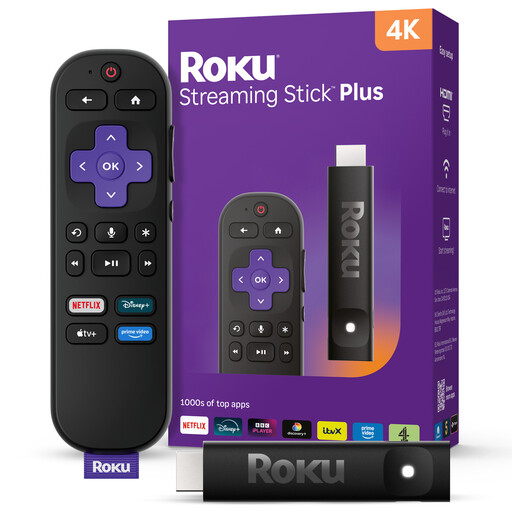
Roku Streaming Stick 4KPlus
A standalone streaming option if you want playback without keeping a computer connected. Check the exact 4KPlus variant’s private-listening method and your monitor’s HDMI compatibility before buying.
Do not rely on its remote to change monitor or speaker volume until you have confirmed a compatible control route.
View on Joybuy
 No image available
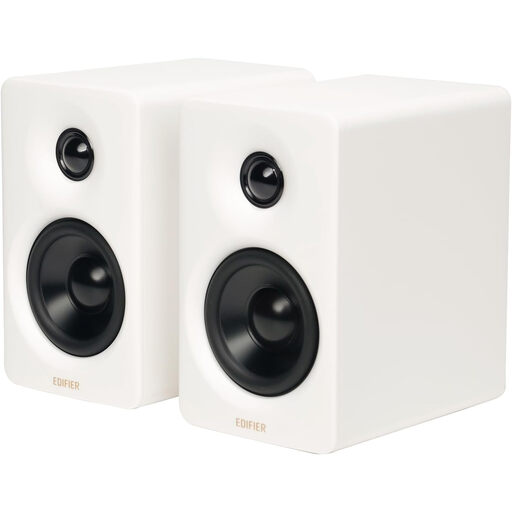
Edifier M60 Bluetooth 5.3 desktop speakers
For separate desk speakers, confirm that your monitor or playback device can send audio to the M60’s Bluetooth, USB-C or AUX input.
The product name lists 66 W RMS, LDAC, a 3-inch mid-bass driver and a 1-inch tweeter. Check how volume will be adjusted with your chosen source.
View on Joybuy
 No image available
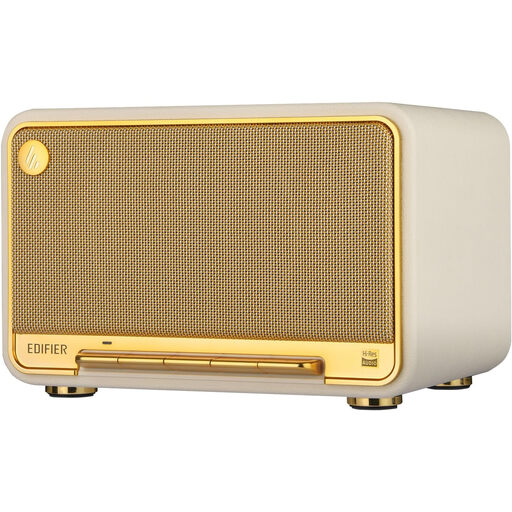
Edifier D32 tabletop wireless speaker
A separate tabletop speaker is an option if your streamer or computer can supply compatible audio. Confirm the connection and volume-control method before pairing it with a monitor.
The product name lists Bluetooth 5.3, AirPlay2, USB-C and AUX inputs, app control and 60 W RMS.
View on Joybuy
 No image available
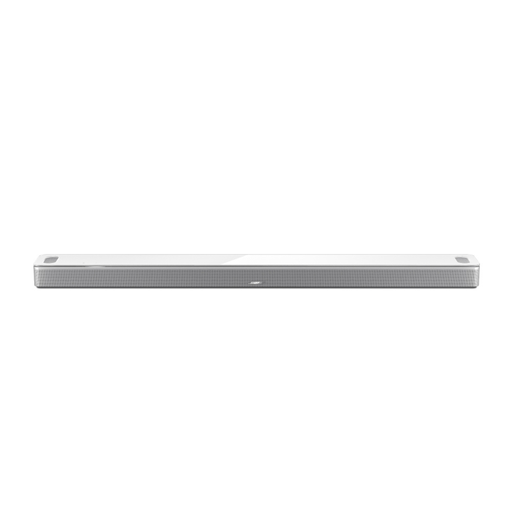
Bose Smart Ultra Soundbar, Arctic White
Consider this soundbar for separate room sound only if you can provide a compatible audio connection. Check the exact monitor or extractor against the soundbar’s listed inputs before buying.
The listing describes optical and HDMI eARC inputs and a remote. Its listed width is 104.5 cm, so check the available space as well as the connection; eARC and remote control should not be assumed to work through a standard monitor HDMI input.
View on Joybuy
Frequently asked questions
Will a streaming-stick remote control the volume on any computer monitor?
No. Volume control needs a compatible device to receive the command, such as a display, receiver or soundbar supporting the remote’s IR or HDMI-CEC route. Check both the monitor’s control features and the device actually producing the sound.
Can I use Bluetooth headphones if my monitor has no headphone socket?
Yes, if the streaming device itself supports Bluetooth audio and can pair with your headphones. Google documents this route for Chromecast with Google TV and Google TV Streamer (4K), while Apple documents Bluetooth accessory pairing for Apple TV 4K; check the exact model and pair through its settings.
When would I need an HDMI audio extractor?
An extractor is a route to consider when the monitor shows HDMI video but offers no usable audio output and you want wired audio equipment. Its audio connector and supported format must match your sound device, while its video pass-through must suit the streamer and monitor.
Can I connect a TV soundbar directly to a computer monitor?
Only if the soundbar has an input that matches an available audio output from the monitor or another device in the setup. A soundbar relying on HDMI ARC/eARC needs a compatible ARC/eARC path; an ordinary monitor HDMI input does not establish one.
What should I check when powering several devices at the desk?
Use appropriate, undamaged power supplies and avoid overloading sockets or extension leads. Electrical Safety First warns that plugging several devices into an adaptor does not necessarily make the arrangement safe.


