Who is this decision for?
The useful starting point is what the household wants to watch and whether the existing television can accommodate an external device.
Households with a working HDMI TV
If the screen works but its apps do not meet your needs, an HDMI streaming device offers a way to use internet-delivered TV without replacing the display. Check that an input is free and that the device can use your home connection. The Department for Culture, Media and Sport and Revealing Reality identify internet access and technical ability as factors in households’ decisions about internet-delivered TV.
Viewers choosing around particular services
Start with the apps and TV services you actually use, rather than the label “smart TV”. Netflix advises checking device support and notes that its app may no longer be available on some older TVs and streaming devices; a required plan may also depend on the device’s software.
Viewers who need accessible navigation
Consider how the viewer will complete setup, move through menus and control playback. Amazon documents VoiceView for Fire TV, Google documents TalkBack during Google TV setup, and Apple documents VoiceOver and other Apple TV 4K accessibility settings. Check the exact device and the services used for the functions the viewer needs.
What should you check first?
Choose the route according to what is wrong—or missing—with the current TV, then check the connection, services and setup on the particular device.
Streaming stick
Choose it when: The TV still works and you mainly want to add apps through a spare HDMI input.
Bear in mind: A stick adds a platform account and cannot remedy a failing screen or provide a missing HDMI input.
Streaming box
Choose it when: You want a separate app platform and can accommodate a powered box and its HDMI cable.
Bear in mind: The TV and connection must also support any picture format you intend to use; the box cannot change the screen’s capabilities.
Subscription-led set-top box
Choose it when: The accompanying TV service, rather than app access alone, is the reason for the switch.
Bear in mind: The package terms and any equipment-return conditions matter alongside the device itself.
New smart TV
Choose it when: The existing display, its inputs or the way it meets the viewer’s needs also warrants replacement.
Bear in mind: A new TV’s apps and software can still change, so check its exact model rather than assuming every service is included.
| Priority | What to check | Your needs |
|---|
| TV and internet connection |
Check for a free HDMI input and the proposed device’s connection and power requirements. Check whether Wi-Fi or Ethernet is available where the TV sits. |
I want to keep my working screen, provided the new device can connect to it and use my home internet. |
| Apps and accounts |
Confirm each essential UK app on the exact model, including compatibility with the plan you use. Check the platform account and any separate service sign-ins needed for setup. |
The services I watch need to work on this device; a platform name alone does not settle that question. |
| Accessible use |
Check spoken navigation, captions, audio descriptions or other required controls on the exact device. Consider both initial setup and everyday navigation, as well as support within the content service. |
Someone in my household needs to be able to set up and navigate the TV service using the controls available to them. |
| Software support |
Check the exact model’s current update position and the services it still runs. Google Streaming Help states that Chromecast (1st gen) no longer receives software or security updates; that notice does not establish a support period for other models. |
I rely on these apps for regular viewing, so I want to know the device’s current support position before buying. |
| Service commitment |
For a subscription-led set-top box, read the current package and equipment terms. Sky describes both 24-month and flexible monthly rolling plans for Sky Stream; check which conditions apply to the option you select. |
Live TV and the bundled service may matter more to me than adding another standalone app platform. |
Which platforms are relevant?
These platform examples help narrow the checks; their features and requirements should not be assumed to apply to every device bearing the brand.
Amazon Fire TV
Fire TV Stick is an HDMI streaming-stick route for a TV with a suitable input.
- Amazon documents VoiceView spoken navigation for Fire TV.
- Fire TV Stick setup requires an Amazon account and internet connection; check required apps on the exact model.
Google TV
Google TV is an app platform used by devices including Google TV Streamer.
- Google documents Wi-Fi or Ethernet setup and a TalkBack shortcut during setup.
- Setup requires a Google Account; check current app and update support for the device you are considering.
Apple TV
Apple TV 4K is a separate streaming-box option for an HDMI television.
- Apple documents VoiceOver, zoom, captions, audio descriptions and mobility controls on Apple TV 4K.
- Apple TV 4K needs an HDMI cable, broadband and an Apple Account for App Store downloads and specified services; some features vary by region or hardware.
Sky Stream
Sky Stream is a subscription-led TV service delivered through a puck connected to an HDMI television.
- Sky documents Wi-Fi or Ethernet connection and access to Sky content alongside selected apps.
- Check the selected package and its equipment conditions rather than treating the puck as a standalone app device.
Roku
Roku players provide another streaming-device platform for an existing TV.
- Roku documents account activation and software updating for its streaming players.
- Activation needs internet and a Roku account. Roku’s cited screen-reader availability statement concerns players currently sold in the US and Canada, so check accessibility on the exact UK model.
Streaming-stick options on Joybuy
These two Roku streaming sticks represent the plug-in route for keeping an existing TV. Check the connection, required UK apps and account setup for the model you choose; they do not answer whether a subscription-led service or a new display better meets a different need.
 No image available
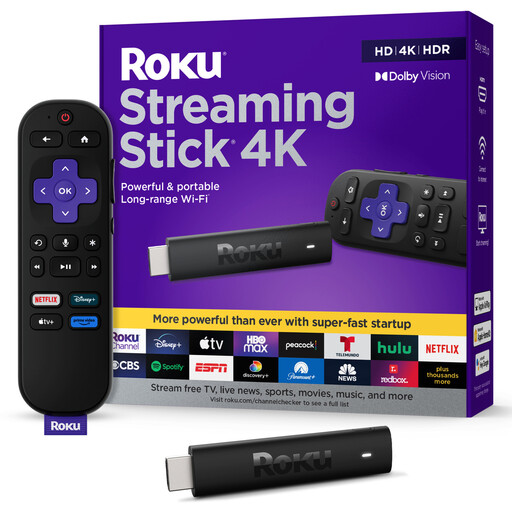
Roku Streaming Stick 4K Dolby Vision
A streaming-stick option for adding apps while keeping a compatible TV. Its product description specifies a direct HDMI connection and lists 4K UHD and Dolby Vision; check that your TV supports the formats you want to use. Roku activation needs internet and a Roku account. Confirm your essential UK apps, plan compatibility and any required accessibility features on this exact model.
View on Joybuy
 No image available
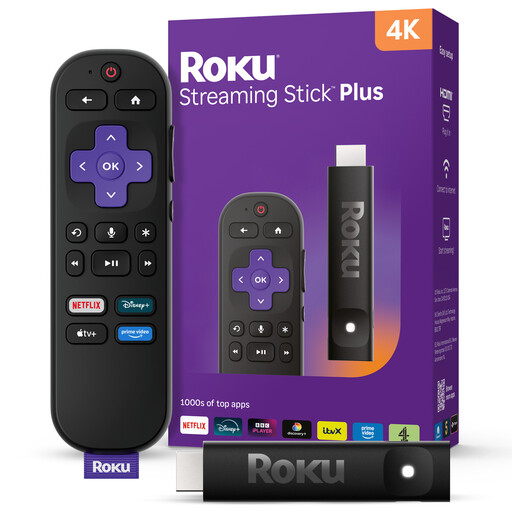
Roku Streaming Stick 4KPlus
A streaming-stick option for retaining your current television. The product name specifies 4KPlus; check the connection required by this exact model and whether your TV has the appropriate input. Roku activation needs internet and a Roku account. Confirm the UK apps, plan compatibility and accessibility functions you need before choosing it.
View on Joybuy
Frequently asked questions
Will every streaming device run the apps I use?
No: check each essential UK service on the exact model before buying. Netflix lists supported device families but warns that its app may no longer be available on some older TVs and streaming devices; device software can also affect whether a particular plan works.
Which accounts might I need to set up a device?
It depends on the platform: Amazon lists an Amazon account for Fire TV Stick, Google lists a Google Account for Google TV, Apple lists an Apple Account for App Store downloads and specified Apple TV 4K services, and Roku requires a Roku account for activation. Check sign-in access and any separate memberships for the apps you intend to use.
What accessibility features should I check?
Check whether the intended viewer can complete setup, navigate menus and use the required service. Amazon documents Fire TV VoiceView, Google a TalkBack setup shortcut, and Apple VoiceOver and other Apple TV 4K controls. Roku documents screen reading, but its cited availability statement is limited to players currently sold in the US and Canada; confirm support on the exact UK player.
When does Sky Stream make more sense than a streaming stick?
Consider Sky Stream when you want Sky’s subscription TV service and its integrated viewing experience, not simply a way to add apps. Sky says its puck connects to an HDMI TV using Wi-Fi or Ethernet; check the current package, equipment conditions and requirements for the viewing formats you want.


