What should you check first?
Start with the computer's external-display capability. Once you know how two screens can be connected, choose the arrangement that fits your desk and the windows you keep open while arranging.
Two monitors on separate stands
Choose when: You want to position or replace each screen independently as your score, parts and reference layout changes.
Allow for: Two stands take desk space, and the screens still need a supported connection path through the computer, a dock or a compatible chain.
Hub monitor and second display
Choose when: Your computer supports the required USB-C or Thunderbolt video connection and you want the first monitor to serve as a connection hub.
Allow for: A monitor's daisy-chain feature does not establish that your computer, dock and cables can run two independent screens.
Paired screens on a dual stand
Choose when: Aligning both panels with a shared desk-mounted stand matters more than selecting and positioning each stand separately.
Allow for: A clamp or grommet mount needs a suitable desk; the screen connection must still match your computer's capabilities.
| Concern |
What to check |
Who this matters to |
| Independent displays |
Check the computer or dock's external-display limit and the supported ports, cables and resolution combination. Confirm that the planned connection permits an extended rather than mirrored desktop. |
If I need my score and parts visible at once, I cannot rely on two monitor sockets alone to tell me what my computer can run. Around 42% of consumers put connection certainty first. |
| Side-by-side workspace |
Compare native resolution and panel size, then check how the two physical screens and your software's window layout will work together. |
Keeping notation and reference windows open together matters more to me than reducing cables; around 33% of consumers primarily want a workable side-by-side workspace. |
| Positioning and desk fit |
Measure the available desk space and, for a mounted stand, check its clamp or grommet requirements. Compare the adjustments you need for each screen. |
For long arranging sessions, I need both screens positioned comfortably without assuming a dual mount will fit my desk. Desk fit and adjustment are the main concern for around 25% of consumers. |
Relevant monitor brands
These model lines illustrate different connection and mounting choices, not a judgement about every monitor each brand makes.
Dell
Dell's UltraSharp 27-inch QHD models include a conventional adjustable monitor and a more connection-focused hub model.
- Dell UK lists the U2724DE with 2560 × 1440 resolution, Thunderbolt 4, 90 W power delivery, Ethernet, a USB hub and digital daisy chaining. It lists stand adjustment and digital daisy chaining for the U2724D.
- Those model specifications do not establish that a particular computer supports the proposed two-monitor chain.
BenQ
The Creative Pro PD2705Q is a QHD option for arranging work that also involves colour-sensitive visual materials.
- BenQ UK lists 100% sRGB and Rec.709 coverage, a factory calibration report, 65 W USB-C power delivery, DisplayPort output with MST and an adjustable stand for this model.
- Its listed refresh rate is 60 Hz. The colour specifications are manufacturer claims, not evidence that notation will be more legible or that every computer supports a two-screen connection.
LG
The 27QP88D addresses paired-screen positioning through an Ergo Dual stand rather than two separate desk stands.
- LG UK lists a C-clamp and grommet dual stand with position adjustments and QHD/60 Hz daisy chaining for this model.
- Check that your desk accepts the specified mount and that your computer supports the intended connection; neither condition follows from the monitor specification alone.
Joybuy monitors to consider
These are individual panels to consider when planning a two-screen notation workspace, not complete paired-screen systems. Before choosing any of them, check whether your computer can drive two external displays and how each panel would connect and fit on your desk.
 No image available
ASUS ProArt PA278CV IPS WQHD
Consider this IPS WQHD panel as one screen in a separately arranged pair. Check the connections and positioning needed for your second screen before choosing a layout.
View on Joybuy
 No image available
ASUS ProArt PA278CFRV IPS QHD 100Hz
This QHD panel is another individual-screen option for a score-and-parts layout. Its title specifies 100 Hz; check the exact variant's ports and your computer's two-display support before relying on a particular connection method.
View on Joybuy
 No image available
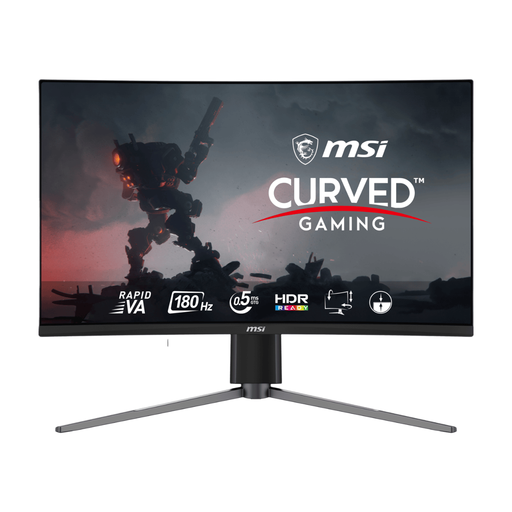
MSI MAG 27CQ6F 27-inch WQHD Curved Monitor
Consider the curved WQHD panel only if that shape suits the physical arrangement you want beside a second screen. Its title identifies a Rapid VA panel and 180 Hz refresh rate; neither establishes how two displays will connect to your computer.
View on Joybuy
 No image available
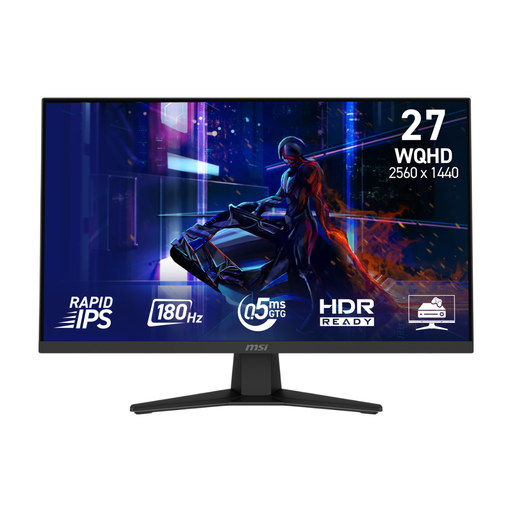
MSI MAG 274QF 27-inch WQHD Monitor
This WQHD model can be assessed as one panel in a two-screen layout. The title identifies a Rapid IPS panel and 180 Hz refresh rate; plan the second screen's placement and confirm the computer's external-display capability separately.
View on Joybuy
 No image available
MSI MD272UPSW 27-inch 4K UHD Smart Monitor
Consider this IPS 4K UHD model if you want to assess a higher-resolution panel alongside your arranging windows. Its title specifies Google TV and USB-C 65 W; confirm the USB-C video mode and the resolution your computer can support across two external displays before planning the connection.
View on Joybuy
Questions about two-screen arranging
What should I check before buying two monitors for a Windows arranging setup?
Confirm that your computer or dock can run two independent external displays at the resolution you intend to use. Once they are connected and detected, Microsoft Support explains how to identify and arrange the screens in Windows; choose an extended layout rather than duplicating the same image.
Will a USB-C or Thunderbolt monitor run two screens from any laptop?
No: a monitor's USB-C, Thunderbolt or daisy-chain feature does not establish what your laptop can output. Check the computer maker's external-display specification, the dock if you use one, and the required cable and second-screen connection.
How should I set up two screens for long arranging sessions?
Choose screens or mounts that let you position both panels for your desk, then account for lighting, reflections and breaks. The Health and Safety Executive notes that poorly designed workstations or incorrect display-screen use can contribute to discomfort, fatigue and eye strain.
Can I return an online-bought monitor if the layout does not suit me?
A change-of-mind return may be available for an online purchase from a business: Citizens Advice describes a 14-day cooling-off period for goods bought without seeing them in person, subject to applicable conditions and exceptions. Check the terms for your purchase and distinguish a change of mind from a remedy for goods that are faulty, damaged or misdescribed.
What should I do with an old monitor?
Check an appropriate electrical-equipment recycling or retailer take-back route rather than putting a monitor in ordinary household waste. GOV.UK describes the UK waste electrical and electronic equipment framework; confirm which local collection or drop-off services accept monitors.


