If a centrally placed router reaches the presentation room, start by considering a single Wi-Fi 6 router with suitable wired connections. If that room remains a weak spot, consider mesh Wi-Fi where the extra nodes can be placed sensibly. Neither choice makes incompatible screen-sharing devices work together or improves the underlying broadband connection, so check the sharing method and existing hub arrangement before buying.
Who needs which setup?
Student presentation hosts
If you are presenting from a laptop or phone to a shared screen, check what the screen or its adapter supports before changing the Wi-Fi. Google Cast Help and Apple Support instruct users to connect their sending device and receiver to the same Wi-Fi network for their respective sharing methods; Microsoft Support says Windows wireless projection needs a Miracast-capable display or adapter.
Students presenting from a weak-signal room
If the presentation room is separated from the broadband entry point by walls or floors, check the signal there rather than choosing by advertised router speed alone. Ofcom advises that mesh can improve Wi-Fi coverage; whether extra nodes help depends on where you can place them.
Shared-house organisers watching the setup burden
If several residents rely on the existing provider hub, find out whether a new router would replace it or connect alongside it. Ofcom notes that a separately bought router can be trickier to set up and that the broadband provider may not assist with resulting problems.
What matters when choosing?
Settle the screen-sharing method first, then check the signal in the room where you will present. A single centrally placed router is a starting point for a room with usable coverage; mesh addresses a persistent coverage problem but requires places for additional powered nodes.
| Concern |
What to check |
Who this matters to |
| Screen-sharing compatibility |
Identify the sender, display or adapter, and whether they use Cast, AirPlay or Miracast. Check their network requirements. |
If I cannot connect my laptop or phone to the shared screen, a faster router will not rescue the presentation; around 42% of consumers put compatible sharing first. |
| Presentation-room coverage |
Check the signal in that room and whether central router placement is possible. Consider mesh node positions if the room remains a weak spot. |
When the screen is several rooms away from the broadband entry point, I need the connection to reach it consistently; room coverage comes first for around 33% of consumers. |
| Setup and equipment |
Confirm the provider connection and whether the existing hub must stay. Check what additional nodes or presentation adapters the chosen arrangement needs. |
I want an upgrade the house can set up without disrupting everyone else’s connection; around 25% of consumers prioritise a manageable setup and equipment commitment. |
What can go wrong?
-
Assuming a router makes every display compatible
Wi-Fi capacity does not add Cast, AirPlay or Miracast support to a device. Microsoft Support specifies a Miracast-capable display or adapter for Windows wireless projection, while Google Cast Help and Apple Support describe same-network requirements for their sharing methods.
Check the exact presenter device, receiver and sharing method. For an important presentation, check whether the display accepts a suitable wired connection too.
A wired fallback may need a compatible cable or adapter; wireless sharing may need a separate receiver.
-
Buying by advertised Wi-Fi speed alone
A headline rate does not tell you how well the signal reaches a particular room. ASUS cautions that actual throughput and coverage vary with network and environmental conditions.
Check the presentation room after sensible router placement. Compare mesh arrangements if coverage remains weak.
-
Replacing the provider hub without a plan
The house’s broadband connection may need a particular hub arrangement. Ofcom notes that separately bought routers can take more work to set up and may receive less help from the broadband provider when problems occur.
Ask whether the new device can replace the hub or should run as an access point alongside it before ordering.
-
Choosing mesh without places for the nodes
Mesh is a coverage option, not a substitute for placing its units where they can connect usefully. Extra nodes need suitable powered locations between the broadband entry point and the weak room.
Map those locations before choosing a pack. If one centrally placed router already serves the presentation room, assess whether extra nodes address any remaining need.
A multi-node arrangement also means finding power sockets and setting up additional units.
Brands to consider
TP-Link
The Archer AX55 is a reference point for a standalone Wi-Fi 6 router when a central location can serve the presentation room.
- TP-Link lists dual-band Wi-Fi 6, Gigabit ports and EasyMesh compatibility for the Archer AX55, leaving an option to assess expansion later.
- Those specifications do not establish coverage in a particular house or compatibility between the presenter and display.
ASUS
The RT-AX57 is relevant if the house wants a standalone router with a choice of operating modes.
- ASUS lists four Gigabit LAN ports, router and access-point modes, guest-network controls and AiMesh support for the RT-AX57.
- The right operating mode depends on the existing broadband equipment; ASUS also cautions that real coverage and throughput vary with conditions.
eero
The eero 6+ range offers a mesh route to assess when the intended presentation room has a persistent weak signal.
- eero offers eero 6+ in one-, two- and three-unit options, allowing the number of nodes to be considered against the house layout.
- Extra units need useful powered positions; the pack choice should follow the actual coverage problem rather than an advertised coverage figure alone.
Joybuy product choices
These choices include one standalone router and several three-unit mesh systems. Consider the standalone option where one location can serve the presentation room; assess a mesh system if weak room-to-room coverage calls for additional nodes. Check the existing broadband and screen-sharing arrangements whichever route you take.
 No image available
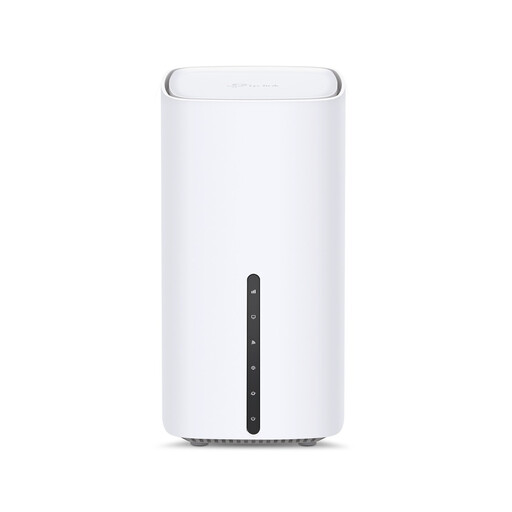
TP-Link Archer NX500 5G AX3000 Dual-Band Router
Consider this standalone router if a single location reaches the presentation room. Its title identifies 5G, AX3000 and dual-band operation; check compatibility with the house’s broadband or intended mobile service and confirm the Ethernet port layout if wired devices matter.
View on Joybuy
 No image available
TP-Link Deco BE22 BE3600 Mesh Wi-Fi 7, 3-Pack
Consider this three-unit mesh system if the presentation room has a persistent weak signal and the house has suitable node locations. The title specifies Wi-Fi 7 and BE3600; confirm how the system connects to the existing broadband equipment before choosing it.
View on Joybuy
 No image available
NETGEAR Orbi 370 RBE373 Dual-Band Wi-Fi 7, 3-Pack
This three-unit mesh option is relevant if coverage between rooms is the main problem. Its title specifies BE3600 and 2.5 Gbps Ethernet; check the required modem or gateway arrangement and confirm UK suitability and support for the RBE373-100EUS version before buying.
View on Joybuy
 No image available
TP-Link Deco BE25 Mesh Wi-Fi 7, 3-Pack
Consider this three-unit mesh system where one router cannot reach the presentation room adequately. The title identifies Wi-Fi 7; check where the units can be powered and how the main unit will connect to the house’s broadband equipment.
View on Joybuy
 No image available
TP-Link Deco BE65 BE9300 Tri-Band Wi-Fi 7, 3-Pack
This three-unit mesh system is another option to assess for a weak-signal presentation room. Its title specifies tri-band Wi-Fi 7 and BE9300; confirm powered node positions, broadband compatibility and the Ethernet connections you need for any wired fallback.
View on Joybuy
Common questions
Will a new router let me share a presentation wirelessly?
Only if the presenter device and receiver support a compatible sharing method. Microsoft Support specifies a Miracast-capable display or adapter for Windows wireless projection; Google Cast Help and Apple Support instruct users to put their respective sending and receiving devices on the same Wi-Fi network.
Should the presenter and TV use the guest network?
Use a network arrangement that lets the two devices find each other. For Google Cast and the AirPlay workflow described by Apple Support, connect them to the same Wi-Fi network; check a guest network’s local-device access settings before relying on it for a presentation.
Can we replace the broadband provider’s router?
Possibly, but check the provider connection and whether the new device needs to replace the hub or work alongside it. Ofcom notes that a separately bought router can be trickier to set up and that the provider may not assist if problems occur.
Where should the router go for a student-house presentation?
Start with a sensible central position if the broadband connection and house layout allow it, then check the signal in the actual presentation room. If coverage there remains weak, assess whether mesh nodes can be placed between that room and the main router rather than relying on a higher advertised Wi-Fi rate.


